Could a “legitimate” Outlook add-in really steal your login and payment details without sending you a single phishing email?
Yes. As of February 12, 2026, researchers documented a hijacked Outlook add-in that displayed a fake Microsoft sign-in inside Outlook and helped steal 4,000+ Microsoft account credentials, along with credit card numbers and banking security answers, based on recovered attacker data and follow-on reporting.
Most people think phishing starts in the inbox. A shady message. A weird link. A moment of distraction.
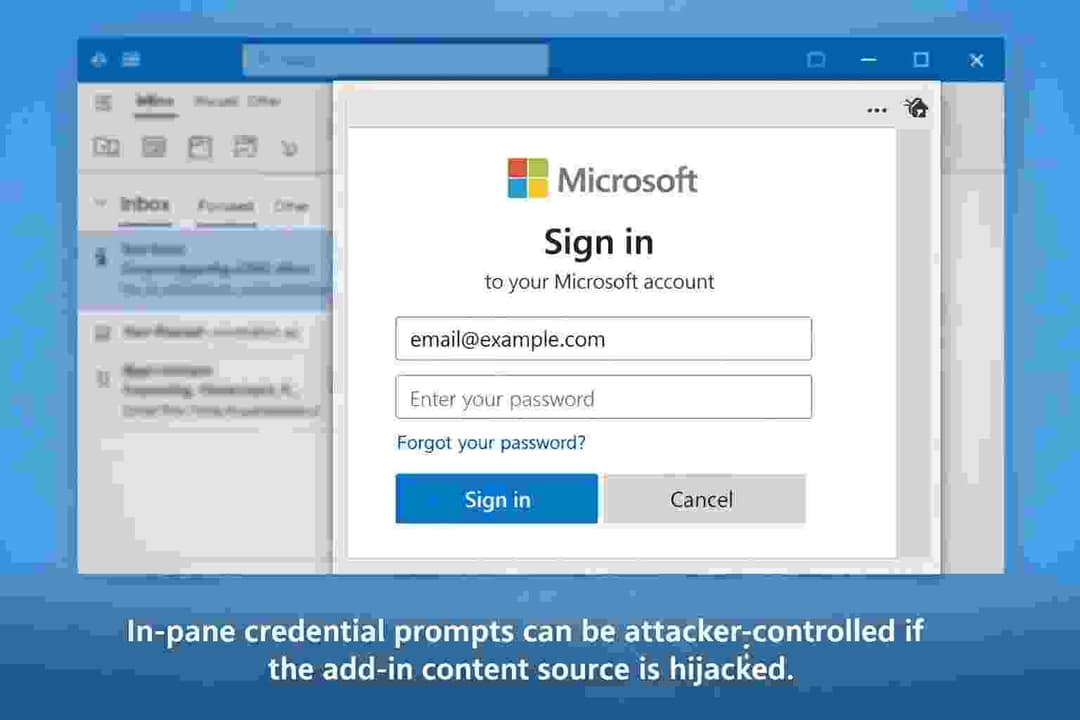
This case flips that mental model. A Microsoft Outlook add-in that was once harmless was later turned into a credential-stealing trap because the web address it relied on became available for someone else to claim. When users opened the add-in, they saw what looked like a normal Microsoft login prompt inside Outlook’s sidebar. Many would not hesitate. It felt native. It felt trusted. It was neither.
If you manage identity, email security, or Microsoft 365 in any serious way, this matters for a simple reason: Microsoft Outlook Email is not just mail. It is where password resets happen, where invoices arrive, where approvals get clicked, where Teams links land, and where “one quick sign-in” can become an account takeover.
In this guide, you’ll learn what happened, how Outlook add-ins actually work, why the permission model matters, and how to reduce your exposure without treating every add-in like malware.
What happened?
A security research team reported what they described as the first known malicious Outlook add-in observed in the wild, created not by a rogue original developer but by an attacker who took over infrastructure the add-in depended on.
Here’s the core storyline, stripped of hype:
The short timeline
· Dec 2022: Add-in reviewed, signed, and published (reported as last updated around this time).
· After abandonment: The hosting URL became claimable and was taken over by an attacker.
· During the attack window: Users saw a login prompt inside Outlook; data was sent out via Telegram infrastructure.
· After disclosure: Microsoft removed the add-in (per reporting).
What was stolen (confirmed) and what is not confirmed?
Confirmed by the research and follow-on reporting:
· Stolen Microsoft account credentials (4,000+).
· Stolen payment-related data, including credit card numbers (reported as recovered from attacker-side collection).
· Exfiltration implemented via Telegram Bot API in the phishing logic.
Not confirmed publicly :
· No public evidence that the add-in actually used mailbox read or write permissions to copy mail content at scale, even though the permission level could make that possible.
· No publicly documented CVE assignment for this incident as of the cited reporting and documentation. (That can change, but there is no CVE referenced in the primary write-ups cited here.)
If you see social posts claiming specific victim companies, exact card issuers, or named threat actors, treat those cautiously unless backed by official disclosure. If something cannot be validated, it is better to label it clearly than to repeat it.
Why it matters in cybersecurity
This incident is not “just another phishing story.” It’s a trust-boundary story.
When people talk about software supply chain attacks, they often picture code libraries, build systems, or browser extensions. The Hacker News framed this as the same class of marketplace risk: a trusted channel where content can change after approval.
The uncomfortable lesson is that a marketplace listing can age badly. Something can be legitimate at review time and unsafe later, especially when the platform loads live web content every time the add-in opens.
And email is a particularly sensitive blast radius. If an attacker gets into a mailbox, it is not only about reading messages.
It is about:
· intercepting invoices,
· finding payment workflows,
· locating HR documents,
· resetting passwords for other services,
· and launching business email compromise.
Even at the individual level, an email account often acts like the “master key” to other accounts. If you work in IT, you’ve seen it. Someone loses email access, and suddenly half their digital identity falls over.
So yes, it’s about Microsoft Outlook Email. But it’s also about identity, approvals, and the “trusted pane” effect, where users drop their guard because the prompt appears inside a familiar product UI.
What Is Microsoft Outlook Email?
Microsoft Outlook Email is Microsoft’s email client and service experience used across personal Outlook.com accounts and business Microsoft 365 environments.
People often describe Outlook as “just email,” but in practice it is where authentication prompts appear, calendar actions happen, and third-party integrations run alongside everyday communication. That last part matters here, because Outlook supports Office add-ins that can appear in a task pane or sidebar and extend what users can do.
Outlook is used:
· by individuals managing personal accounts and subscriptions,
· by organizations for cor1porate mail and calendaring,
· by security and IT teams as part of identity-driven workflows (password resets, approvals, alerts).
The reason attackers care is simple: if you can influence what the user sees while they are using Microsoft Outlook Email, you can steal attention, steal clicks, or steal credentials at the exact moment the user is in “work mode.”
How it works
To understand why this happened, you need one key idea:
Many Office add-ins are not shipped as static code the way a desktop plugin is. They are, at their core, web experiences loaded from a URL declared in a manifest.
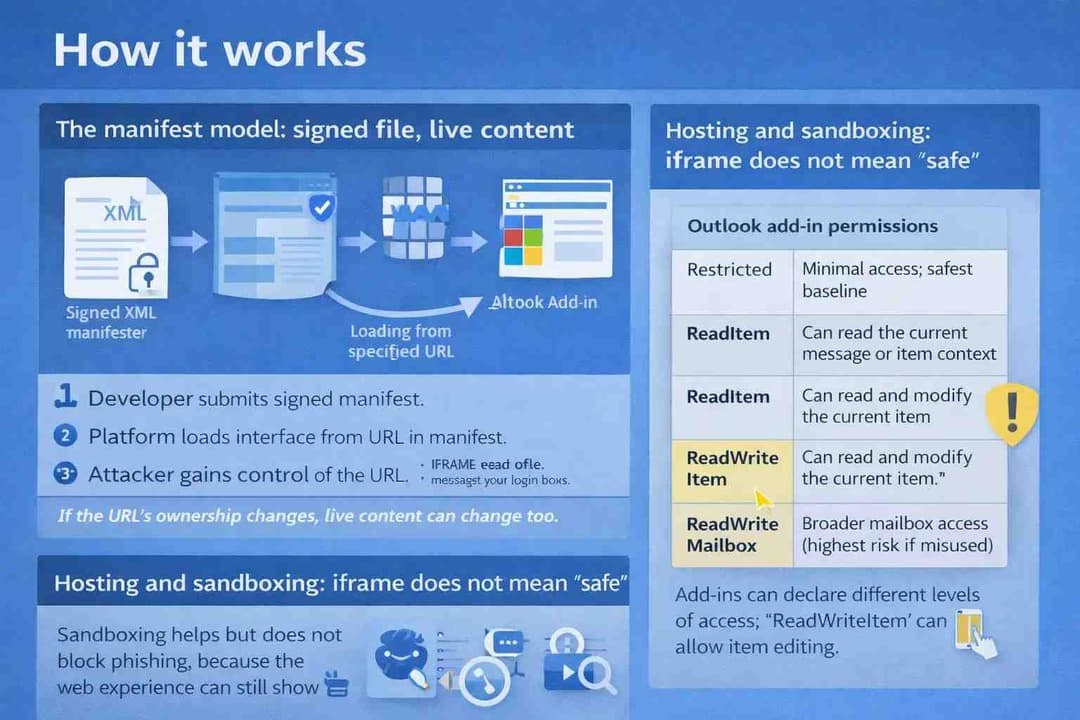
The manifest model: signed file, live content
Microsoft’s documentation describes add-in manifests and how they define the add-in’s start page and allowed domains. In common deployments, the add-in UI is loaded in a pane and can navigate to URLs, with different behavior depending on the platform.
From a defender’s perspective, here’s the risk pattern:
1. A developer submits an add-in manifest for review.
2. The platform trusts that manifest and loads the specified URL as the add-in interface.
3. If the URL’s ownership changes later, the add-in can effectively “become” whatever the new owner serves, while still looking official to the user.
Koi’s write-up emphasizes exactly that failure mode: the developer moved on, the URL became claimable, and the platform continued to serve the new content inside Outlook.
Hosting and sandboxing: iframe does not mean “safe.”
Microsoft describes Office add-ins on the web as being hosted in an iframe with sandboxing and explains broader privacy and security considerations for the platform.
Sandboxing is helpful, but it does not stop phishing. A sandbox can prevent certain dangerous browser behaviors. It does not prevent a user from typing a password into a convincing fake login page.
That’s the trap here. The attacker didn’t need to break out of an iframe. They just needed the pane to look authentic enough that a busy person would comply.
Permissions: Why “ReadWriteItem” raised eyebrows
Outlook add-ins declare permission levels in the manifest, and Microsoft documents options such as Restricted, ReadItem, and ReadWriteItem.
Here’s a simple way to think about it:
Outlook add-in permissions
· Restricted: Minimal access; safest baseline
· ReadItem: Can read the current message or item context
· ReadWriteItem: Can read and modify the current item
· ReadWriteMailbox: Broader mailbox access (highest risk if misused)
In this incident, reporting notes the add-in retained ReadWriteItem permissions, which could theoretically allow reading or modifying email items in scope, though no such activity was confirmed in the reporting cited.
This is the part defenders should sit with for a moment. Even if an attacker “only” phishes, the permission surface is sitting there like a second stage waiting to happen.
How the issue works in practice
The phishing technique itself was not exotic. The placement was.
Users opened an Outlook add-in and saw a Microsoft login prompt in the sidebar. They entered credentials. The information was sent to the attacker’s collection channel using Telegram bot infrastructure. Then the user was redirected to the legitimate Microsoft login page, which makes the whole moment feel like a harmless re-authentication hiccup.
That redirect detail matters. A lot of people judge “was it real” based on where they end up. If the flow finishes on an authentic Microsoft domain, their suspicion drops. It’s a classic magician move: the messy part happens off to the side, then the stage looks normal again.
Real-world example attack scenario
Picture a mid-sized accounting firm. It’s Monday morning, calendar packed. Someone uses Outlook constantly. They installed a scheduling add-in a year ago and forgot it even exists.
A meeting request comes in. They click the add-in out of habit. A sign-in prompt appears. It’s inside Outlook, not a random browser tab. They think, “Outlook is being weird again,” and type their password.
Now the attacker has credentials. What happens next depends on the environment:
· In a personal account, the attacker may try the password on other sites or use the mailbox to reset accounts.
· In a corporate Microsoft 365 tenant, the attacker might attempt to sign in from a new location and test whether MFA blocks them.
· If the attacker gets in, they search for “invoice,” “wire,” “ACH,” “payment,” “DocuSign,” “statement,” and “bank.” Then comes the fraud setup.
This is where payment cards show up. The research indicates the attacker’s broader phishing kits collected card numbers and related details, and the add-in was one distribution channel.
It’s not that Outlook magically exposes credit cards. It’s that phishing inside a trusted workflow makes people hand over whatever the page asks for, especially when it impersonates a brand they already use.
Impact analysis: users, organizations, and exposed systems
Individual users
For individuals, a compromised Microsoft account often means:
· password resets for other services,
· access to personal documents and receipts,
· and potential payment fraud if the victim re-enters card details into a convincing page.
If you reuse passwords, the risk stacks quickly. Attackers commonly test stolen credentials across sites, a practice known as credential stuffing.
Organizations and high-risk industries
For organizations, the risks extend beyond a single mailbox:
· internal phishing sent from a trusted account,
· vendor invoice manipulation,
· lateral movement through shared files and conversations,
· and compliance exposure if sensitive communications are accessed.
Regulated industries like finance, healthcare, and legal services should care because email is where regulated data and approvals often live. Even a short-lived compromise can create reporting obligations.
What systems are indirectly exposed?
A mailbox is a hub. Once inside, attackers commonly look for:
· single sign-on reset flows,
· payroll portals,
· cloud file links,
· and security alerts that reveal what defenses are in place.
That’s why identity and email security teams treat mailbox compromise as a potential “whole environment” incident, not a one-off nuisance.
What users or organizations should do now (mitigation steps)
This section is intentionally practical. Not because the story is scary, but because the fix is usually boring, and boring is good.
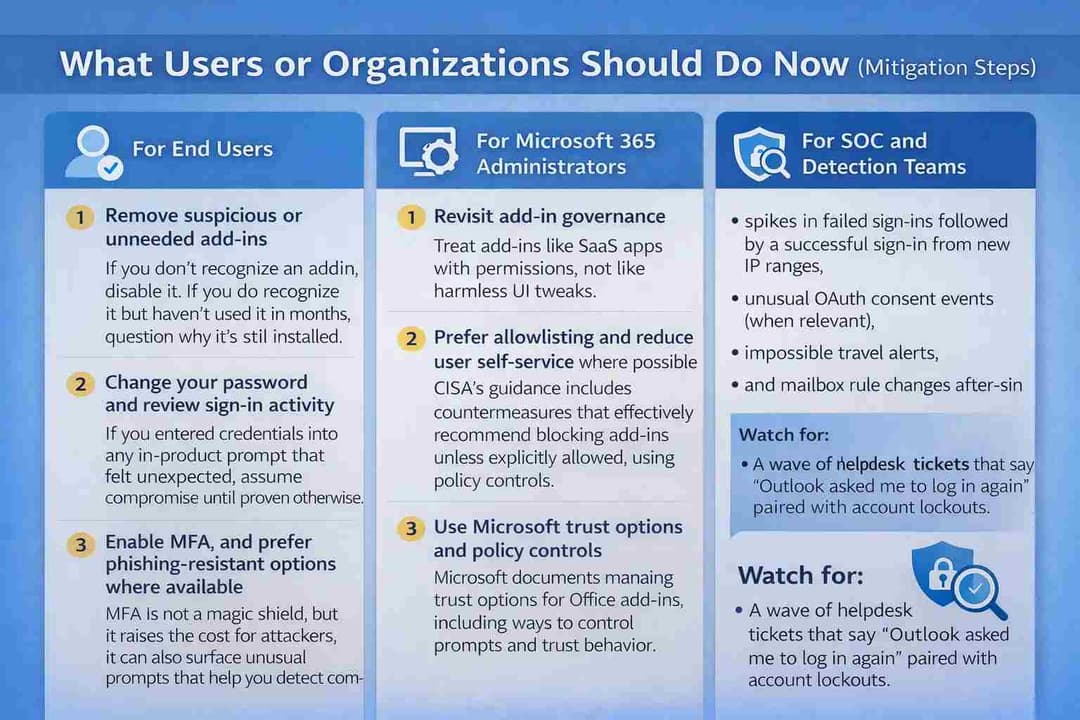
For end users
1. Remove suspicious or unneeded add-ins
· If you don’t recognize an add-in, disable it. If you do recognize it but haven’t used it in months, question why it’s still installed.
2. Change your password and review sign-in activity
· If you entered credentials into any in-product prompt that felt unexpected, assume compromise until proven otherwise.
3. Enable MFA, and prefer phishing-resistant options where available
· MFA is not a magic shield, but it raises the cost for attackers. It can also surface unusual prompts that help you detect compromise sooner.
4. Protect payment instruments
· If you shared card information, contact your card provider, monitor statements, and consider replacing the card. Treat it like a normal card-not-present fraud scenario.
Microsoft also provides user-facing guidance on handling phishing and suspicious behavior in Outlook, which is worth sharing with less technical users as baseline education.
For Microsoft 365 administrators
1. Revisit add-in governance
· Treat add-ins like SaaS apps with permissions, not like harmless UI tweaks.
Prefer allowlisting and reduce user self-service where possible
· CISA’s guidance includes countermeasures that effectively recommend blocking add-ins unless explicitly allowed, using policy controls.
Use Microsoft trust options and policy controls
· Microsoft documents managing trust options for Office add-ins, including ways to control prompts and trust behavior.
4. Create a “stale add-in” review cadence
· Anything not updated in a long time deserves scrutiny. This incident exploited the gap between abandonment and platform response.
5.Educate users about in-product credential prompts
· Users are trained to distrust external links. They’re less trained to distrust the UI panel that looks like it belongs to Microsoft Outlook Email.
For SOC and detection teams
Even without perfect telemetry into the add-in pane, you can still hunt on identity signals:
· spikes in failed sign-ins followed by a successful sign-in from new IP ranges,
· unusual OAuth consent events (when relevant),
· impossible travel alerts,
· and mailbox rule changes after sign-in.
Also watch for the human symptom: a wave of helpdesk tickets that say “Outlook asked me to log in again” paired with account lockouts.
Common misconceptions
Misconception 1: “If it’s in Microsoft’s store, it can’t phish.”
Reality: Marketplace approval can validate the manifest at a point in time. It cannot guarantee that externally hosted content stays safe forever, especially when the add-in loads live content from a URL.
Misconception 2: “Add-ins are installed code known at review time.”
Reality: Many Office add-ins behave more like embedded web apps. Microsoft’s documentation and the research both highlight that the experience is delivered through web technologies, often in an iframe or web runtime.
Misconception 3: “MFA makes phishing irrelevant.”
Reality: MFA helps, but attackers adapt. They can target users without MFA, attempt push fatigue, or use other methods depending on the environment. Your goal is layered defense, not a single control.
Broader security lessons and future implications
This incident is a reminder that “abandoned cloud resources” is not just a developer hygiene problem. It’s a security lifecycle problem.
A URL, a domain, or a deployment that becomes claimable can turn yesterday’s legitimate integration into today’s attacker-controlled content. The mechanism looks different across ecosystems, but the pattern is familiar: a trusted pointer outlives its owner.
The deeper lesson for defenders is governance:
· inventory what you allow,
· Verify what you rely on,
· and re-verify on a schedule.
Email will continue to be a primary target because it sits at the intersection of identity and money. If you protect only the inbox and not the add-ons around it, you end up defending the front door while leaving a side window open.
Hoplon Insight Box (expert recommendations)
If you only do three things this quarter, do these:
1. Treat add-ins as privileged integrations. Inventory them, rank them by permission scope, and remove anything stale or unnecessary. Use Microsoft’s permission documentation to explain risk in plain terms to stakeholders.
2. Move toward allowlisting for business-critical tenants. A small curated set of approved add-ins beats a long tail of “maybe we need it someday.” CISA’s defensive guidance supports restricting add-ins unless explicitly permitted.
3. Train users on “trusted-pane phishing.” The next wave of phishing will not always arrive by email. Sometimes it will live right next to the inbox inside Microsoft Outlook Email.
FAQs
1) How can an Outlook add-in steal my credentials?
Because many add-ins load a live web page from a URL listed in their manifest. Users might enter their login information into that URL if it leads to a fake login page, especially if it shows up in Outlook.
2) Did this have a CVE for a Microsoft security hole?
There is no mention of a public CVE in the main research or reports mentioned here. It is more accurate to call it a supply chain and lifecycle risk in terms of how add-in content is hosted and trusted over time.
3) What does "ReadWriteItem" mean in Outlook add-ins?
It is a permission level that is set in the add-in manifest and lets you read and change the current item context. Microsoft keeps track of these permission levels for Outlook add-ins.
4) How do hackers get data out of a phishing add-on?
In the case that was reported, the phishing logic sent the stolen data out using the Telegram Bot API and then sent the user to the real Microsoft login page.
5) What can businesses do to lower the risk of add-ins?
Use governance: inventory, remove stale add-ins, prefer allowlisting, and apply policy controls and trust options for Office add-ins.