-20260128124703.webp&w=3840&q=75)
Is security for iPhone still a big deal in 2026, or is it mostly fear marketing?
Yes, it’s still a big deal, and it matters right now because iPhone attacks have shifted. Most people are not getting “movie-style hacked.” What’s hitting millions is quieter: browser-based exploits, account takeovers, scam popups pretending to be Apple, and spyware-style targeting for a smaller group.
In late 2025, Apple’s own security notes and multiple reputable security outlets highlighted iOS patches tied to WebKit, the engine behind Safari and every iOS browser, including issues described as exploited in the real world. That’s not internet gossip; that’s the kind of language Apple uses when it’s serious.
If you’ve ever seen an “Apple Security Warning” page screaming at you to call a number, you’re not alone. Fake alerts may seem official on the internet, but in reality, they are nothing more than digital threats. Apple community threads show the same pattern: users land on a sketchy site, a pop-up locks the screen, and panic does the rest.
This guide is built to be practical. Not scary. Not salesy. It's simply about enhancing the security of your iPhone without turning it into an inhospitable fortress.
The "What Changed" update explains why iPhone security advice has evolved.
A few years ago, people primarily viewed viruses as an issue that affected laptops rather than smartphones. Now the threat is more… social. Hackers go where the humans are. That means phishing texts, fake login pages, and popups that trick you into “fixing” a problem you don’t have.
At the same time, real technical vulnerabilities still exist, especially through web content. Security researchers and Apple’s own release notes keep pointing to WebKit as a frequent patch area. When Apple says a bug “may have been exploited,” it’s worth paying attention.
So the best security strategy for iPhones in 2026 is a blend:
· Keep iOS updated (boring, but powerful).
· lock down accounts (where the real theft happens)
· Kill scam popups fast.
· Tighten privacy settings that leak data quietly.
-20260128124701.webp&w=1080&q=75)
The headline problem: fake “Apple Security Warning” pop-ups are still everywhere.
Let’s address the question that people often type in all caps at 2 a.m.: Is the Apple security warning legitimate?
If it’s a webpage pop-up in Safari saying “Virus detected” and telling you to call a number, that is not an Apple alert. That’s a scam page trying to rush you into panic clicks or a phone call. Multiple reputable sources describe these as fake security alert scams designed to scare you into handing over info or installing junk.
When you're under stress, remember this crucial line:
“This appears to be unverified or misleading information, and no official sources confirm its authenticity.”
Real Apple security notifications, when they happen, don’t look like a browser hostage note. Apple typically communicates through system settings, Apple Account notifications, or official messaging channels, not random Safari pop-ups.
This is where strong security for iPhone starts: knowing what to ignore.
Security for iPhone step one: update iOS like you mean it
I know, updates are annoying. They show up when you’re busy and always feel like they’ll break something. But security patches are the simplest “big win” you can get.
Apple’s security content pages explain that their updates address vulnerabilities, often referenced by CVE identifiers when possible. That’s the industry-standard way of tracking security bugs.
What to do
· Settings → General → Software Update
· Turn on automatic updates if you’re the kind of person who forgets (most of us are).
Why it matters right now
Late 2025 iOS releases included fixes for WebKit issues described as exploited in targeted attacks, which is the kind of wording that signals active risk, not theoretical risk.
If you care about security for your iPhone, this one habit does more than most “security apps” ever will.
These iPhone security settings can prevent the most common real-world attacks.
This is the part people skip because it feels tedious. But if someone takes over your Apple ID, your iPhone becomes a front door with the locks changed.
Lock your Apple ID like it’s your wallet.
Your Apple ID is tied to iCloud backups, photos, Find My, passwords, and sometimes even payment methods. So when people talk about iPhone security breaches, many times it starts here.
Practical checklist:
· Use two-factor authentication (2FA).
· Make sure your trusted phone numbers and devices are current.
· Use a strong passcode, not 123456, not your birthday, not your pet’s name.
If you want stronger security for your iPhone, switch to a longer passcode. A 6-digit code is decent. An alphanumeric passcode is much better.
Turn on Stolen Device Protection features if available on your iOS version.
Apple has been pushing stronger protections when a thief knows your passcode. The idea is simple: certain changes require extra authentication and time delays, so a stolen phone is harder to “flip” into someone else’s device.
Even if you don’t live in a high-theft area, this is one of those “I wish I had done it earlier” settings.
The most useful “chart” for everyday iPhone threats
Threat Heatmap
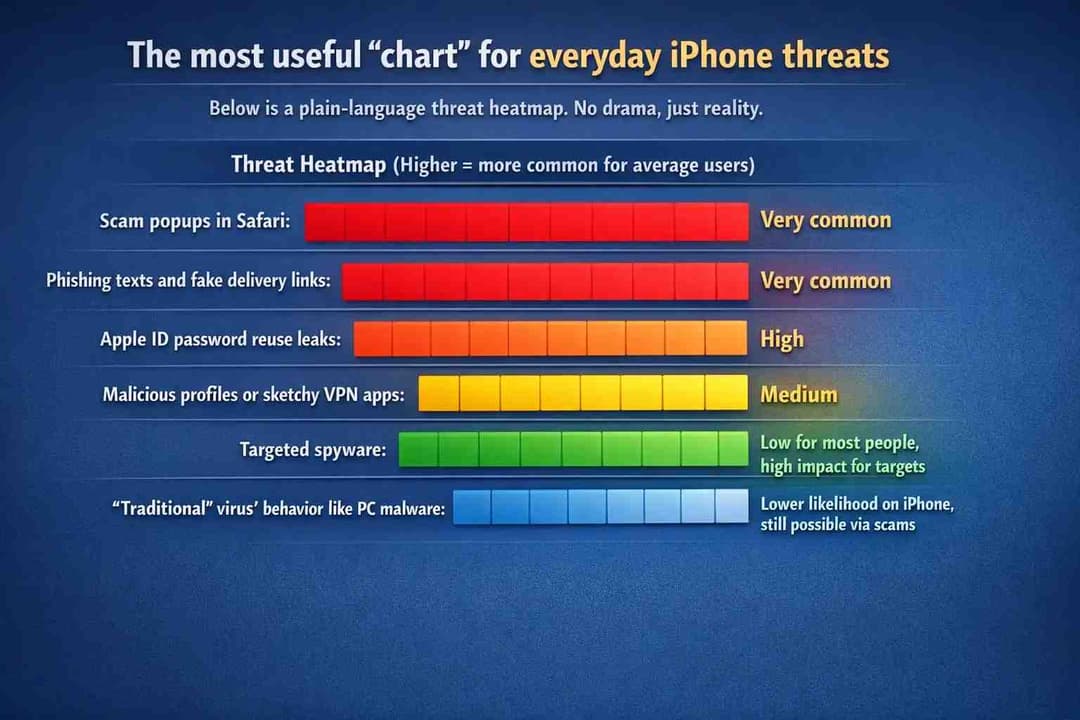
This is why security for iPhone is mostly about account hygiene and scam resistance, not downloading ten “cleaner” apps.
How to check if an iPhone is hacked without spiraling
People ask this after three things happen:
1. Battery drops fast
2. The phone gets warm.
3. Apop-upp says, “You’ve been hacked.”
Sometimes it’s normal. Sometimes it’s not. Here’s a calm way to check.
Signs that are worth investigating
· New devices signed into your Apple ID that you don’t recognize
· Unexpected password reset emails
· Calendar spam events you did not add
· Safari showing repeated redirects and iPhone security alert message popups
· Unknown profiles installed (common in enterprise, uncommon for personal use)
If you suspect your iPhone has been hacked, start with the Apple ID device list and Safari cleanup.
Quick cleanup that fixes most popup-based “hac.ks.”
Many fake warnings come from malicious web scripts, notifications, or cached site data. Apple community responses often recommend clearing Safari website data when a pop-up traps you.
Do this:
· Settings → Safari → Clear History and Website Data
· Also check Settings → Safari → Notifications (if your iOS shows this), and remove anything you don’t trust.
This is the fastest “how to protect iPhone from hackers for free” move that actually works for the common scareware stuff.
The truth about "secret codes," such as #21 and #33, is that they are often misunderstood.
These pop up on social media every few months like an urban legend. Let’s make it boring and accurate.
What does pressing *#21 do on an iPhone?
Codes like *#21# are commonly described as “interrogation codes” that check call forwarding status on many carriers. They do not prove your phone is tapped, and fact-checking coverage has repeatedly pushed back on the wiretap myth.
So if someone says, “Dial the following number to see if you’re hacked,” be skeptical. It’s usually misdirection.
What does *#33 do on the iPhone?
*#33# is widely referenced as a call barring-related code on some carriers, meaning it can display or manage call barring status depending on your network. These codes are carrier-dependent and not a universal “hacker detector.”
In other words, these codes are phone-network tools, not magic spyware scanners. While these codes can be useful at times, they do not serve as definitive proof.
Remove malware from iPhone without downloading sketchy “cleaner” apps.
Let’s be blunt. If your fix requires installing a random app from an ad, your situation usually gets worse.
The more common scenario is not malware living deep inside iOS; it’s
· a malicious website loop
· a spam calendar subscription
· a compromised account
· a shady profile
Here’s a practical removal flow that supports security for iPhones without adding risk:
1) Delete suspicious profiles
· Settings → General → VPN & Device Management
If you see a profile you did not install, remove it.
2) Remove unknown VPN configurations.
A “free VPN” can be legit, or it can be data-hungry. If you didn’t install it, delete it.
3) Check calendar subscriptions
· Settings → Calendar → Accounts
Remove anything you don’t recognize. This issue is a common source of calendar spam that displays "virus found" messages.
4) The final option is to either reset the settings or erase the device.
If behavior continues:
· Settings → General → Transfer or Reset iPhone
Start with “Reset All Settings” before a full erase.
This is the cleanest approach to protecting iPhone security threats for regular users.
Do you need antivirus software for your iPhone?
This is where the internet gets messy because people use “antivirus” as a catch-all term.
Most iPhone “security” apps are really:
· password managers
· VPNs
· identity monitoring services
· safe browsing tools
And those can be genuinely useful. But if an app claims it will “scan iOS for viruses like a PC,” be cautious. iOS sandboxing limits what third-party apps can scan across the system.
A beneficial rule: apps that improve your behavior and protect your accounts help security for iPhone. Apps that promise magic cleaning often disappoint.
If you want a safer buying mindset, look for:
· clear privacy policy
· known publisher reputation
· no scary pop-up marketing
· There is no requirement to install configuration profiles unless you are using a legitimate VPN provider.
Best VPN for iPhone security, and when a VPN actually helps
A VPN is not an anti-hacker shield. It’s more like window tint for your internet traffic.
A VPN can help when:
· You use public Wi-Fi at airports, cafés, and hotels.
· You want to reduce tracking on untrusted networks.
· You travel and don’t want captive portals messing with you.
A VPN does not help much if:
· you reuse passwords
· You click phishing links.
· You approve fake sign-in requests.
So yes, VPNs can be part of security for iPhones, but they are not the foundation.
iPhone privacy and security features that most people forget to use
Apple has strong privacy controls, but they’re buried under menus, so people never touch them after setup.
Location access cleanup
Every few months, open Location Services and look for apps with “Always” access. Most don’t need it. This reduces passive tracking risk and improves overall iPhone security posture.
Microphone and camera permissions
If a flashlight app requests access to your microphone, it is unusual. Deny it.
Safety Check (if available)
Apple introduced features aimed at quickly revoking access when you’re worried someone is monitoring you. If you share your Apple ID, location, or photos with someone you no longer trust, this matters.
This is one of those “real life” security features, not just tech theory.
The scam that keeps coming back: iPhone security warning, fake or real
Let’s translate the scam pattern into plain English.
What you see:
·pop-uppup says the iPhone virus warning message is real.
· It claims, “Your iPhone is infected.”
· It pushes you to call “Apple Support” or install an app.
· It may lock the page until you tap OK.
What it usually is:
· a scareware page
· an ad redirect
· a social engineering trick
Reputable write-ups consistently describe these “Apple security alert” pages as fake and designed to pressure users into handing over information or paying for unnecessary services.
If you’re comparing a hacked iPhone vs. a security pop-up scam, here’s the shortcut:
· Pop-ups in a browser are not proof of compromise.
· Account alerts in Settings or Apple account pages matter more.
Best iPhone security settings checklist
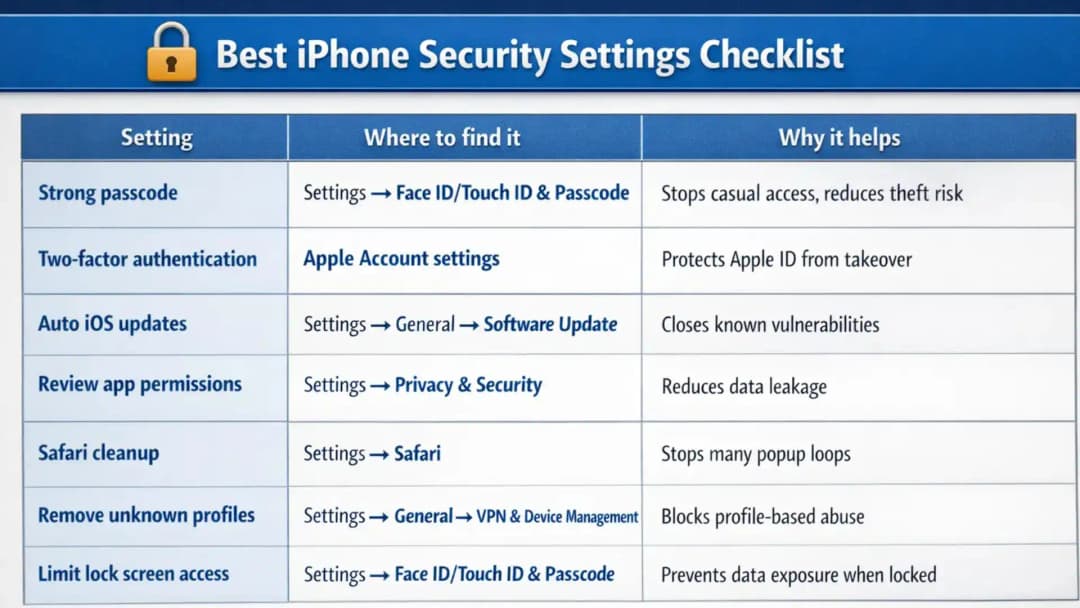
If you do only half of this, your security for iPhone improves more than most people realize.
How to secure my iPhone in 10 minutes: a realistic routine
This is my favorite approach because it’s not a “change your whole life” plan.
Minutes 1 to 3: Update and reboot
Install updates, restart. Patches matter.
Minutes 4 to 6: Apple ID check
Look at signed-in devices. Remove anything unfamiliar. Change your password if you see anything suspicious.
Minutes 7 to 8: Safari cleanup
Clear website data if you’ve seen popups or redirects. Minutes 9 to 10: Permission sweep
Location, photos, microphone. Remove the weird ones.
That’s a simple how-to-secure-an-iPhone-from-hackers routine that doesn’t feel like homework.
What to do next if you saw an “Apple Security Warning” today
If you’re dealing with an iPhone security warning fake message right now:
1. Do not call any number ina pop-up.
2. Close the tab, or force close Safari if needed.
3. Clear Safari history and website data
4. Check for unknown profiles and VPNs.
5. Change your Apple ID password if you entered anything anywhere suspicious.
6. If you paid someone or shared account details, contact your bank and Apple Support through official channels.
If someone asks you for remote access, gift cards, or “verification,” treat it as a scam.
This is also where Apple iPhone security help should mean real help, not a random phone number from a web page.
Hoplon Insight Box
If you do nothing else for a stronger security posture:
· Update iOS first, especially after Apple posts security content notes.
· Treat browser popups as suspicious by default, especially anything that looks like an official Apple security alert but comes from a website.
· Lock Apple ID with 2FA and a strong passcode because account takeover is a bigger daily risk than “viruses.”
· Use a reputable VPN only if you regularly use public Wi-Fi, not as a panacea.
Based on my observation of actual victims, I believe that most "hacks" initiate with a sense of urgency. If something tries to rush you, slow down.
FAQs
How can I make sure my iPhone is secure?
Keep iOS updated, use a strong passcode, enable Face ID, and turn on two-factor authentication.
What is the best security for your iPhone?
The best security for your iPhone is a combination of a strong passcode, Face ID/Touch ID, and Apple's built-in security features.
Does the iPhone have security?
Yes. iPhones have built-in security like encryption, app sandboxing, and Secure Enclave.
What security can I put on my iPhone?
You can add security features such as a passcode, Face ID, Find My iPhone, two-factor authentication, and privacy settings to your iPhone.
Can I check if my iPhone is hacked?
Yes. Look for unknown apps, battery drain, strange pop-ups, or unusual data usage.
*What does #33 do on iPhone?
It shows call barring settings (whether outgoing or incoming calls are blocked).
Do I really need an antivirus on my iPhone?
No. Antivirus apps aren’t needed; avoid scams and keep iOS updated instead.
How do I stop someone from accessing my iPhone?
Use a strong passcode, enable Face ID, lock Control Center, and turn on Find My.
How do I make my iPhone private and secure?
Limit app permissions, use Safari privacy features, and enable tracking prevention.
Trusted source and research note
For the most reliable, continuously updated details about iOS patches, Apple’s own security content pages are the gold standard because they map fixes to components and sometimes CVE identifiers.
Security researchers and major security publishers often add context and urgency when Apple flags issues as exploited, which can help you decide how quickly to update.
Final takeaway
The best version of security for iPhone is not paranoia. It’s a few boring habits done consistently: update iOS, protect your Apple ID, keep permissions tidy, and treat random browser warnings as guilty until proven innocent.
If you want a simple mantra for 2026:
If something appears urgent, it's likely a trap waiting to be discovered. When Apple quietly ships a patch, assume it matters.
And yes, one last time for the road, because it’s the keyword people keep searching when they’re stressed: security for iPhone is less about fighting hackers head-on and more about refusing to be rushed.
Related Blogs:
Is VPN Safe for iPhone?
iPhone Users Alert