-20260217194219.webp&w=3840&q=75)
Is the Windows 11 Black Screen of Death fix finally keeping gamers from crashing in 2026?
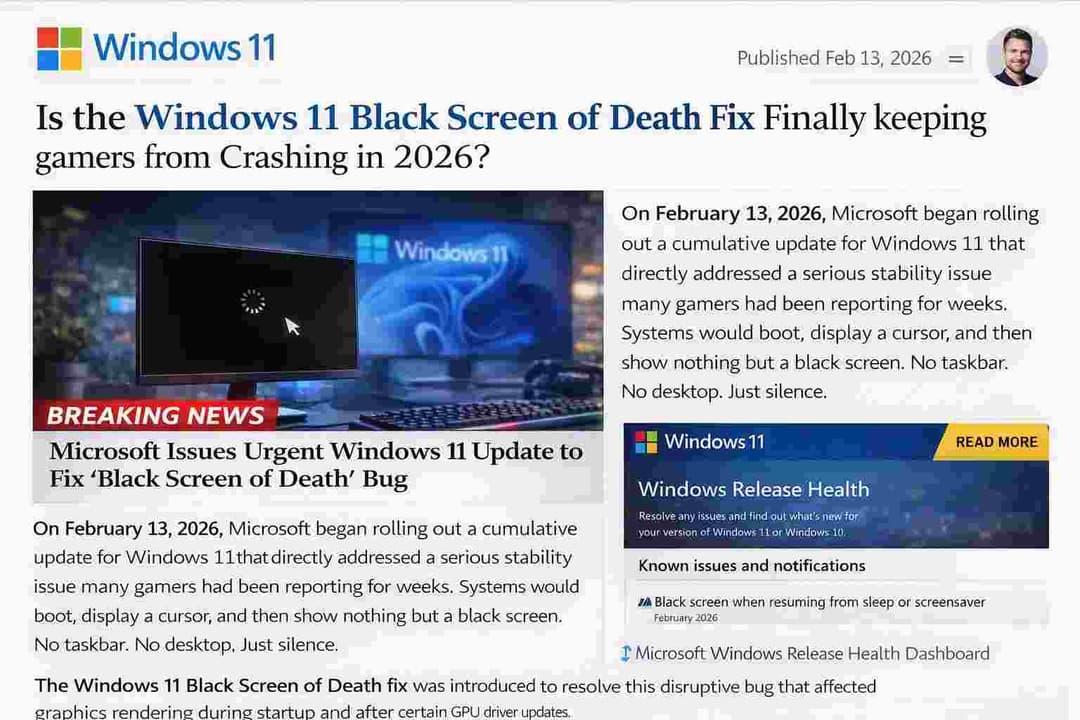
On February 13, 2026, Microsoft began rolling out a cumulative update for Windows 11 that directly addressed a serious stability issue many gamers had been reporting for weeks. Systems would boot, display a cursor, and then show nothing but a black screen. No taskbar. No desktop. Just silence.
The Windows 11 Black Screen of Death fix was introduced to resolve this disruptive bug that affected graphics rendering during startup and after certain GPU driver updates.
This matters right now because millions of users rely on Windows 11 for gaming, content creation, and professional workloads. A system that fails to load the desktop environment is not just annoying. It is productivity lost, tournaments missed, and in some cases corrupted game data.
Microsoft has acknowledged the issue in its official Windows release health dashboard and confirmed that the latest update addresses it.
What Happened: Understanding the Black Screen Problem
The issue commonly referred to as the Black Screen of Death is different from the classic Blue Screen error. In this case, Windows 11 would boot without throwing a visible error code. Instead, users were stuck at a blank screen, often with only a movable cursor.
For many gamers, this occurred after installing optional updates or new GPU drivers from NVIDIA and AMD. Systems running high refresh rate monitors, HDR settings, or multi-monitor setups appeared more vulnerable. Reports across support forums suggested that the issue was linked to the Windows Display Driver Model interaction with certain graphics drivers.
Technically, the problem centered around how Windows Explorer and the Desktop Window Manager initialized after login. If the display stack failed to properly communicate with the GPU driver, the shell would not load. This left the system running in the background but without an accessible interface.
Unlike hardware failure, the system itself was still active. Keyboard shortcuts worked in some cases. Ctrl Alt Delete sometimes triggered the security screen. But the desktop never appeared. That distinction helped Microsoft narrow down the root cause.
The Windows 11 Black Screen of Death fix specifically addresses the initialization conflict between updated graphics drivers and Windows system processes. It also patches a timing issue in how display settings were applied during startup.
Why This Bug Emerged in the First Place
Operating systems are ecosystems. When one component changes, others react. In this case, the bug surfaced after Microsoft adjusted certain rendering optimizations aimed at improving gaming performance and reducing input latency.
These optimizations were part of ongoing updates to DirectX, Auto HDR enhancements, and windowed game performance. The intention was positive. Lower latency, better GPU scheduling, and improved display scaling.
However, when combined with certain third-party GPU drivers, particularly early 2026 releases, the changes created a mismatch in how display sessions were initialized. Systems with advanced features like hardware-accelerated GPU scheduling enabled were more likely to encounter the issue.
Historically, Windows display errors are not new. Windows 10 experienced similar issues during major feature updates. But this time, the problem appeared in cumulative patches rather than a full version upgrade, which caught many users off guard.
The Windows 11 Black Screen of Death fix was introduced to stabilize this interaction without rolling back performance improvements. Microsoft did not remove the gaming enhancements. Instead, it refined how the system negotiates display states during login.
How the Windows 11 Black Screen of Death Fix Works
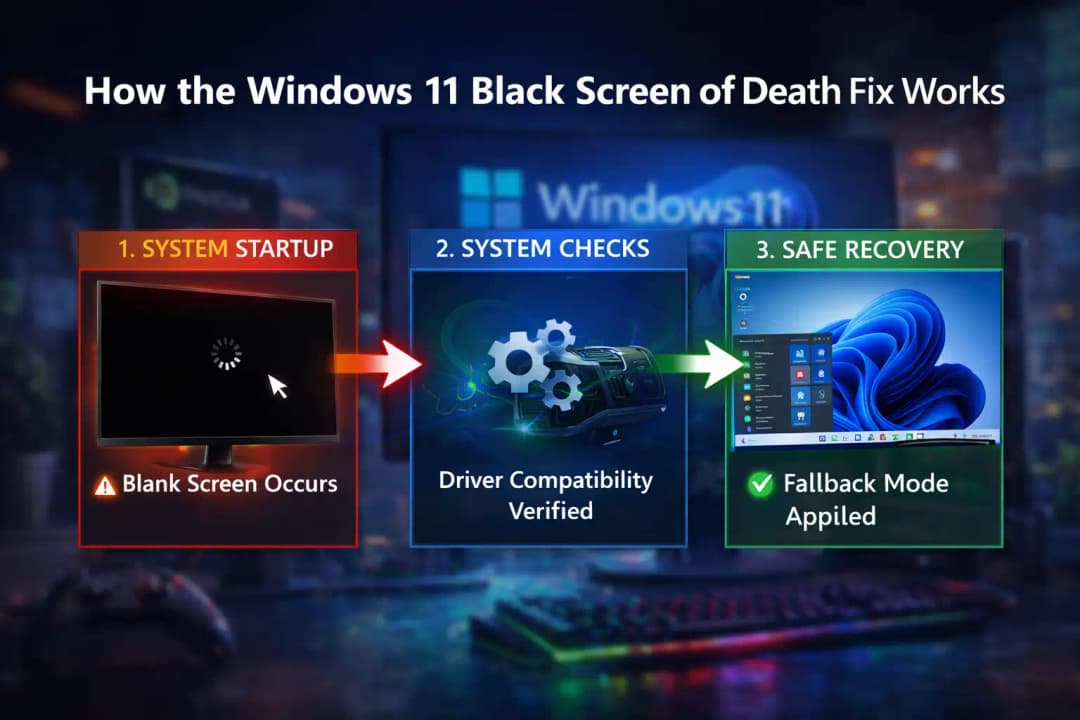
The Windows 11 Black Screen of Death fix works on different levels of the operating system.
Microsoft changed the order in which the display is initialized first. When Windows starts up, it now does more checks to make sure that the GPU drivers are correct. If there is a delay or failure, the system goes back to a safe rendering mode before starting Explorer.
Second, the update makes it easier for the graphics driver and Desktop Window Manager to talk to each other. This stops the system from thinking that the display has started up when the GPU hasn't finished its handshake yet.
Third, the patch makes it easier to log errors. Many users didn't see a clear error in Event Viewer in previous builds. Now, if display initialization fails, the system records specific diagnostic entries, which helps support teams identify issues faster.
Fourth, compatibility flags were updated for certain GPU driver versions. Microsoft sometimes deploys what is known as a compatibility hold. In this case, the Windows 11 Black Screen of Death fix includes safeguards to prevent incompatible driver combinations from triggering the black screen state.
In simple terms, Windows now double-checks before showing you a blank screen.
Real-World Example: Before vs. After the Fix
Before the update, imagine launching your PC before a scheduled multiplayer match. The system boots, shows the Windows logo, and then the display goes dark. You move the mouse. The cursor moves. But nothing else appears.
You try restarting. Same result. Eventually, you boot into Safe Mode, uninstall the graphics driver, and hope for the best. It feels like troubleshooting from 2009.
After installing the Windows 11 Black Screen of Death fix, the same system boots normally. Even if a GPU driver update introduces a delay, Windows shifts to a fallback display mode and loads the desktop. From there, you can update drivers or adjust settings safely.
The difference is not flashy. There is no new feature icon. But the stability improvement is obvious. Systems that previously froze at login now consistently load the shell.
Who is Affected by This Issue?
Regular Home Users
Users with standard configurations were less affected, but those with gaming PCs, custom builds, or high-performance GPUs reported more frequent incidents. Multi-monitor users were particularly vulnerable.
If you primarily use Windows 11 for browsing and office work, you may never have seen the problem. But gamers and streamers noticed it immediately.
People Who Play Games and Make Content
This group felt the most effects. Gaming setups often have high refresh monitors, HDR settings, and driver updates. The Windows 11 Black Screen of Death fix directly helps this group by making startup behavior more stable.
Players who want to win can't afford random boot failures. Even crashes that happen once in a while hurt trust in the platform.
Companies and IT Teams
When businesses roll out Windows 11 to a lot of laptops or workstations, even a small number of black screen problems can cause the help desk to be overwhelmed.
Enterprise IT departments depend on patch cycles that are easy to predict. The Windows 11 Black Screen of Death fix reduces support tickets tied to display initialization failures.
Benefits and Limitations of the Fix
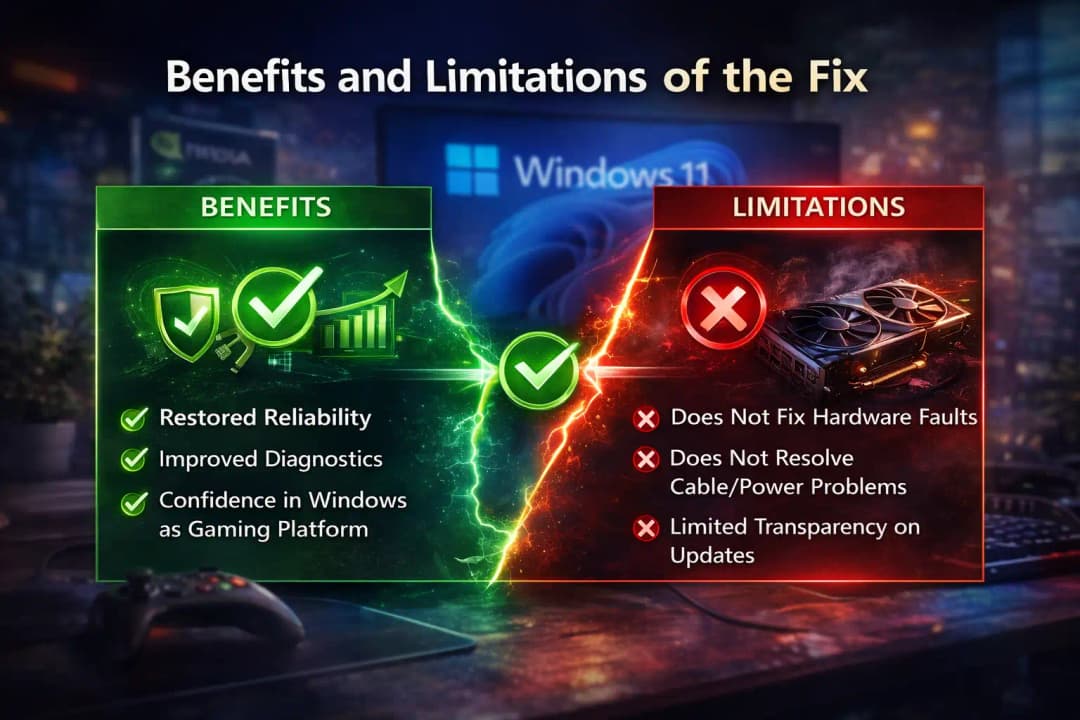
The biggest benefit is restored reliability. Systems boot more consistently. GPU driver conflicts are handled more gracefully.
Another advantage is improved diagnostics. IT professionals can now trace display initialization issues more clearly using system logs.
There is also indirect value. Confidence in Windows as a gaming platform is reinforced. Stability matters as much as raw performance.
However, there are limitations.
The update does not fix hardware faults. If a GPU is physically failing, users may still experience black screens. It also does not resolve unrelated display issues caused by faulty cables or power supply problems.
Additionally, Microsoft has not publicly disclosed every technical detail behind the issue. Some advanced users would prefer more transparency about the underlying code changes.
Still, based on official documentation, the Windows 11 Black Screen of Death fix addresses the core driver interaction bug.
What Users Should Do Now
If you are running Windows 11, open Settings, go to Windows Update, and check for updates immediately. Install the latest cumulative update that includes the stability patch.
After installation, restart your system fully. Don't count on a quick start. A clean reboot makes sure that the display stack loads correctly.
Next, get the latest graphics drivers from official sites like NVIDIA or AMD. Stay away from driver repositories that aren't official.
Next, update your graphics drivers from official sources such as NVIDIA or AMD. Avoid third-party driver repositories.
If you previously disabled hardware accelerated GPU scheduling as a workaround, you can test re-enabling it after applying the Windows 11 Black Screen of Death fix.
For businesses, deploy the patch in a staged rollout. Monitor system logs for any residual display errors before wide-scale deployment.
Common Mistakes to Avoid
Some users attempt registry edits from unofficial forums. That approach can create new instability. Stick to official patches.
Avoid forcing shutdowns repeatedly during black screen incidents. That can corrupt system files.
Do not ignore optional driver updates entirely. Instead, evaluate them carefully and create restore points before major changes.
Frequently Asked Questions
1. What causes the Windows 11 black screen on startup?
In recent cases, it was primarily linked to conflicts between Windows display initialization and certain GPU driver versions. Hardware faults can also cause similar symptoms.
2. Does the Windows 11 Black Screen of Death fix improve gaming performance?
The fix focuses on stability, not raw frame rate. However, by resolving driver conflicts, it prevents performance interruptions caused by failed boot sessions.
3. Is this the same as the Blue Screen of Death?
No. The blue screen shows a visible error code. The black screen issue typically loads no error message and often leaves only a cursor visible.
4. Should I reinstall Windows if I experience this issue?
Not immediately. Install the latest update first. If the problem doesn't go away after using the Windows 11 Black Screen of Death fix, reinstalling should be a last resort.
5. Do all versions of Windows 11 have this problem?
Some reports say that some builds were more open to attack. Microsoft has not said that all Windows 11 devices were affected.
Data and Information About the Industry
StatCounter says that more and more people will be using Windows 11 in 2026, especially gamers. A lot of gamers have high-end GPUs, so display stability is still very important.
A recent IDC report on endpoint management says that display driver conflicts are still one of the top five reasons why people call Windows Help Desk in businesses.
When even a small number of machines have trouble booting up, it can have a big impact on support teams.
Conclusion: Stability Over Show
The fix for the Windows 11 Black Screen of Death may not add any new features or change the way things look.
It does something more important. It restores trust.
Operating systems are judged not only by innovation but also by reliability. When users press the power button, they expect their system to work. That expectation is basic but nonnegotiable.
Microsoft’s latest update demonstrates a corrective approach. Rather than ignoring the problem, the company refined the display stack and improved driver coordination.
In the future, Microsoft and GPU makers will need to work together more closely. The more advanced gaming hardware gets, the harder it is to manage displays. Updates like this one that fix bugs remind us that we need to always balance performance with reliability.
Hoplon Insight Box
Important Suggestions:
Right away, install the most recent Windows cumulative update.
Only download GPU drivers from the official websites of the companies that make them.
Make restore points before making big changes to the system.
Check the Event Viewer logs for errors related to display.
After updates, test setups with more than one monitor.
Endpoint security prevents driver and startup conflicts.
Discover More on Our Homepage Our Homepage