
What did Microsoft change in the most recent cumulative update for Windows 11?
The most recent cumulative update for Windows 11 adds security fixes, makes the system more stable, and updates multiple versions of Windows 11. Microsoft made the update available for devices running versions 25H2, 24H2, and 23H2. This keeps supported devices safe and stable.
The change means something useful for both users and IT teams. Updates fix security holes, fix bugs in the system, and make the update process itself stronger. A cumulative package combines all of the previous updates into one instead of installing several separate patches.
To put it simply, the process has changed.
Old way: patches for each problem and fixes all over the place.
New approach: combined cumulative packages that cover reliability, performance, and security.
As a result, systems are still easier to keep up and safer to use.
This Windows 11 cumulative update makes improvements to Secure Boot, File Explorer, graphics stability, and AI components, among other things. It also has updates for the servicing stack that make sure future patches install correctly.
This type of release makes things easier for businesses that have to manage hundreds or thousands of systems and makes updates more reliable.
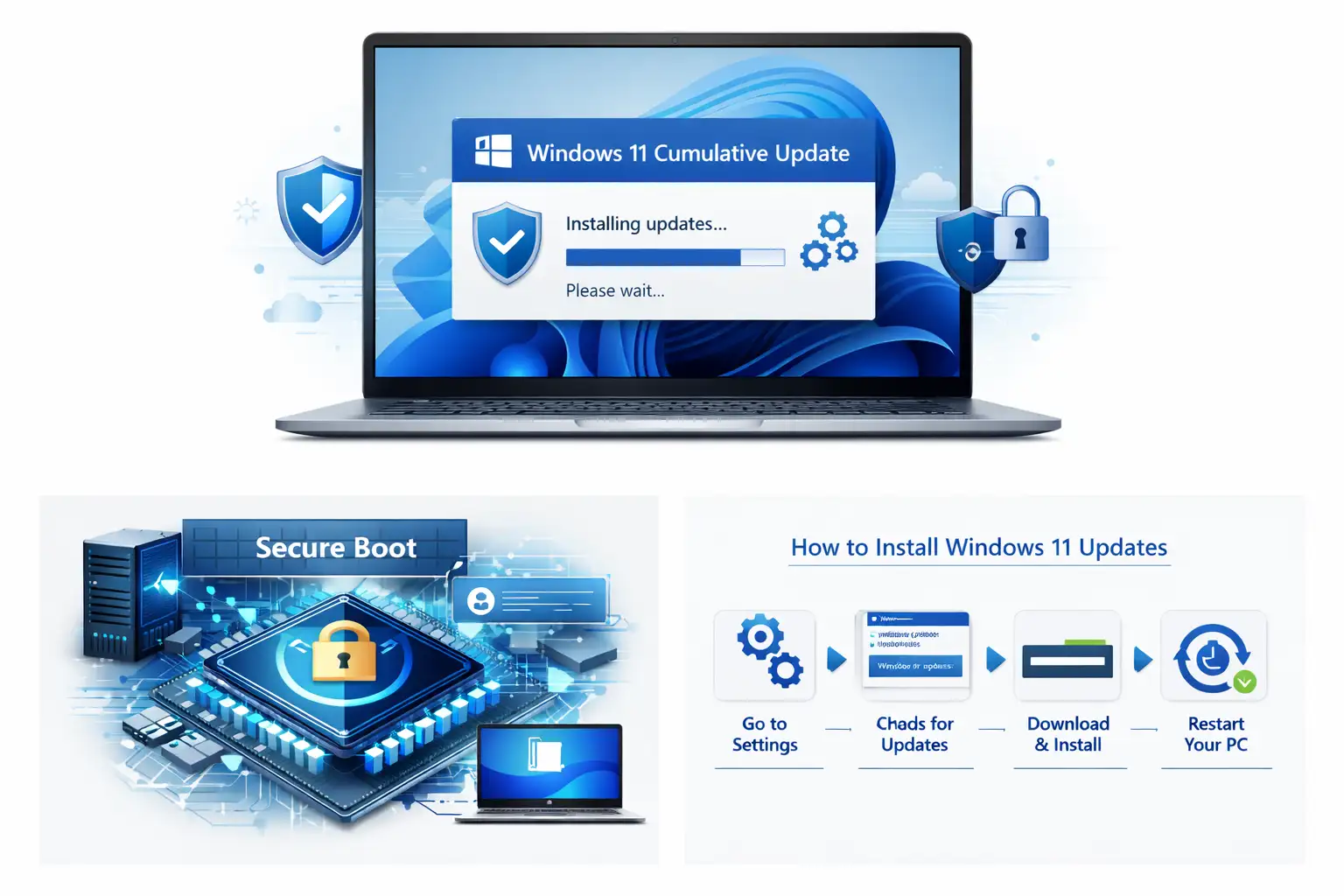
How the Windows 11 Cumulative Update Model Works
A Windows 11 cumulative update is a set of files that includes all of the security fixes, bug fixes, and reliability updates for a certain version of Windows. Installing it makes sure that a device is fully patched without having to install older updates one at a time.
Why Microsoft uses updates that build on each other
Windows used to need a lot of small updates to work properly. That method often led to broken systems where some computers didn't have the right updates.
The model was changed by Microsoft.
Every Windows 11 cumulative update now includes all of the fixes from previous updates. When a system installs the newest package, it automatically gets all of the improvements that came before it.
That design makes it easier for businesses to manage patches and lowers the number of compatibility problems.
The method gives IT administrators a consistent environment on all of their devices. Everyone has the same level of build.
The Most Recent Windows 11 Update Release: What Happened
Microsoft released updates for three main branches of Windows 11:
Version of WindowsUpdate PackNew Build
Windows 11 25H2 KB5079473 26200.8037 Windows 11 24H2 KB5079473 26100.8037 Windows 11 23H2 KB5078883 Updated build series
The main things that the Windows 11 cumulative update packages do are:
• Better security
• how reliable the system is
• fixes for bugs that affect core parts
• updates to the infrastructure that make things better
Most users won't see much of a difference, but these updates make Windows work better behind the scenes.
What Made Microsoft Release This Update
The update was made to make security better, make Secure Boot protections stronger, fix problems with reliability, and make sure that Windows devices can still work with new system policies.
More information
Operating systems are always changing. Security threats change, hardware environments change, and software parts work together in complicated ways.
Systems slowly become unstable or unsafe when they don't get regular updates.
The Windows 11 cumulative update fixes a number of problems that users and administrators have reported. For instance, some people had trouble with File Explorer when they tried to search across multiple drives. In Windows Defender Application Control environments, some people ran into problems.
Microsoft also made changes to Secure Boot policies and tools for managing system images. These changes help businesses keep their system configurations safe.
Another reason has to do with how easy it is to keep things up over time. The package includes servicing stack updates that make sure Windows devices can keep getting updates in the future.
If these underlying changes aren't made, later patches might not install correctly.
Windows 11 Versions 25H2 and 24H2 Get New Updates
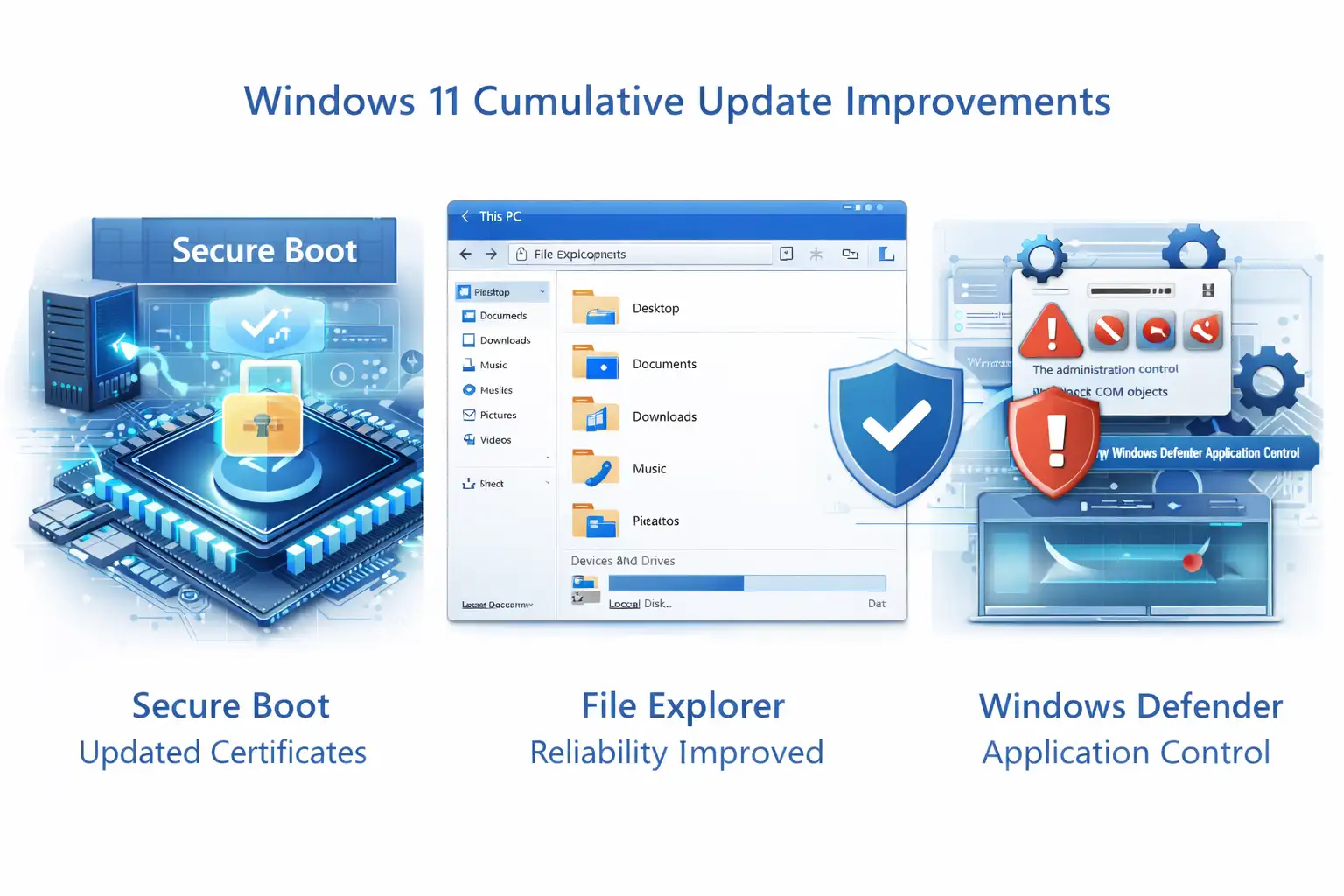
The Windows 11 cumulative update KB5079473 adds improvements to Secure Boot, fixes for File Explorer, updates to AI components, and changes to how Windows Defender Application Control works for Windows 11 versions 25H2 and 24H2.
A detailed breakdown
The latest builds add a number of improvements to reliability. Some are small but very important.
One example is how to manage Secure Boot certificates. Microsoft is slowly rolling out new certificates that make the trust chain used to start up the system stronger. The first devices to get these changes are those that show stable update behavior.
This phased rollout method lowers the chance of problems with compatibility.
Another change is to File Explorer. When users searched across multiple storage drives, they sometimes had problems with reliability when looking at results from the "This PC" interface.
That behavior is fixed by the update.
The Windows 11 cumulative update fixes a problem with Windows Defender Application Control that was causing problems for administrators who were in charge of security policies. In some cases, strict endpoint protection rules blocked real COM objects even when they were on allow lists.
The update fixes the logic for evaluating policies.
Improvements to AI parts
Microsoft also made changes to some of the AI features that come with the software.
These include parts that are in charge of:
• ability to search for images
• processes for extracting content
• operations for semantic analysis
The new version of the component makes it easier for AI-powered features to work with other parts of Windows.
These changes mostly affect the internal parts of Windows, but they make sure that Windows tools that use machine learning models keep working correctly.
Betterments Sent to Windows 11 Version 23H2
The Windows 11 cumulative update for version 23H2 fixes security issues, improves PowerShell for managing Secure Boot, makes graphics more stable, and fixes problems with the reliability of File History backups.
PowerShell improvements for system administrators
PowerShell now has more commands for system administrators.
There are two commands that stand out:
• Get-SecureBootUEFI -Decoded
• Get-SecureBootSVN
The first command lets administrators see Secure Boot keys in a way that is easy to read. This makes it easier to look at how secure the firmware settings are.
The second command helps administrators figure out if a device's firmware version meets the most recent Secure Boot policy requirements.
These tools make it easier to check for compliance in business settings.
Improvements to the reliability of File History
Another fix fixes a problem that users had when they tried to back up files with certain characters in their names.
Before, the File History tool would sometimes fail when files had Chinese characters or characters from the Private Use Area. That problem has been fixed now.
The Windows 11 cumulative update makes sure that backups work correctly no matter what kind of characters they have.
Updates for graphics stability
Users who ran graphics-heavy programs sometimes said that their systems were unstable.
This could happen when you start:
• Software for 3D
• new video games
• Design tools that use a lot of GPU
The new update makes things more stable when those workloads are running. The end result is fewer crashes and better performance when working with graphics that require a lot of power.
Support for currency symbols
Microsoft also fixed the Windows font library so that it shows the new Saudi Riyal currency symbol correctly.
These updates may seem small, but they make sure that all applications have accurate financial and localization support.
What servicing stack updates are and why they matter
Servicing Stack Updates make the parts inside your computer that install Windows updates better. Updates in the future may not work or act in strange ways without them.
More in-depth explanation
Every cumulative update for Windows 11 fixes bugs that you can see and makes the system better.
Updates to the servicing stack also update the update engine. At first, that might sound confusing.
It's like updating the installer before you install new software.
Windows might not be able to install future patches if the update engine becomes old. So, Microsoft combines servicing stack updates with cumulative packages.
This time, the servicing stack update is included in the cumulative update. Once it is installed, it can't be taken off on its own.
What has changed in Windows System Image Manager
Microsoft also made the Windows System Image Manager better.
This tool helps system administrators make and keep track of Windows deployment images. People often use it in businesses to get ready for standardized operating system installations.
A new step in the verification process is added by the update.
When administrators choose a catalog file, Windows now shows a message asking them to confirm that the file came from a trusted source.
This extra step lowers the chance of loading deployment files that aren't trusted.
How to Get the Windows 11 Cumulative Update
There are a number of official Microsoft channels that send out the update.
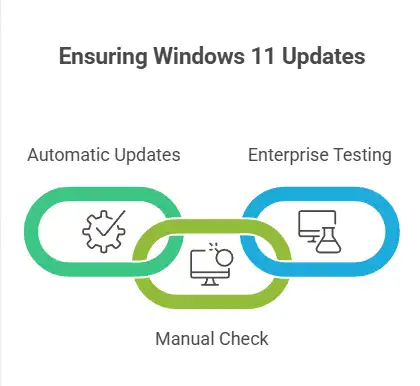
The Windows Update service will automatically send the Windows 11 cumulative update to most users. In a lot of cases, you don't have to do anything by hand.
But organizations can get updates through other management tools as well.
Some common ways to distribute things are:
• Update Windows
• Windows Update for Work
• Catalog of Microsoft Updates
• Services for updating Windows Server
Businesses often choose centralized deployment tools so that administrators can test updates on a small scale before rolling them out to all networks.
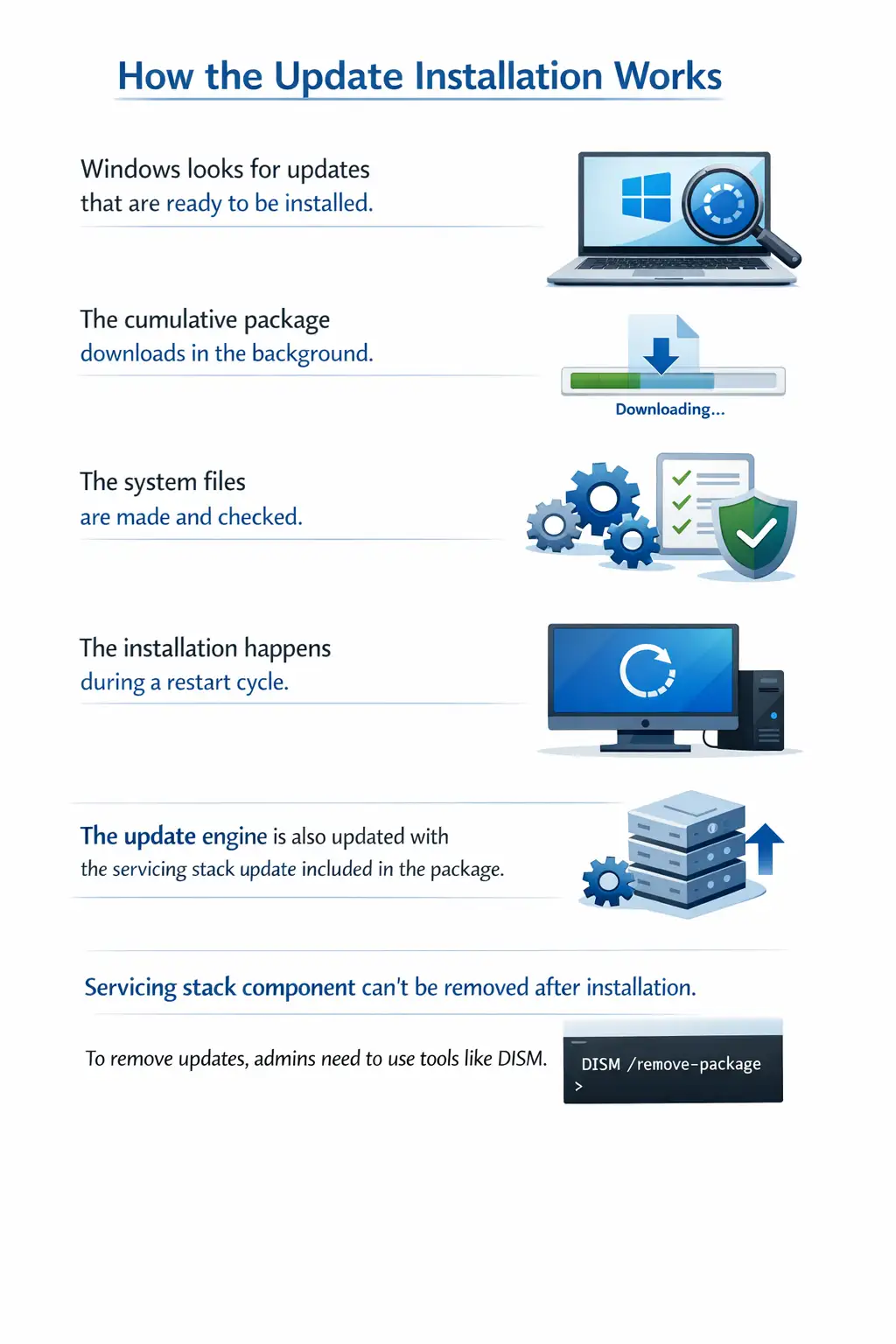
How the Update Installation Works
There is a set way to install the Windows 11 cumulative update.
Windows looks for updates that are ready to be installed.
The cumulative package downloads in the background.
The system files are made and checked.
The installation happens during a restart cycle.
The update engine is also updated because the servicing stack update is included in the package.
One thing that administrators should keep in mind is a limit. The servicing stack component can't be removed on its own after it's been installed.
If the cumulative update needs to be removed, administrators may need to use command line tools like DISM that are made for this purpose.
What This Update Does
Picture a small design studio with a few Windows computers.
Designers often use applications that use a lot of GPU power and search through many storage drives that hold large project files.
Some computers had problems with File Explorer crashing during big searches before the update. One workstation, on the other hand, sometimes crashed while rendering graphics.
The search works better and the graphics crashes go away after you install the Windows 11 cumulative update.
The team might not notice the change right away. But work goes more smoothly every day, and there are fewer interruptions.
Who Will This Windows Update Affect?
People who use it
Home users mostly benefit from better security and reliability.
The update runs in the background without making any noise and keeps devices safe.
Companies and businesses
Companies get a lot of administrative benefits.
Enterprise system management is supported by secure boot verification tools, reliable servicing stacks, and better deployment tools.
IT managers
New PowerShell commands and a better update infrastructure give administrators a better view of firmware security.
Pros and Cons
Pros
• Better management of Secure Boot
• better stability of the system
• Fixed problems with File Explorer's reliability
• more stable graphics
• better infrastructure for updates
Limitations
Some parts of the update bring up operational issues.
Administrators can't remove servicing stack updates on their own after installation because they are part of the cumulative update.
So, before deploying updates on a large scale, organizations need to carefully evaluate them.
What Users Should Do Next
Most users don't need to do anything by hand.
If your device is set up to automatically install updates, it will do so for the Windows 11 cumulative update.
But users may want to make sure that their systems are completely up to date.
The steps are:
• opening the settings for Windows
• going to Windows Update
• clicking on Check for Updates
Before rolling out the update to everyone, enterprise administrators may want to test it in a staging environment first.
Questions that are often asked
What is a cumulative update for Windows 11?
A Windows 11 cumulative update is a collection of all the security patches, fixes, and improvements that have been made for a certain version of Windows.
Do you have to do cumulative updates?
Yes, security-focused cumulative updates are usually required because they keep systems safe from known security holes.
Can you get rid of cumulative updates?
You can sometimes remove the cumulative update, but you can't remove the servicing stack updates that are part of it on their own.
Will this update change the features of the system?
Most cumulative updates don't add new features; instead, they focus on making the system more stable and secure.
Should businesses test updates before they use them?
Before putting updates on production systems, most organizations test them in controlled environments.
Summary for Executives
The most recent cumulative update for Windows 11 makes the system more secure, fixes problems with reliability, and upgrades the infrastructure for all versions of Windows 11, including 25H2, 24H2, and 23H2.
The main benefit is that things will run smoothly. Microsoft now sends out consolidated update packages instead of fragmented patches. These packages keep millions of devices stable and secure.
Companies that run big Windows environments will benefit from better Secure Boot tools, a better update system, and better safety controls for deploying software.
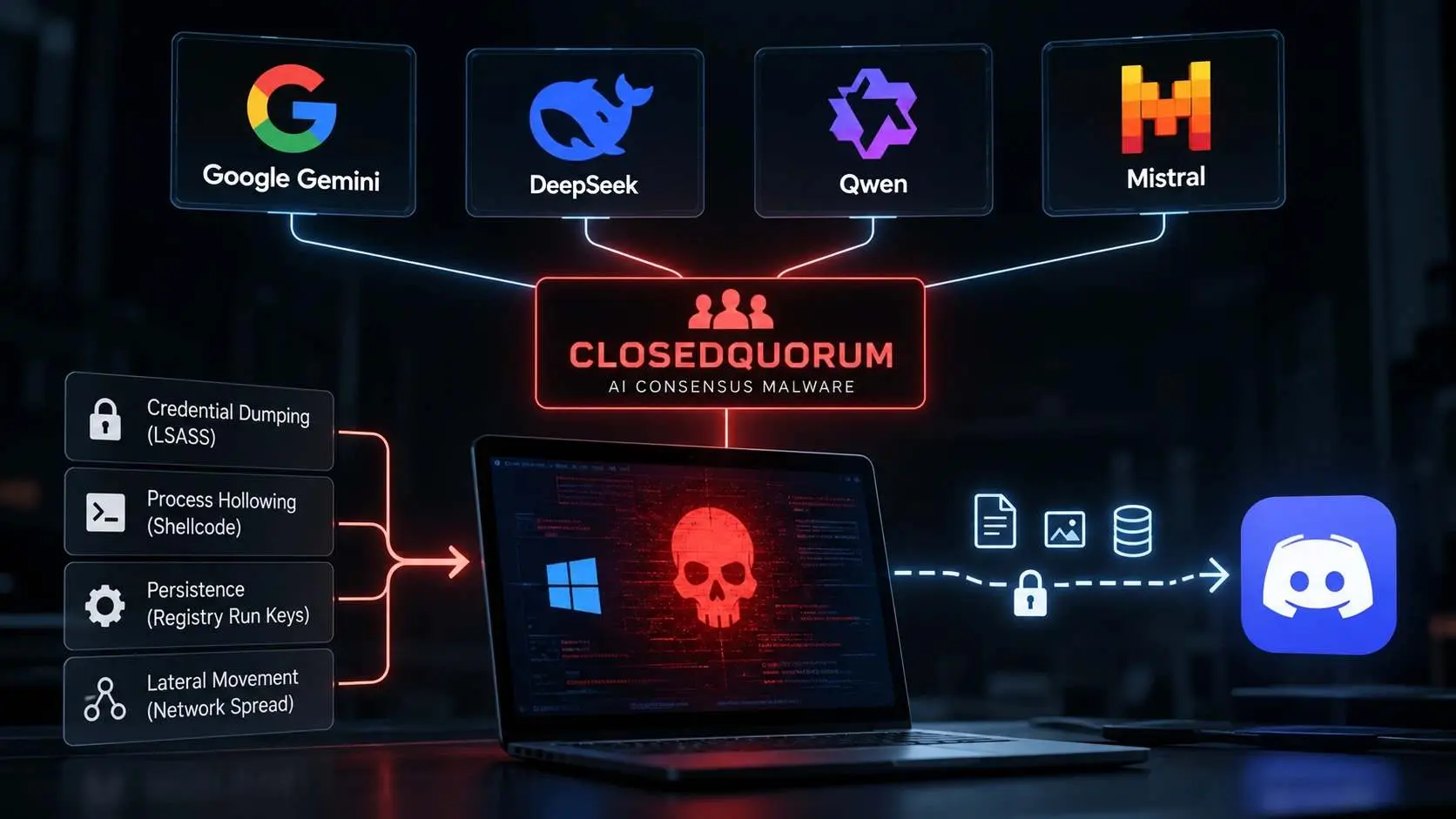
These updates can be used by security teams working with partners like Hoplon Infosec as part of a larger plan to make systems more secure. This plan includes monitoring endpoints, enforcing policies, and managing vulnerabilities.
Read more Windows security and update insights on our blog.
Source



-20260925120840.webp&w=3840&q=75)
-20260918120903.webp&w=3840&q=75)