One of the best things you can do to protect your privacy and your device is to learn how to encrypt your iPhone.
Modern iPhones have built-in encryption features that keep your account information, photos, messages, app data, and other private information safe from people who shouldn't have access to it.
You can make your data safer without having to install extra apps or make your iPhone harder to use if you set it up correctly.
This guide will show you how to encrypt your iPhone, check that encryption is turned on, use Advanced Data Protection to make your backups safer, and keep your backups safe. You will also learn which settings are the most important, what mistakes to avoid, and how to make your privacy setup stronger overall.
What Does It Mean to Encrypt an iPhone?
When you encrypt your iPhone, you turn the data you have stored into code that can't be read unless you use the right authentication method, like your passcode, Face ID, or Touch ID. In other words, it makes your information useless to anyone who tries to get into your phone without permission.
This is important because your iPhone often has very private information on it, such as messages, photos, saved passwords, notes, documents, health information, payment information, and app content. It would be much easier to expose stolen or accessed data if it weren't encrypted.
Why Encryption Is Important for Everyday iPhone Users
Encryption isn't just for people who work in business or know a lot about privacy. Anyone who keeps personal, financial, work, or family information on their phone will find it useful. Encryption adds a strong layer of protection if your iPhone is lost, stolen, or someone else gets to it physically.
It also helps keep your privacy safe over the long term. Even if someone gets the device, it's much harder to read properly encrypted data without the right credentials.
What Data Is Protected on an Encrypted iPhone?
When encryption is turned on, the data that is protected can include:
• Pictures and videos
• Messages and files
• What the email says
• Notes and reminders
• Data for the app
• Passwords that were saved
• Information about your Apple Pay account and other accounts
• Health and private information about you
Is iPhone Encryption Enabled by Default?
Once you set up a passcode, your iPhone's data is usually safe by default. Encryption is supported by both the hardware and the software, but the best way to protect your device is to lock it properly.
That means that your screen lock and authentication settings are very closely related to encryption. Your data isn't as safe and your protection isn't as strong if you don't have a passcode.
Face ID, Touch ID, and Passcode Security
Face ID and Touch ID make it easier to get into your phone securely, but the passcode is still the most important part of iPhone encryption. Biometric tools are helpful because they make people more likely to keep their devices locked instead of not using any security at all.
Face ID is often the easiest way to keep both privacy and convenience on newer iPhones. Touch ID can still be helpful on devices that support it, but a strong passcode and consistent lock-screen protection should always come first.
How to Choose a Stronger iPhone Passcode
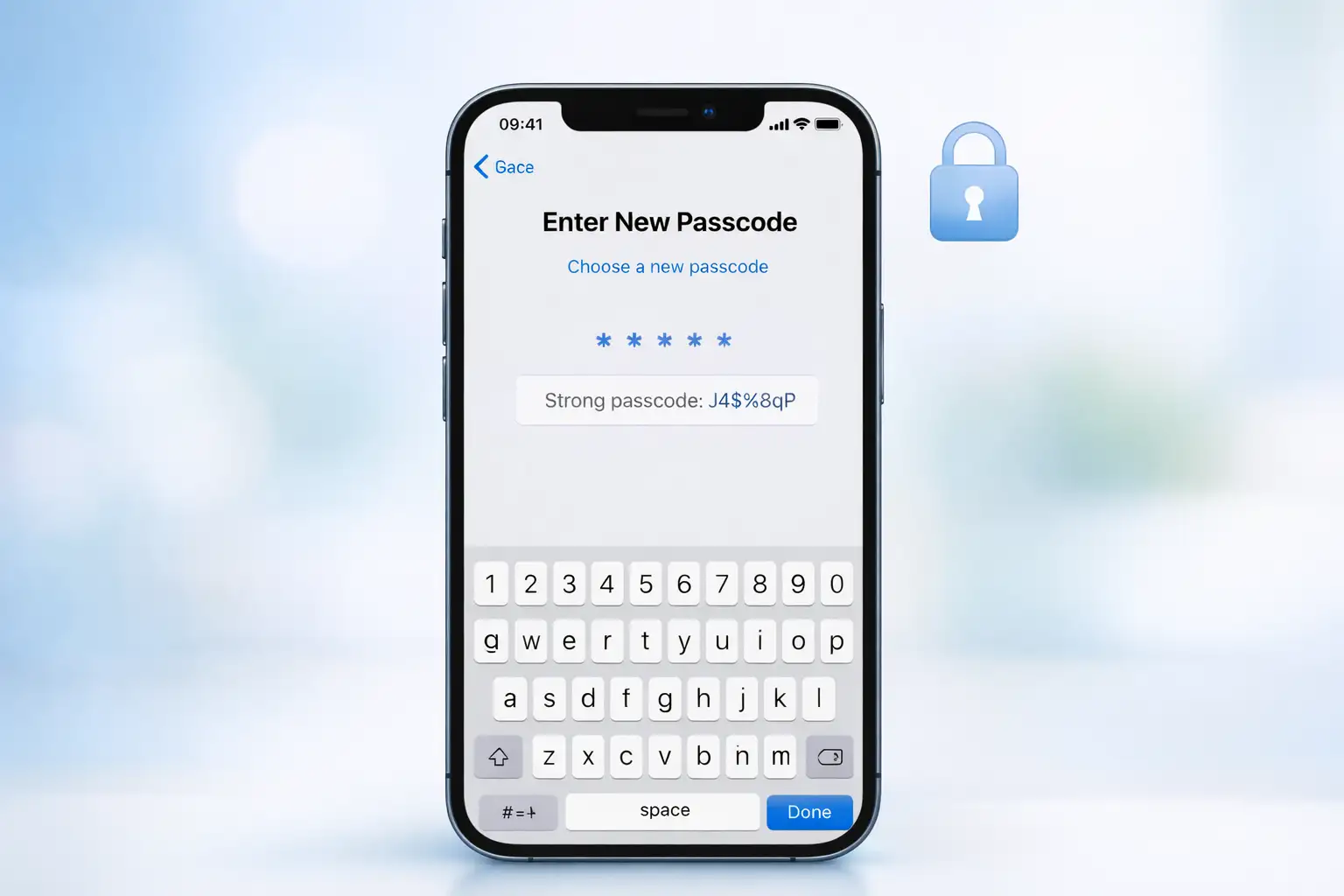
A stronger passcode makes it harder to get to encrypted data. If you can, pick a six-digit or custom alphanumeric passcode instead of a simple four-digit one.
Here are some good ways to use a passcode:
• Don't use patterns that are easy to see, like 123456 or 000000.
• Don't use birthdays or numbers that repeat.
• When you can, use a longer custom numeric code.
• Think about using a custom alphanumeric code to make things safer.
• Don't ever give out your passcode without thinking about it.
Update to the Latest iOS Version First
Before you change any advanced privacy settings, make sure your iPhone is running the most recent version of iOS that is compatible with your device. Security updates often include patches that fix known holes in your device's security, make it more stable, and make it safer.
To find out what version you have, go to Settings > General > About and look at the software version. To get the latest version, go to Settings > General > Software Update and install any updates that are available.
Using the most recent version of your software is important because some advanced privacy features only work with newer versions of the system. It also lowers the chance of security holes that come from using old software.
How to Encrypt Your iPhone with a Passcode
For most people, the first step in learning how to encrypt your iPhone step by step is to turn on a passcode. When you set a passcode on your iPhone, the device's built-in encryption and data protection features are turned on.
This is how to do it:
1. Go to Settings.
2. Touch ID and Passcode or Face ID and Passcode
3. Turn on the passcode by tapping it.
4. Type in a strong six-digit or custom code.
5. Finish setting up Face ID or Touch ID if your device can do that.
When you lock your iPhone after setting it up, it will keep your data safe. Most people will find this to be the easiest and most important step in encryption.
When to Turn On Erase Data
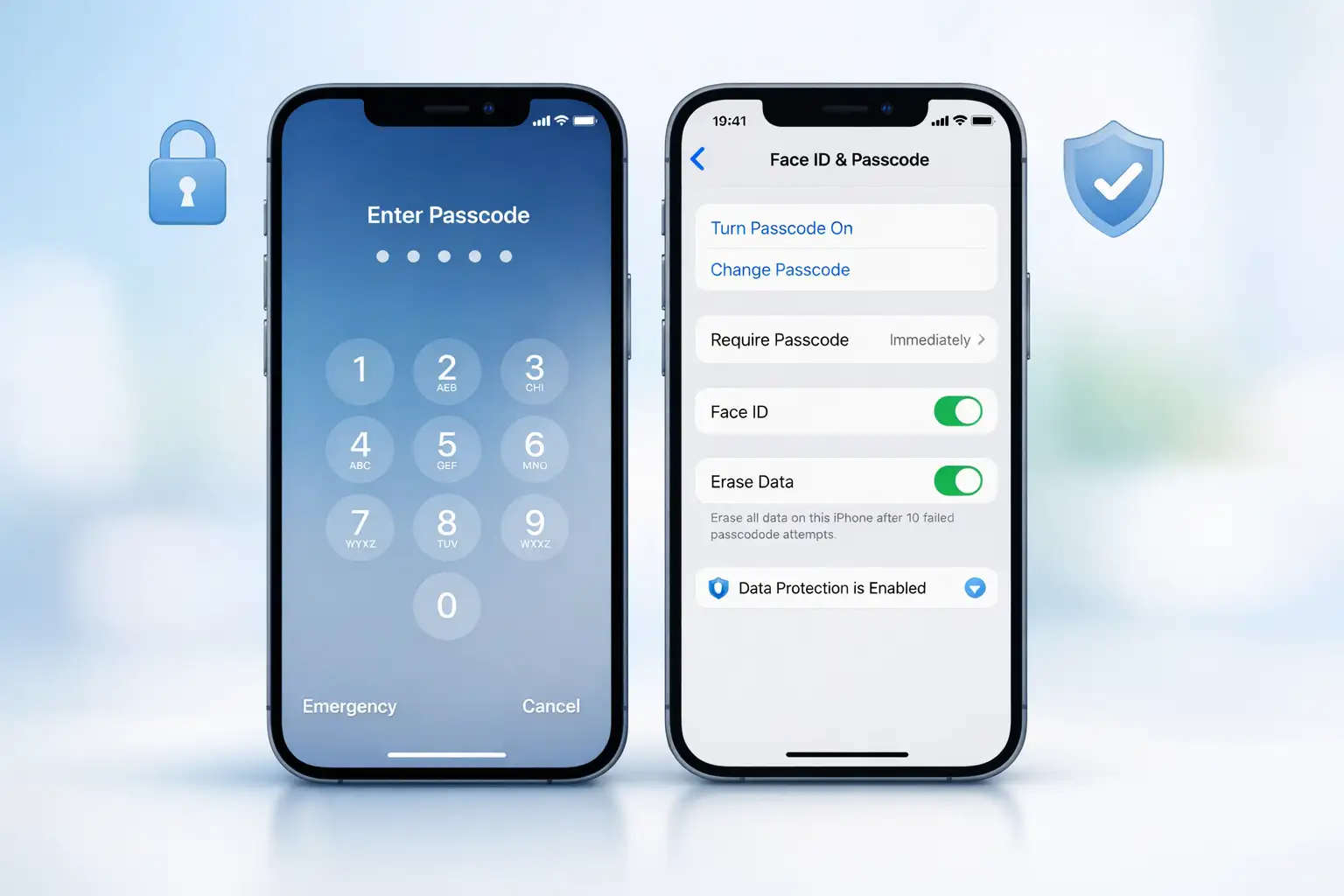
Some users may also choose the "Erase Data" option, which deletes data after 10 failed attempts to enter the passcode. If your iPhone has very private business, financial, or personal information on it, this can be helpful.
But you should be careful when using it. This setting could make things more dangerous if kids use your device a lot or if someone keeps guessing the code by accident.
How to Check if Your iPhone Is Encrypted
A lot of people want to know, "How do I know if my iPhone is encrypted?" The easiest way is to check that a passcode is turned on and then look for the device's confirmation in the passcode settings.
Where to Find “Data Protection Is Enabled”
Do the following:
1. Go to Settings.
2. Touch ID and Passcode or Face ID and Passcode
3. If asked, type in your passcode.
4. Scroll down to the bottom of the page.
5. Find the message that says, "Data protection is on."
Your iPhone's built-in data protection is on if you see that message. When the device is locked, that is one of the clearest signs that your stored data is being protected.
Image suggestion: a screen with passcode settings that shows the status of data protection
How to see if your iPhone is encrypted and has data protection turned on
How iPhone Data Protection Works
Apple protects files on the device with a built-in system that most people call Data Protection. This system uses the iPhone's hardware encryption features and adds encryption keys to the data that is stored.
You can set up protection rules for each file, and access depends on whether the right authentication state has been unlocked. This structured design helps keep different types of data safe in a controlled way instead of treating them all the same.
Why This Matters for Privacy Protection
The result is more important to users than the technical details. When you lock and protect your device the right way, it's much harder to get to the information on it without permission.
This is why encryption is such an important part of keeping your privacy safe. It protects data that is not moving between apps or networks, too.
How to Turn On End-to-End Encryption on Your iPhone
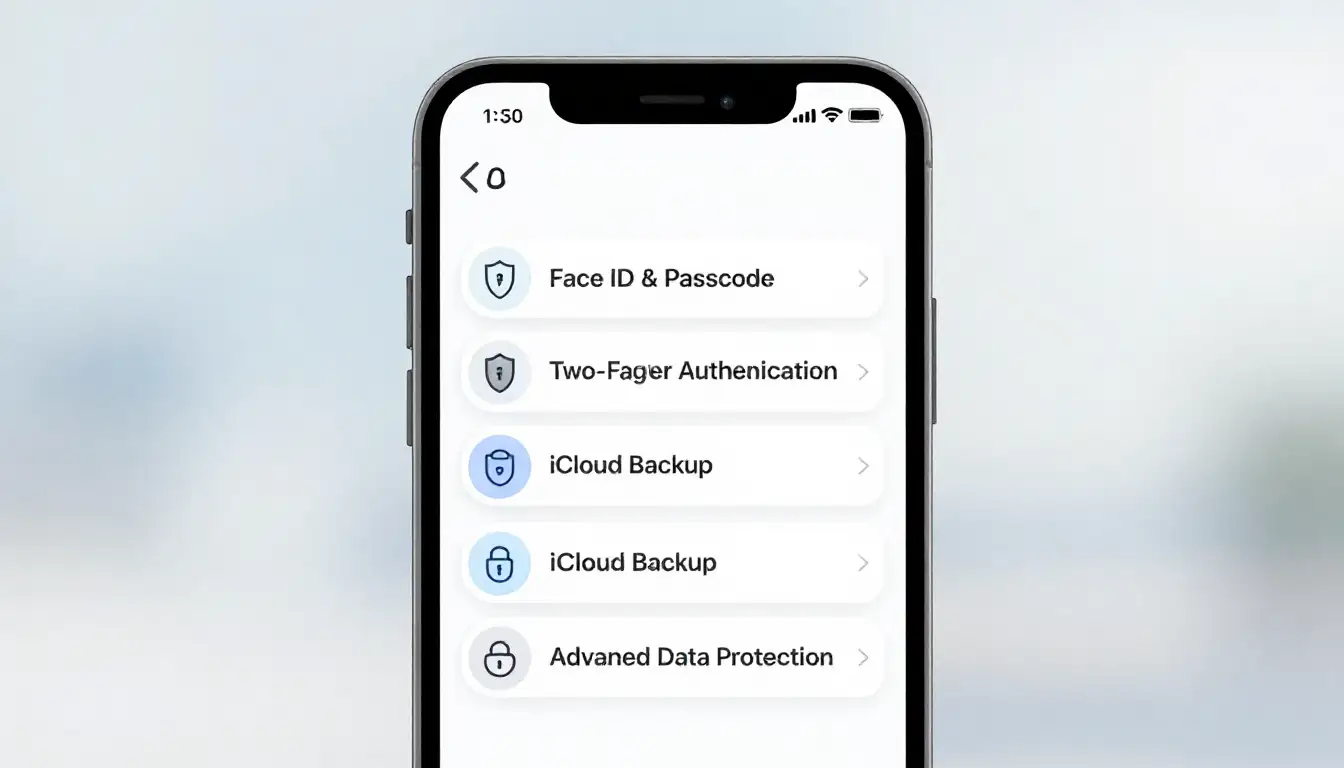
If you want more security at the cloud level, you should learn how to use Apple's Advanced Data Protection feature to turn on end-to-end encryption on your iPhone. This adds more types of iCloud data that are protected by end-to-end encryption. This means that only your trusted devices can access the data.
You have more control with this feature, but you also have more responsibility. Apple might not be able to get that data back for you if you lose access and don't have a way to get it back.
What Advanced Data Protection Changes
Advanced Data Protection makes iCloud backups safer and protects your privacy for important types of data, such as
• Backups to iCloud
• Pictures
• Notes
• Reminders
• Files that are stored in iCloud Drive
• Messages that are saved in backups
This means that not just a small group of very sensitive types of data stored in the cloud will be better protected.
Recovery Contact vs. Recovery Key
You might need to set up account recovery in order to turn on Advanced Data Protection. You usually have two main choices:
• Recovery Contact: a person you trust who has an Apple device and can help you get a recovery code
• Recovery Key: a long key that you keep safe and use if you ever need to get back in.
For many people, having a recovery contact is easier. A recovery key gives you more direct control, but you need to keep it safe because losing it can make it hard to get into things.
How to Turn On Advanced Data Protection
Do these things:
1. Check to see if your iPhone is up to date.
2. Set up two-factor authentication for your Apple account.
3. Open the Settings
4. Touch Your Name
5. Go to iCloud.
6. Look for Advanced Data Protection
7. Set up the whole account recovery process.
8. Pick a Recovery Key or Recovery Contact
9. Tap "Turn On Advanced Data Protection."
10. Do what the screen tells you to do.
Check to see if your other Apple devices are updated enough to use the feature before turning it on. This setting affects your Apple account as a whole, so older devices may not work with it.
How to Encrypt Your iPhone Backups
Only part of the process is making sure the phone itself is safe. You should also keep your backups safe because they often contain private information that could be made public if they aren't protected.
How Secure Is iCloud Backup?
To start backing up to iCloud:
1. Go to Settings.
2. Touch Your Name
3. Click on iCloud.
4. Tap on iCloud Backup.
5. Back Up This iPhone should be turned on.
Backups can happen automatically when your iPhone is connected to Wi-Fi, plugged in, and locked. When you turn on Advanced Data Protection, your iPhone backups are even safer because end-to-end encryption covers more of the backup data.
How to Encrypt a Local iPhone Backup on Your Computer
When you back up your iPhone to a computer, you should choose "Encrypt local backup." This keeps private account data and saved passwords safe in the backup.
The basic process is as follows:
1. Link your iPhone to your computer.
2. Start the tool for managing devices that you use for backups and syncing.
3.Choose your iPhone.
3. Choose4. Select Encrypt local backup.
5. Make a strong password for your backup.
6. Keep that password safe.
It should never be easy to forget or weak. It's usually best to store it in a secure password manager.
Image suggestion: a screen with backup options showing the choice to encrypt the backup
SEO alt text: settings for the security of encrypted iPhone backups and iCloud backups
Best iPhone Security Settings to Protect Your Privacy
When used with other good privacy habits, encryption works best. If you want to make your devices safer, don't just use one feature; instead, use the following settings and habits together.
Essential iPhone Security Settings and Habits
• Set a strong passcode
• For safety and ease of use, use Face ID or Touch ID.
• Set up two-factor authentication for your Apple account.
• Update iOS regularly
• Turn on iCloud Backup
• Think about using Advanced Data Protection if it works for you.
• Check the permissions of your apps often.
• Don't tell anyone your passcodes or how to get your account back.
• Stay away from risky unknown networks and use secure Wi-Fi.
• Make sure to back up important files often.
Why Layered Security Matters
Encryption keeps data safe when it's stored, but layered security makes it less likely that the data will be exposed in the first place. For instance, software updates fix security holes, and two-factor authentication keeps your account safe even if your password is stolen.
Putting these things together makes for a better overall privacy setup. It's a lot better than thinking of encryption as a single solution.
Does Encryption Slow Down an iPhone?
For most people, encryption doesn't slow down their computer in a way that's easy to see. Modern iPhones are made to handle built-in encryption well, so the security benefit is much bigger than any small effect on performance.
If you use your device normally, you probably won't notice a slowdown when you turn on stronger backup security or a passcode-based encrypted setup. In other words, an iPhone can be both safe and easy to use at the same time.
Picture idea: a person using their iPhone normally after turning on security features
SEO alt text: How well does iPhone encryption work, and how do people use it every day?
How to Turn Off Encryption on Your iPhone
When you turn off the passcode, Advanced Data Protection, or encrypted backup settings, your data is less safe. You can technically change many of these settings back, but for most people, this is not a good privacy choice.
Should You Turn Off iPhone Encryption?
Most of the time, no. If you turn off protective settings, your personal data is more likely to be exposed if your phone is lost, stolen, or accessed without your permission.
If you ever turn off a security feature, turn it back on as soon as you can. It's always better to have a protected iPhone than one that's easy to use but not safe.
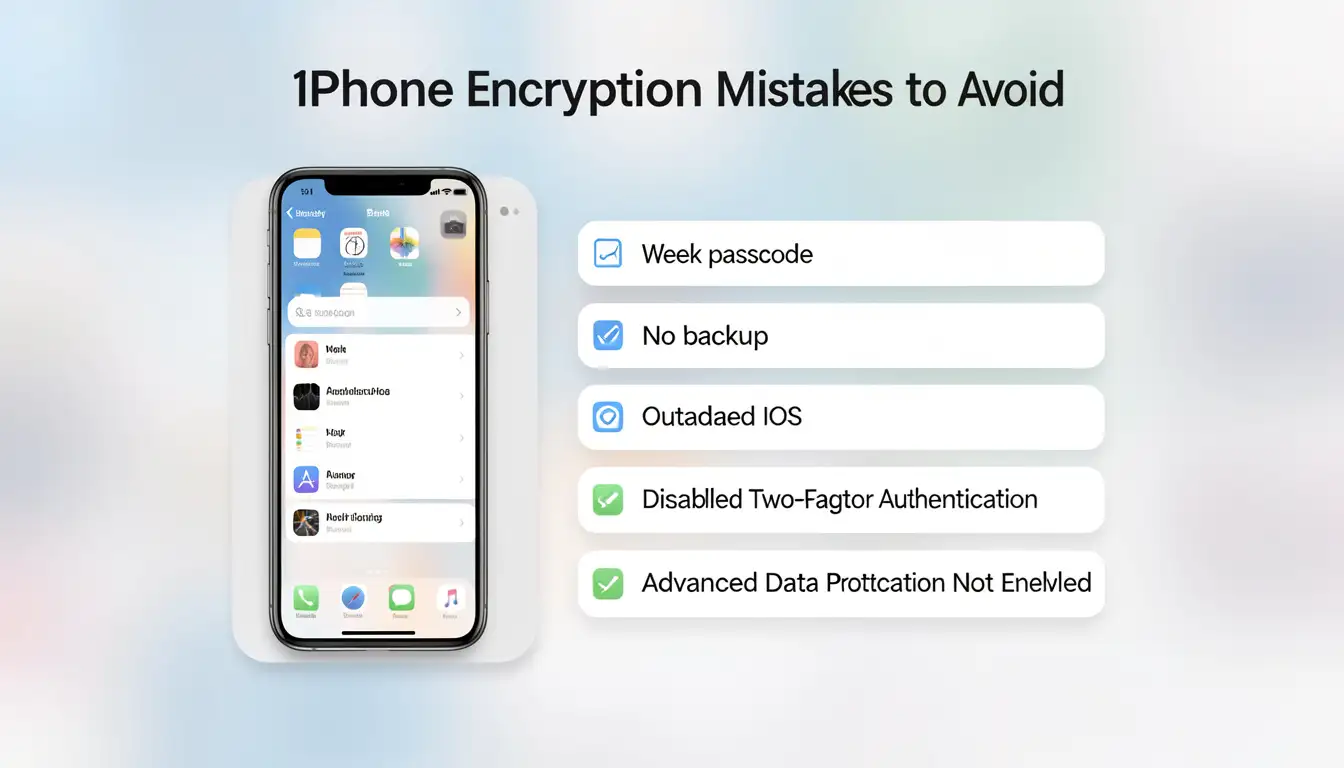
Common iPhone Encryption Mistakes to Avoid
Even people who turn on encryption can make their own protection weaker by making small mistakes. Your setup will be much stronger if you can avoid these gaps.
The Most Common iPhone Encryption Mistakes
• Using a passcode that is easy to guess or weak
• Not regularly updating iOS
• Not backing up data
• Turning on Advanced Data Protection without making plans for recovery
• Forgetting the password for the local backup
• Thinking that biometrics are enough without a strong passcode
• Not using account-level security features like two-factor authentication
• Not backing up important data
Setting up strong encryption isn't as simple as turning on one feature. It's about making sure your settings are always the same, up to date, and easy to get back.
Frequently Asked Questions About iPhone Encryption
Is iPhone Encryption Enabled by Default?
When you set a passcode on your iPhone, the built-in encryption protection starts to work. The device is made to be very secure, but users must not skip the step of setting a passcode.
How Can I Tell if My iPhone Is Encrypted?
Open Settings and click on Face ID & Passcode or Touch ID & Passcode. Then, scroll down. Data protection is turned on, which means your iPhone is safe when it's locked.
How to Turn On End-to-End Encryption on Your iPhone?
To get to Advanced Data Protection, open Settings, tap Your Name, go to iCloud, and then tap Advanced Data Protection. Set up account recovery completely, then follow the instructions to turn it on.
Does iPhone Encryption Protect Photos and Messages?
Yes, encryption does help keep photos, messages, and other personal data safe on the device. With stronger cloud settings, more of the data you sync and back up can also be better protected.
Should I Encrypt My iPhone Backups?
Yes, for sure. Backup files can have very private information in them. That's why it's important to use encrypted backups for both iCloud and local backup storage.
What Is the Best Way to Secure Your iPhone?
If you want to protect your privacy, the best place to start is by setting a strong passcode, keeping iOS up to date, using two-factor authentication, and turning on Advanced Data Protection. That mix makes your device safer every day and protects your privacy better in the long run.
Conclusion
One of the best ways to protect your privacy, make your device more secure, and keep your personal information safer if your phone is lost, stolen, or accessed by someone else is to learn how to encrypt it.
The first and most important thing to do is to set a strong passcode. After that, check that data protection is turned on, and if necessary, make your setup even stronger by using end-to-end encryption and better iCloud backup security.
Think in layers for the best results. If you turn on Advanced Data Protection, make sure to use a strong passcode, keep your iPhone up to date, back up your data, and choose a recovery method carefully. When these settings work together, your iPhone is much better able to keep your most important data safe.
To learn more about online security and protection tips, visit our blog page.



-20260925120840.webp&w=3840&q=75)