
You need to have a strong home network security setup now. If your home has laptops, smartphones, printers, gaming systems, tablets, smart TVs, cameras, or wearables, they are all part of your network and could be hacked if the connection isn't secure.
This guide shows you step by step how to protect your home network from hackers by taking steps that make your home WiFi safer, your router safer, and your overall cybersecurity better.
A lot of people only think about the WiFi password, but a safe home network needs more than that. Settings for the router, encryption, firmware updates, smart device isolation, and the health of the devices all matter.
This article will show you how to make your router stronger, keep your sensitive devices safe, cut down on entry points, and make your family's setup safer.
What a home network is and why it needs to be safe
A home network is a group of devices in your home that can connect to the internet and sometimes to each other.
This could be anything from computers, phones, tablets, printers, gaming consoles, smart speakers, TVs, wearables, and other connected devices. Some devices connect with wires, while others connect wirelessly.
People often use wired networks for devices like printers and scanners that need a stable physical connection.
A wireless network lets devices like smartphones, tablets, and a lot of smart home products talk to each other without wires. Most homes have both types of networks, so your network security needs to protect all of them, not just your WiFi.
What kinds of devices are on a home network?
Most homes have more devices that are connected than they think. Adding more connections makes things easier, but it can also make it easier for someone to get in. That's why you shouldn't just think of a network as a single router with a single password.
Some common devices that connect to home networks are:
• Laptops and desktop computers
• Phones and tablets
• Scanners and printers
• TVs that are smart and streaming boxes
• Consoles for playing games
• Voice assistants and smart speakers
• Fitness trackers and wearables
• Doorbells and security cameras
• Smart plugs, light bulbs, and appliances
A simple diagram of a home network that shows a router, laptops, smartphones, a smart TV, a printer, and IoT devices.
Alt text: a diagram of a safe home network with a router, laptops, smartphones, and IoT devices
Why it's important to keep your home network safe
You can do a lot more than just steal WiFi with a weak network. Attackers could try to install malware, steal your data, get into your personal accounts, use up your bandwidth, or turn your connected devices into part of a botnet.
If the network isn't set up right, a small problem can affect everything that is connected to it.
People who use computers at home often think that hackers only go after big companies. In reality, a lot of attacks are automated and go after any router or device that is weak. That's why it's important for regular families to make their routers and wireless networks more secure.
How hackers go after weak home WiFi security
Attackers usually look for easy-to-find flaws first. They might look for routers that have default names and passwords, old firmware, weak encryption, open remote access, or smart devices that aren't secure. A network is more appealing as a target the easier it is to get to.
Weak settings can still put your devices and data at risk, even if a hacker doesn't completely take over your router. Even if a network looks like it's "working fine," it could still be weak behind the scenes. Strong security lowers that risk by adding many layers of protection.
Step-by-Step Guide to Protecting Your Home Network from Hackers
The best way to make things safer is to do it in layers. You shouldn't just rely on one thing. You should make the network name, passwords, encryption, firmware, access settings, device separation, and router placement all stronger.
Step 1: Change the SSID that comes with your device
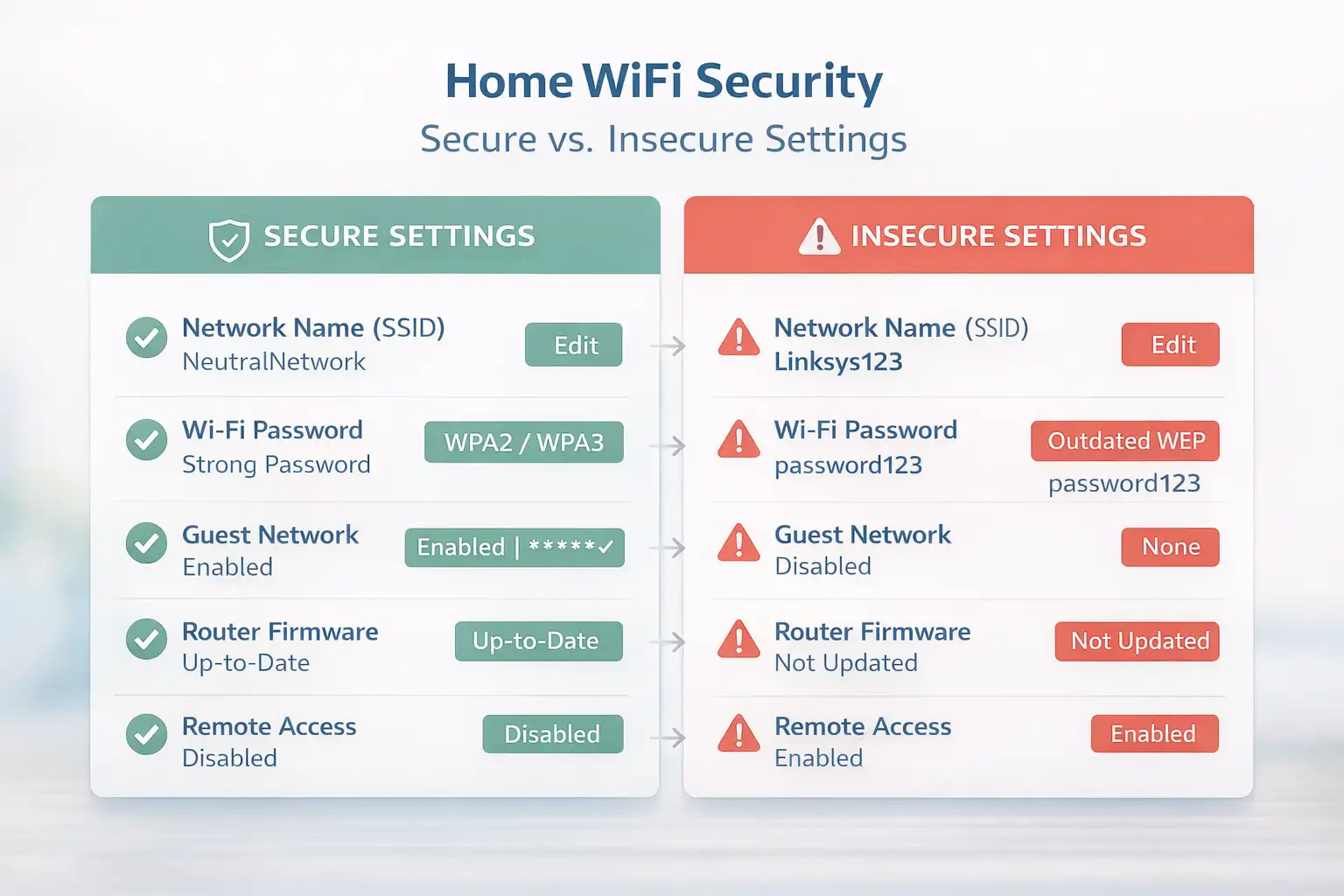
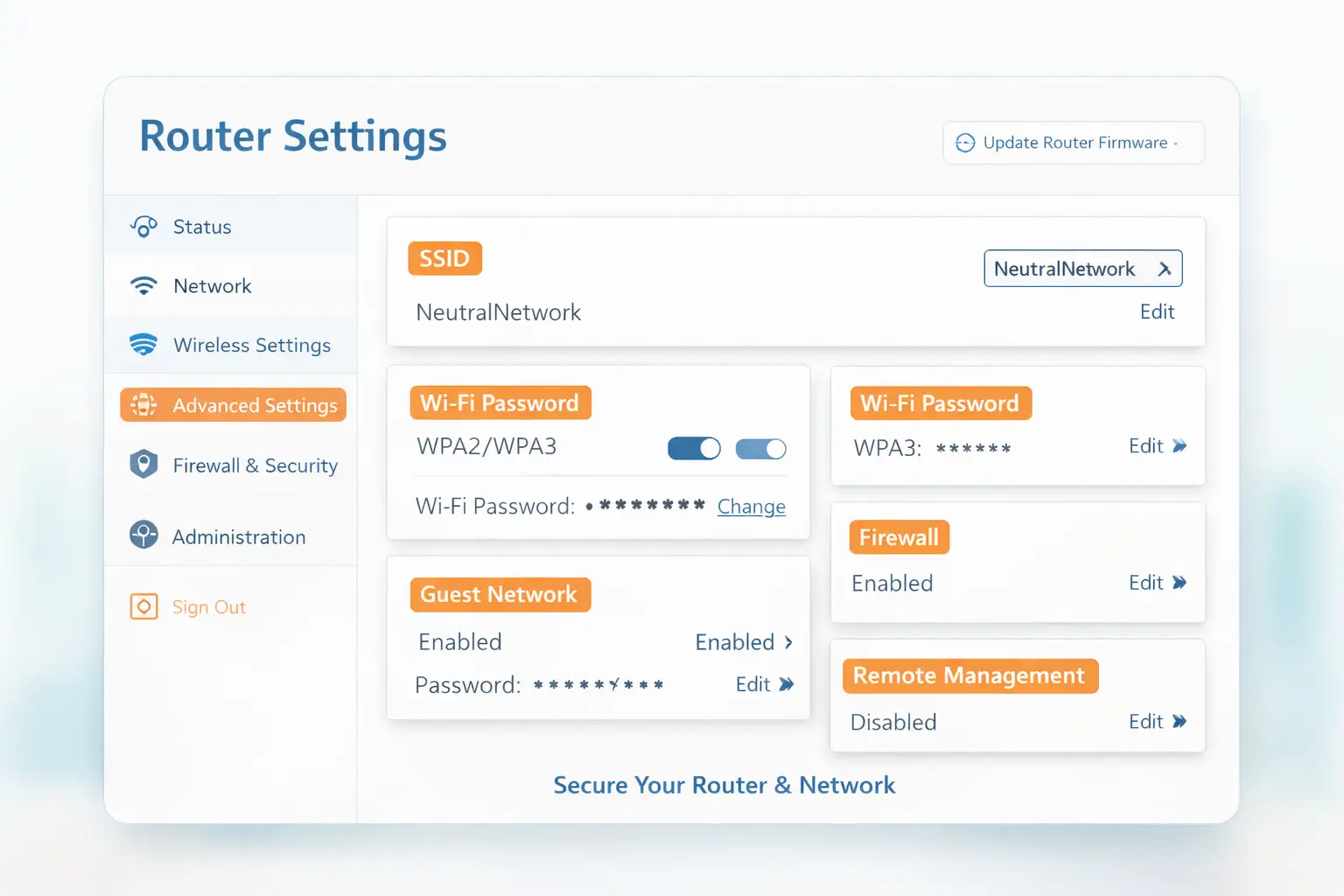
The SSID, or Service Set Identifier, is the name of your WiFi network. Most routers come with a default SSID that may have the brand name or model number in it. People who are scanning nearby networks can find out useful things about your router if you leave that default name in place.
A neutral SSID that doesn't have your name, address, phone number, router brand, or model is a better choice.
A generic but boring name doesn't give away as much information and suggests that the router has been managed instead of just left alone. That alone won't stop a skilled attacker, but it does get rid of an extra clue.
Step 2: Set a strong password for your router
A lot of routers come with default admin passwords, which is a big problem. People who know the maker may also know the default login pattern. One of the most important things you can do to keep your home network safe is to change the password for the router admin as soon as you can.
Make sure your password is long and hard to guess. A good password should be at least 12 characters long and should include a mix of uppercase and lowercase letters, numbers, and symbols. Also, it's a good idea to change it often instead of keeping the same router password for years.
Step 3: Turn on WPA2 or WPA3 encryption
Encryption keeps the information that goes between your devices and your router safe. Attackers have a better chance of reading traffic or using brute-force methods against the network if encryption is weak. WPA2 and, if your router supports it, WPA3 are the best choices for modern home WiFi security.
Don't use old standards like WEP or legacy WPA. Don't use those older protections on a modern home network because they are much weaker. Use WPA3 if you can; if not, WPA2 is still much better than older options.
Step 4: Make a network for guests
A guest network is good for visitors, but it also makes things safer. Most of the time, your friends and family don't need to be able to get to your main devices, files, or smart system controls.
If you keep guests on a separate network, the chances that an infected or poorly protected device will be able to connect directly to your main devices go down.
Use strong encryption and a strong password to keep the guest network safe. A guest network is especially useful in homes where a lot of people come over or where kids often connect their friends' devices. It makes a clearer line between devices you trust and devices you only use for a short time.
Step 5: Update the firmware on your router
The software that runs the router's main functions is called router firmware. Attackers may already know how to use weaknesses in older firmware. One of the best ways to lower risk is to keep it up to date.
Some routers let you check for updates from the admin interface, and others do it automatically. If your router doesn't make it easy, look for help on the manufacturer's website for your model. A router that doesn't get updates anymore is a security risk for a long time.
Step 6: Activate your firewall
Most routers come with a built-in firewall, but you should still check to see if it is turned on. A firewall keeps outside internet traffic from getting to your internal devices. It lets normal outgoing connections through while keeping unwanted incoming connections from getting through.
Device-level firewalls are also important if your router doesn't have a good one. As part of a layered defense, laptops and desktops should have their system firewalls turned on. One way to protect yourself should not take the place of another.
Step 7: Change the IP address of the router by default
Many router models use the same default IP address, which makes it easy to find. Changing the internal router IP can make it a little harder for attackers to use standard methods. This isn't your first line of defense, but it can still make it harder for opportunistic attacks.
You can usually find this option in the router dashboard under LAN or network settings. Once the address changes, use the new one to get to the router's admin page. If you ever need to undo it, a factory reset usually brings back the original settings.
Step 8: Put IoT devices on a different network.
Smart home devices make life easier, but many IoT devices are less secure than laptops or phones. Smart appliances, smart bulbs, cameras, voice assistants, and other connected devices can all make your network more open. Segmentation is more important the more devices you have that are connected to the internet.
Putting IoT devices on a separate network, like a guest network or a VLAN, is a good way to set things up. This way, your computers and phones stay on one network, and your less trusted smart devices stay on another. This makes it less likely that a weak smart device can be used to get to your personal devices.
Step 9: Turn off UPnP.
UPnP makes it easier for devices to find the network and connect to certain things. It can be helpful when setting things up, especially in smart homes. But convenience can also be dangerous because it can make functions available that attackers or malware can use to their advantage.
It's safer to turn off UPnP if you don't need it right now. In a lot of homes, devices work fine after they are set up the first time without having UPnP on all the time. Turning it off takes away one more channel that could be used for bad things.
Step 10: Turn off remote access
A lot of routers have remote management features that let you get to the router from outside your home. This can be helpful in some situations, but it also makes things more dangerous. It's best to turn off the remote management feature if you don't need to manage your router from afar.
In the router interface, look for settings that say "Remote Access," "Remote Administration," or "Remote Management." If you don't need the feature, turn it off. This makes it less likely that someone will change the settings on your router from the outside.
Step 11: Be careful when using MAC address filtering
With MAC address filtering, you can choose which devices can connect to your network. Even if casual or average intruders somehow know the WiFi password, it can help keep them away. That makes it a helpful extra layer in some homes.
Still, it shouldn't be seen as a full answer. This is a secondary defense, not a primary one, because skilled attackers can fake MAC addresses. It works best when used with strong passwords, proper encryption, up-to-date firmware, and no remote access.
Step 12: Move your router to a safer place
The position of the router affects both the quality of the signal and the security. If you put your router near windows or doors that lead outside, the signal may be able to reach farther outside your home than it needs to. Putting the router more in the middle of the room can help cover more ground inside and cut down on unnecessary exposure.
In homes with more than one floor, a central shelf or high spot usually covers more area than a corner near an outside wall. Better placement makes your network easier to use and can make it less visible outside of your home. That balance is important for both planning a secure wireless network and performance.
Step 13: When you're not home, turn off your network.
If you're going to be away from home for a long time, turning off the router can help keep you safe. You can't remotely probe a network that is turned off the same way you can an active one. This is a simple but useful step for times when you're traveling or when your property is empty.
There is also a benefit for the hardware. If you leave your router unplugged for a long time, it can lower the risk of damage from electrical problems like power surges. It's a small thing you can do to keep your devices safe and last longer.
Step 14: Make sure all of your connected devices are in good shape.
Not only does your router need to be safe. Laptops, tablets, smartphones, and other devices can be the weak link, especially if they go outside the home and use public WiFi. A device that gets infected somewhere else can come home and put your network at risk.
Keep your operating systems and apps up to date, use strong, unique passwords, turn on automatic updates when you can, and use well-known security software when you need to. Good cybersecurity hygiene on all devices helps keep the router safe as well, since every device on the network affects overall security.
Best Settings for Router and Home WiFi Security
Some settings are more important than others. If you want the biggest improvements first, focus on the controls that lower the biggest and most common risks. These are the settings that usually have the biggest real-world effect.
What router settings are most important for keeping your home network safe?
Before adding more advanced steps, make sure you have the basics down. Identity protection, access control, and software maintenance are usually the three things that make the strongest foundation. The network is more open than it needs to be if any of these are missing.
Put these router settings at the top of your list:
• Change the SSID that comes with the router
• Change the password for the admin account
• Turn on WPA2 or WPA3 encryption
• Make sure your WiFi password is strong
• Start the firewall
• Keep your router's firmware up to date
• Turn off remote access unless you need it.
• If you don't need UPnP, turn it off.
• Give guests access to a guest network
• Keep IoT devices and sensitive devices apart
How to Keep Your Network's Smart Devices and Computers Safe
A router can be set up well, but the devices that are connected to it will still be weak. This is why a complete plan should include computers, phones, tablets, and other smart devices. A secure network isn't just about keeping people out; it's also about making sure that one compromised device doesn't affect everything else.
How can I protect my smart home's network from hackers step by step?
Smart home planning is now part of network security if your home has a lot of connected devices. IoT products are often useful, but they don't always have strong security features. It's best to assume that some of them might not be as strong as your main devices.
These are the best things to do for smart homes:
• Set up a separate network or VLAN for smart devices
• Keep the main network for phones, laptops, and important accounts
• Always update your smart devices when updates are available.
• Get rid of old smart devices that you don't use anymore.
• Don't leave cloud-linked features open that you don't need.
• Make sure the companion apps for your devices have strong passwords.
• Check which devices really need access to the local network.
This method doesn't stop you from using smart devices. It just makes it so that one weak device can't do as much damage.
More advanced ways to make a secure home network even stronger
After the basics are done, you can add more options to make it stronger. These steps are especially useful for families with a lot of devices, people who need to work from home, or people who are very private. They aren't always needed in every home, but they can make layered security better.
For more security, use a VPN.
A VPN adds another layer of security by encrypting your internet traffic and hiding your real IP address. VPN encryption makes it harder to read your data, even if the router's own security isn't perfect. It also protects your privacy in ways that go beyond basic network security.
You can use a VPN on a laptop, desktop, smartphone, or tablet. It can also be used through the router in some setups, but most households use it on a device level. It is better to think of it as an extra shield than as a replacement for strong router settings.
What should I do if I think my router is not safe?
Don't ignore a possible weakness just because the internet still works. A review is needed if your device is running slowly, the settings keep changing, you don't know what devices are connected, or you keep having trouble logging in. The sooner you do something, the less risk there is.
Do these things first:
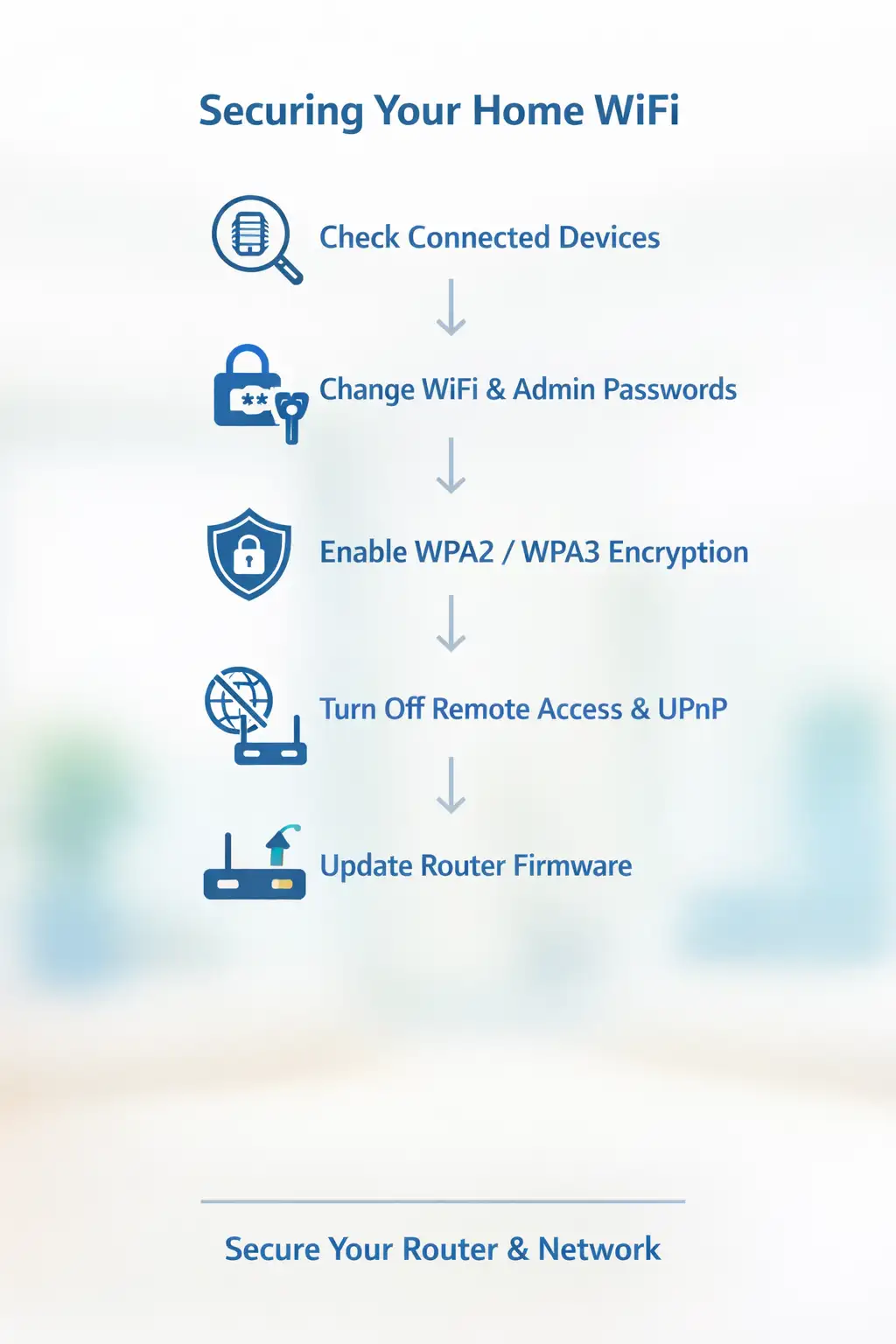
1.Sign in to the router and look at the devices that are connected.
2.Change the password for the WiFi and the admin account.
3.Make sure that WPA2 or WPA3 is turned on.
4.If you don't need remote access or UPnP, turn them off.
5.Make sure the router's firmware is up to date.
6.Make sure the firewall is turned on.
7.If you can, put IoT devices on their own network.
8.If the settings look like they've been changed, reset the router and set it up securely again.
How to Tell If Your Home Network Might Be at Risk
Not every problem is a sign of hacking, but some patterns are worth looking into. If a network starts acting differently out of the blue, it could be because of a settings problem, a broken device, or a security issue. Paying attention helps you spot problems before they get worse.
Some signs that something might be wrong are unknown devices on the network, slowdowns that happen out of nowhere, strange login prompts, changed router settings, or smart devices acting strangely. Instead of waiting for the problem to get worse, check your router dashboard and device list if something seems off.
Checklist for Securing Your Home Network
A checklist makes it easier to use this in real life. Don't guess what to do first; instead, start with the most important steps and then build on them. This also helps families stick to a routine over time.
Checklist for home network security:
• Change the SSID that comes with the device
• Delete all of the router's default passwords
• Set a long, strong password for the admin account
• Use WPA2 or WPA3 encryption
• Make a strong password for your Wi-Fi
• Turn on the firewall on the router
• Keep the router's firmware up to date.
• Turn off remote access unless you really need it.
• If you don't need UPnP, turn it off.
• Set up a guest network for guests
• Keep your IoT devices separate from your main network.
• If it helps, use MAC address filtering as an extra layer.
• Put the router in the middle of the room, away from windows and doors.
• When you're gone for a long time, turn off the network.
• Make sure all of your devices are up to date and safe by following good security practices.
Frequently Asked Questions
How can I keep hackers out of my home network?
Change the default SSID and admin password first. Then, turn on WPA2 or WPA3 encryption, update the router's firmware, turn on the firewall, turn off remote access, and put IoT devices on their own network. Instead of using just one setting, a layered approach is better.
How can you best keep your home WiFi network safe?
The best way to protect your WiFi is to use a strong password, modern encryption, updated router firmware, a firewall, and safe device management. Adding a guest network and separating smart devices gives you even more protection.
Should I turn off remote access on my router?
Yes, if you don't really need it. Remote access lets you manage your router from outside your home, which makes it more vulnerable. If you keep it off, it's less likely that someone outside will mess with your router settings.
Which is better for home WiFi security: WPA2 or WPA3?
If your router can handle it, WPA3 is the newer and stronger choice. WPA2 is still a good option, and it's a lot safer than older standards like WEP or legacy WPA.
Do I need a separate network for guests?
A guest network is very helpful because it keeps visitors' devices away from your main devices and personal information. It also lowers the chance that an infected guest device will be able to directly access your sensitive systems.
How can I keep hackers from getting into my smart home devices?
Put smart devices on a different network or VLAN, keep them up to date, use strong app passwords, and get rid of devices you don't trust or use anymore. Network separation is very helpful for smart homes.
Final Thoughts
Step by step, learning how to protect your home network from hackers is really about adding layers of protection that work together. To make your setup safer, start with the basics: a neutral SSID, a strong router password, WPA2 or WPA3 encryption, updated router firmware, and a firewall that is turned on.
After that, you can make security even better by adding a guest network, separating IoT devices, limiting remote access, using MAC address filtering carefully, and keeping devices clean.
The best plan isn't always the hardest one. It's the one you really use and keep up with. Check your router settings, update the devices that are connected to it, keep smart products that are more likely to be hacked separate, and make a plan to check your network every few months.
To learn more about online security and protection tips, visit our blog page.
Following basic home network security practices recommended by cybersecurity experts can significantly reduce hacking risks.


-20260925120840.webp&w=3840&q=75)