-20260414191440.webp&w=3840&q=75)
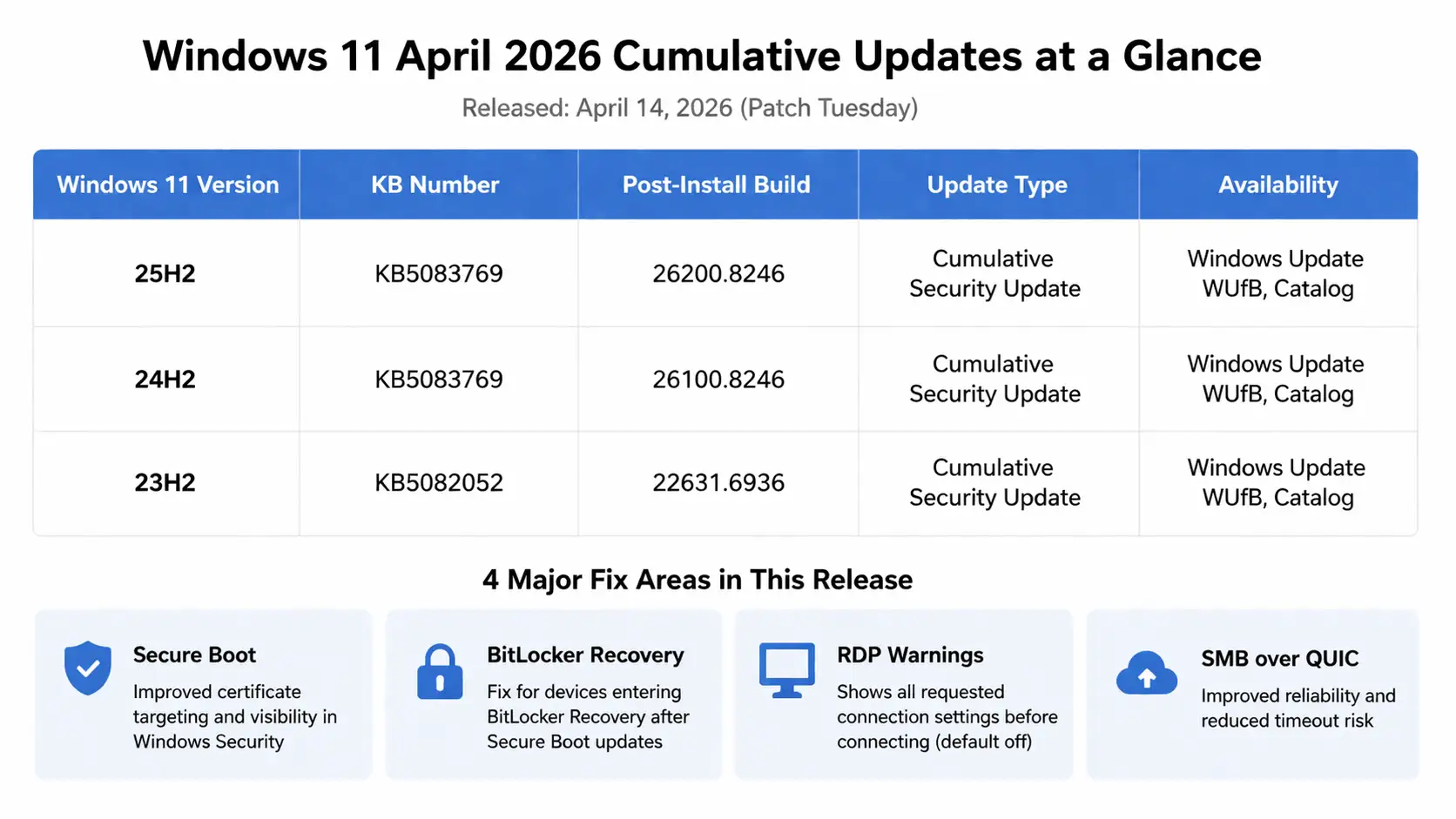
Microsoft released KB5083769 for Windows 11 versions 25H2 and 24H2 and KB5082052 for Windows 11 version 23H2 on April 14, 2026.
These cumulative security updates were part of the April 2026 Patch Tuesday cycle. They delivered security fixes while also carrying forward improvements from earlier Windows updates.
The security changes are more important than the KB numbers alone suggest. Microsoft strengthened Remote Desktop protection, expanded the Secure Boot certificate rollout, improved SMB over QUIC reliability, addressed specific BitLocker behavior, and later documented compatibility problems involving some backup applications.
Microsoft also updated the support pages after the original April release. That matters because early reports saying that the updates had no known issues are no longer accurate.
If you need background on how Microsoft's monthly packages work, our guide to Windows 11 cumulative updates and their security impact explains why one cumulative update can contain both new security fixes and changes released earlier.
KB5083769 and KB5082052 at a Glance
| Item | KB5083769 | KB5082052 |
|---|---|---|
| Release date | April 14, 2026 | April 14, 2026 |
| Windows version | Windows 11 25H2 and 24H2 | Windows 11 23H2 |
| OS build | 26200.8246 / 26100.8246 | 22631.6936 |
| Update type | Cumulative security update | Cumulative security update |
| Main security areas | Secure Boot, BitLocker, RDP, networking, vulnerable drivers | Secure Boot, BitLocker, RDP, networking, sign-in, vulnerable drivers |
| Servicing stack | KB5088467 | KB5086307 |
| Known issues documented later | Yes | Yes |
An important point for anyone finding this article months after the original release: KB5083769 and KB5082052 are April 2026 packages, not the latest Windows 11 cumulative updates today.
Windows servicing is cumulative. If your PC is normally connected to Windows Update, use the current Windows Update channel rather than manually treating an older April package as the newest security update.
What Changed in KB5083769?
KB5083769 applies to Windows 11 versions 25H2 and 24H2.
The update contains the April security fixes together with work carried forward from Microsoft's March releases.
That earlier update cycle is worth understanding because some changes users associate with the April build originated in the previous servicing period. Our Windows 11 March 2026 update breakdown covers that background.
Microsoft also had to replace an earlier March preview release after installation problems. Hoplon covered the subsequent Windows 11 KB5086672 emergency update separately.
For KB5083769 itself, the security-relevant changes fall into several major areas.
Secure Boot Certificate Updates Become More Visible
Secure Boot is one of the most important changes in this release.
Microsoft has been transitioning Windows devices to newer Secure Boot certificates as older certificates reach expiration. As of October 2026, the expiration process has already begun, so this is no longer simply a future deadline.
KB5083769 expanded the device-targeting information Windows uses to determine which eligible machines can safely receive the newer certificates.
The rollout is intentionally controlled. Installing a cumulative update does not necessarily mean every device receives every certificate change immediately.
Windows Security can also show information about the Secure Boot certificate status of the device.
For a deeper explanation of the certificate transition and why administrators should care about it, see our Microsoft Secure Boot Update 2026 guide.
For enterprise environments, this deserves more attention than a normal feature update. Secure Boot operates close to the startup trust chain, so certificate changes should be monitored alongside firmware configuration, BitLocker policies and device readiness.
BitLocker Recovery: What Administrators Need to Know
Microsoft originally included a fix for a condition in which Secure Boot updates could cause a device to enter BitLocker Recovery.
However, Microsoft later documented a separate known issue affecting a limited number of devices with an unsupported or unrecommended BitLocker Group Policy configuration.
The affected scenario is specific. It involves BitLocker on the operating-system drive, an explicitly configured TPM validation profile involving PCR7, a PCR7 binding state reported as unavailable, and conditions related to the newer Windows UEFI certificate and Boot Manager.
Microsoft says this configuration is unlikely to be found on ordinary unmanaged personal computers.
The practical takeaway is different for home and enterprise users.
A normal home user should not assume that every BitLocker recovery prompt after an update is caused by KB5083769. Administrators, however, should review customized TPM and BitLocker policies before large Secure Boot-related deployments.
For additional context on BitLocker security and recovery risks, read Hoplon's Windows BitLocker vulnerability and security risk guide.
Microsoft later addressed the KB5083769 compatibility behavior through KB5089549. Our follow-up coverage of the Windows 11 KB5089549 update and BitLocker changes explains what changed in the May update.
Remote Desktop Gets Stronger Phishing Protection
KB5083769 and KB5082052 also changed the way Windows handles Remote Desktop (.rdp) files.
When a user opens an RDP file, Windows can display the requested connection settings before the connection begins. Requested settings are initially disabled, and Windows presents a security warning when an RDP file is opened for the first time on a device.
This is important because an RDP file should not automatically be treated as harmless simply because it is not a traditional executable.
Attackers can abuse remote-access configuration, stolen credentials and social engineering to move users toward malicious infrastructure.
Hoplon's guide to Windows Remote Desktop Services vulnerabilities and RDP security provides more background on why remote-access paths remain valuable targets.
Microsoft subsequently documented a display problem with the new RDP security warning on systems using multiple monitors with different scaling settings. The warning could contain overlapping text or partially hidden controls.
For 24H2 and 25H2, Microsoft says that RDP warning issue was addressed in a later update. Microsoft documented a separate resolution path for the 23H2 branch.
This is why checking the updated Microsoft support page matters instead of relying only on the information published on Patch Tuesday morning.
Vulnerable Driver Blocking Can Affect Backup Applications
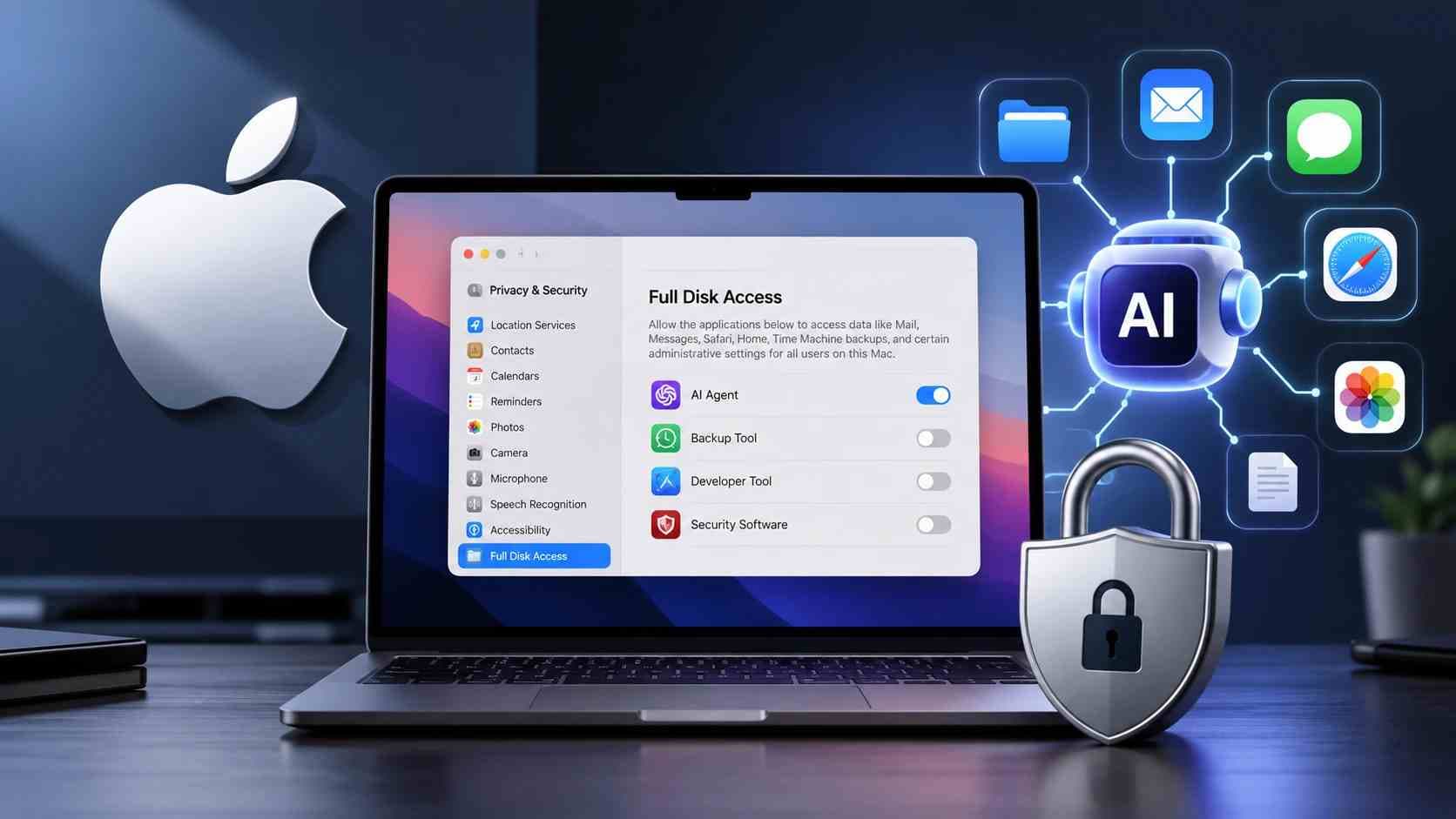
One of the most important later additions to Microsoft's documentation involves the Microsoft vulnerable driver blocklist.
The April security updates introduced additional security hardening against known vulnerable kernel drivers.
This is a defensive improvement because vulnerable signed drivers can give attackers a path into highly privileged parts of Windows.
However, there is a compatibility consequence.
Some backup applications relying on drivers that Microsoft now blocks may fail when mounting or managing disk images. Microsoft specifically documents errors involving VSS timeouts and the VSS_E_BAD_STATE condition.
If your backup software stopped functioning after the April security cycle, do not immediately assume that Volume Shadow Copy itself is corrupted.
Check whether the backup application is using a driver affected by Microsoft's security blocklist and make sure the application is fully updated.
Microsoft's recommended direction is to move to a newer version of the affected application that uses updated drivers with the required protections.
For more background on this hardening approach, see Hoplon's analysis of how a Windows 11 security update blocks risky and untrusted drivers.
This is a good example of why patch management and application compatibility testing need to work together. Removing a security update can restore compatibility in some scenarios, but it can also reopen vulnerabilities that the update was designed to close.
SMB Compression Over QUIC Reliability
Both KB5083769 and KB5082052 improve networking reliability when Windows uses SMB compression over QUIC.
Microsoft says compression requests in this configuration should complete more consistently, reducing the likelihood of timeouts.
Most home users will never notice this change.
It matters more in enterprise environments using modern SMB configurations, remote file access or security-sensitive network architectures.
The lesson for administrators is straightforward: not every important Patch Tuesday change appears as a visible Windows feature. Reliability improvements in networking, authentication and servicing infrastructure can be more operationally important than UI changes.
KB5082052 Includes a Microsoft Account Sign-In Fix
KB5082052 applies to the Windows 11 23H2 branch and shares many of the same Secure Boot, RDP, networking and vulnerable-driver changes.
It also contains an important version-specific sign-in fix.
Microsoft documented a problem affecting some users after Windows updates released on or after March 10, 2026.
A device could have a working Internet connection while Microsoft account authentication incorrectly reported a “no Internet” condition.
That could prevent users from signing in to Microsoft services and applications, including Microsoft Teams.
KB5082052 addresses that behavior.
This version-specific fix is one reason users should avoid assuming that every Windows 11 branch receives an identical changelog simply because two KB packages were released on the same Patch Tuesday.
Additional Windows 11 Changes Carried Into the April Cycle
Security is the main reason these updates matter, but KB5083769 also carries forward consumer-facing and reliability work from the previous Windows servicing cycle.
Depending on the Windows version and Microsoft's staged feature rollout, users may encounter changes involving Smart App Control management, newer Settings interfaces, File Explorer reliability and improved System File Checker reporting.
Not every feature appears on every computer immediately. Microsoft frequently uses controlled feature rollout mechanisms, so two systems on the same OS build may not expose every newly enabled experience at exactly the same time.
For security teams, those UI changes are secondary to the Secure Boot, BitLocker, RDP and vulnerable-driver changes discussed above.
Known Issues: The Current Picture
The original April release coverage quickly became outdated because Microsoft revised both support pages after release.
For KB5083769, Microsoft documented the BitLocker Group Policy compatibility issue and the RDP warning display problem. Microsoft later added the vulnerable-driver blocklist information and documented later updates that address the relevant compatibility problems.
For KB5082052, Microsoft documented similar BitLocker and RDP warning concerns, while its 23H2 resolution path differs from the 24H2/25H2 branch.
This distinction matters.
A statement such as “Microsoft is not aware of any known issues” should only be published when the current Microsoft support page actually says that. Known-issue status can change days or weeks after a Patch Tuesday release.
By June, Microsoft had shipped additional cumulative fixes and continued the Secure Boot transition. Hoplon's Windows 11 KB5094126 and KB5093998 June 2026 update analysis covers that later stage of the rollout.
April 2026 Patch Tuesday Was a Large Security Release
The broader April 2026 Microsoft security release addressed more than 160 vulnerabilities.
Different security companies reported slightly different totals because their counting methods differ. Some count only newly released Microsoft CVEs, while others include additional vulnerabilities or products.
That is why a single vulnerability total should not be treated as the main security takeaway.
More important is that the April release included two zero-day vulnerabilities, with one reported as exploited in the wild at the time of release, along with multiple Critical-rated flaws.
For Windows administrators, that security context makes delaying cumulative updates a risk decision rather than simply a maintenance preference.
Should You Install KB5083769 or KB5082052 Now?
If you were installing updates in April 2026, these were important mandatory security releases.
If you are reading this article now, months later, the better question is whether your device is fully current.
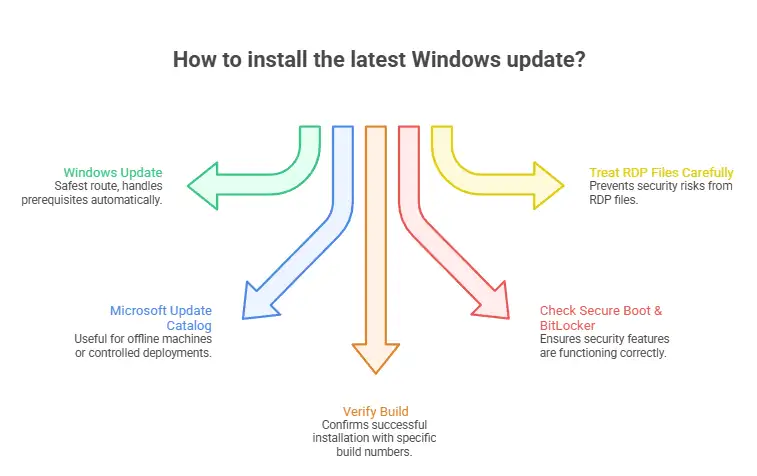
For a normally connected Windows PC, open Settings > Windows Update and install the currently offered supported cumulative update.
Do not manually install an older April package merely because you found its KB number in search results.
Manual installation of KB5083769 or KB5082052 is more relevant when troubleshooting a historical environment, maintaining an offline system, validating an archived deployment or investigating exactly when a particular change entered Windows.
Organizations should use deployment rings or other controlled rollout processes when testing Windows security updates across diverse hardware.
The security principle is not “delay everything until somebody else tests it.” It is to validate quickly on representative systems and then move to wider deployment with monitoring.
How to Verify the April 2026 Update
For historical verification, the April builds were:
|
Windows version |
April 2026 build |
|
Windows 11 25H2 |
26200.8246 |
|
Windows 11 24H2 |
26100.8246 |
|
Windows 11 23H2 |
22631.6936 |
You can check the installed build by pressing Win + R, entering winver, and reviewing the OS build.
You can also open Settings > System > About.
Remember that a machine receiving later cumulative updates will naturally have a newer build number. A build higher than the April number does not mean the April security fixes disappeared; later cumulative servicing carries previous fixes forward unless Microsoft explicitly changes or removes something.
What to Do Before Updating Business Devices
Before broad deployment, confirm the Windows branch, verify that BitLocker recovery information is accessible, review non-standard TPM or PCR policies, update critical backup software, validate the patch on representative hardware, and monitor Windows Security and event logs after deployment.
Organizations using third-party backup tools should pay particular attention to driver compatibility because the April security hardening can expose dependencies on older vulnerable drivers.
Remote Desktop users should also treat unexpected RDP files as potentially dangerous even though Windows now provides stronger warnings.
The warning improves security. It does not turn an untrusted RDP attachment into a trusted file.
What to Do if KB5083769 or KB5082052 Fails to Install
Use Windows Update first rather than downloading a standalone package immediately.
If installation fails, restart the device and retry Windows Update. Confirm that enough free storage is available and run the built-in Windows Update troubleshooting options.
If Windows system files appear damaged, administrators can use the standard Microsoft servicing tools:
DISM /Online /Cleanup-Image /RestoreHealth
followed by:
sfc /scannow
After repairing the component store and system files, restart the PC and try Windows Update again.
A Microsoft Update Catalog package is useful for controlled or offline deployment, but make sure the package matches the Windows version and architecture.
If the device unexpectedly enters BitLocker Recovery, avoid making random firmware, TPM or Secure Boot changes before securing the recovery key and checking the device's policy state.
Security Perspective
The most important lesson from KB5083769 and KB5082052 is not one individual feature.
The April update sits at the intersection of several security layers: Windows boot trust, disk encryption, remote access, kernel-driver control, account authentication and networking.
That combination explains why some of the most significant effects only became clear after the original Patch Tuesday release.
The Secure Boot transition is particularly important because certificate replacement is a longer process than installing one monthly patch.
Organizations should therefore treat Secure Boot status as something to monitor, not simply a checkbox that was completed when KB5083769 or KB5082052 installed successfully.
Likewise, the backup compatibility issue demonstrates an important security trade-off. Blocking vulnerable drivers strengthens Windows, but organizations running outdated software can discover hidden dependencies when those protections are enforced.
A mature patching process needs both security urgency and compatibility visibility.
FAQ
What is KB5083769?
KB5083769 is Microsoft's April 14, 2026 cumulative security update for Windows 11 versions 25H2 and 24H2. The associated April builds are 26200.8246 and 26100.8246.
What is KB5082052?
KB5082052 is the April 14, 2026 cumulative security update for Windows 11 version 23H2. It updates the April branch to OS build 22631.6936.
Is KB5083769 safe to install?
Microsoft documented known issues after release, including a BitLocker recovery scenario involving a specific Group Policy configuration and an RDP warning-display issue. Later updates addressed those problems. Users should install the current Windows cumulative update rather than deliberately remaining on the April build.
Can KB5083769 break backup software?
Some backup applications using drivers added to Microsoft's vulnerable driver blocklist can experience failures when mounting or managing disk images. Microsoft recommends updating affected applications to versions that use newer compatible drivers.
Why did Windows ask for a BitLocker recovery key after the update?
Microsoft documented a limited scenario involving a specific BitLocker TPM validation policy, PCR7 state and Secure Boot configuration. It is not expected to affect most unmanaged personal computers.
Does KB5083769 improve RDP security?
Yes. The update strengthens protection when opening Remote Desktop files by showing requested connection settings and adding a security warning. Microsoft later documented and addressed a display problem affecting the warning in some multi-monitor scaling configurations.
Should I manually download KB5083769 in October 2026?
Normally, no. If your device is actively supported and connected to Windows Update, install the latest cumulative update offered for your Windows version. Manual installation of this older KB is mainly useful for specific troubleshooting, testing or offline deployment requirements.
Official Microsoft Sources
For the authoritative release history, build mapping, known issues and Microsoft workarounds, use Microsoft's official documentation:
Microsoft Support - KB5083769 for Windows 11 25H2 and 24H2
Microsoft Support - KB5082052 for Windows 11 23H2