What is Microsoft Remote Lock, and How Does It Protect Lost Windows Devices?
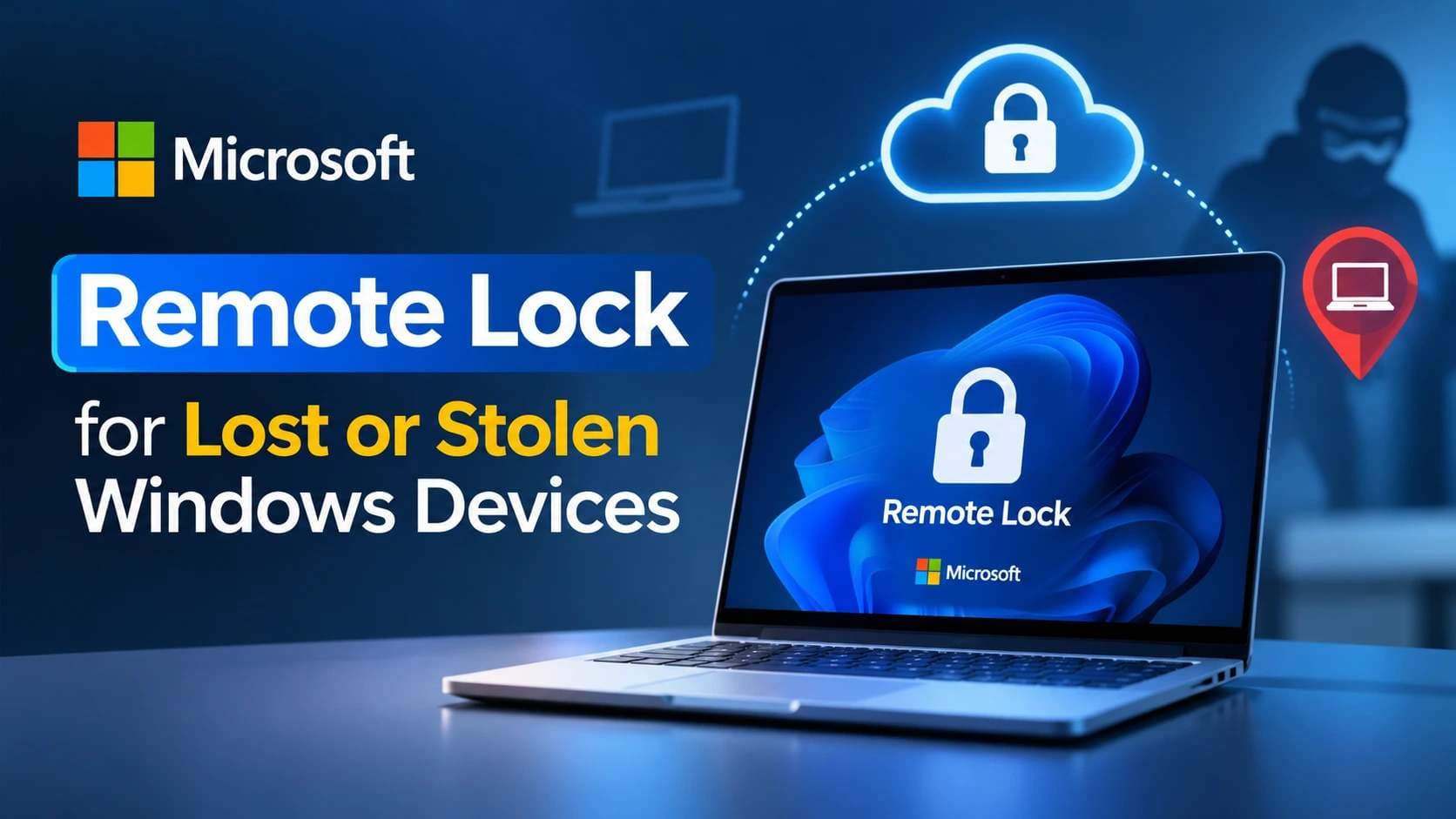
As of November 17, 2026, Microsoft is testing a new security feature called Microsoft Remote Lock that allows IT administrators to lock lost, stolen, or compromised Windows devices through Microsoft Intune without deleting stored data.
The feature signs users out of active sessions, removes normal sign-in options, and displays an organization-controlled lock screen. Administrators can restore access remotely through Intune.
Microsoft announced the feature in its November 16 Windows Insider update. It is currently a preview feature, not a confirmed general release for all Windows users.
For organizations that manage company laptops, this adds another response option when a device goes missing. IT teams can restrict access while keeping the device enrolled and preserving its existing data.
Microsoft Remote Lock at a Glance
- Remote access restriction: IT administrators can remotely lock managed Windows devices through Microsoft Intune.
- Data preservation: The feature does not erase files, remove device enrollment, or disable BitLocker.
- Important limitation: It does not isolate the device from the network or block Windows Recovery Environment, Safe Mode, or alternative boot methods.
Table of Contents
- What Happened in Microsoft's November 2026 Announcement?
- Why Lost Windows Devices Create Security Risks
- How Microsoft Remote Lock Works
- Which Windows Devices Support Remote Lock?
- Remote Lock vs. Find My Device vs. Remote Wipe
- Important Security Limitations
- How IT Administrators Can Configure Remote Lock
- What Organizations Should Do After a Laptop Goes Missing
- Microsoft Remote Lock and Windows Security Principles
- Frequently Asked Questions
What Happened in Microsoft's November 2026 Announcement?
On November 16, 2026, Microsoft published a new Windows Insider announcement covering several features under development. One of the notable additions was Remote Lock.
According to Microsoft's announcement, the feature allows IT teams to lock lost, stolen, or compromised Windows devices directly through Microsoft Intune.
The important difference is that administrators can restrict access without immediately performing a factory reset or deleting company information.
Microsoft's Windows Insider communications also explain that the device remains enrolled and managed after the lock. Existing files remain in place, and BitLocker stays enabled.
This approach gives organizations another option when they need to protect a device but still want to recover it.
Sources: Microsoft Windows Insider announcement, November 16, 2026 and Microsoft Remote Lock documentation.
Is Remote Lock Available to Everyone?
No. Microsoft currently documents Remote Lock as a preview feature.
Its Windows Insider announcement introduces the feature alongside new preview builds. The official documentation also labels it as Preview.
Microsoft has not provided a confirmed general availability date for all Windows users.
This distinction matters because businesses should not assume that every Windows 11 laptop can already receive the new command.
Organizations should check Microsoft's current documentation and test the feature on supported devices before including it in their incident response procedures.
Why Lost Windows Devices Create Security Risks
A missing business laptop creates more than a hardware replacement problem.
Employees often use their computers to access company email, internal applications, shared documents, cloud platforms, and business systems. A device may also contain locally stored information that has not yet synchronized with company storage.
If another person gains access to an unlocked session, they may be able to view information that the employee was authorized to access.
The risk becomes more serious when a laptop contains sensitive business records, customer information, or active application sessions.
What Could Be Exposed When a Company Laptop Goes Missing?
The exact exposure depends on the device configuration and the employee's access rights.
Potentially affected resources include:
- Locally stored business documents.
- Cached application information.
- Browser sessions and saved work credentials.
- Access to company email and collaboration tools.
- Internal business applications.
- Customer or employee information stored locally.
A lost device does not automatically mean that a data breach has occurred. However, organizations should treat an unexplained loss as a security incident until they understand what information and access may be affected.
Why a Normal Windows Screen Lock is Not Always Enough
A normal screen lock protects an active session when someone steps away from a computer.
However, a local screen lock does not give an organization the same centralized response capability as a remotely managed device restriction.
For example, an employee may forget to lock a laptop before leaving it in a public place. The security team may not have physical access to the device, and the employee may not know whether someone has already attempted to access it.
A centralized Remote Device Lock mechanism provides an additional response option.
It allows authorized administrators to initiate a device-level restriction without needing the laptop in front of them.
How Microsoft Remote Lock Works
Microsoft Remote Lock uses Microsoft Intune and a custom device configuration profile.
Intune is Microsoft's cloud-based endpoint management platform. Organizations use it to manage device settings, apply security policies, and perform administrative actions across enrolled devices.
With the new feature, administrators can configure a device's remote lock state through a specific management setting.
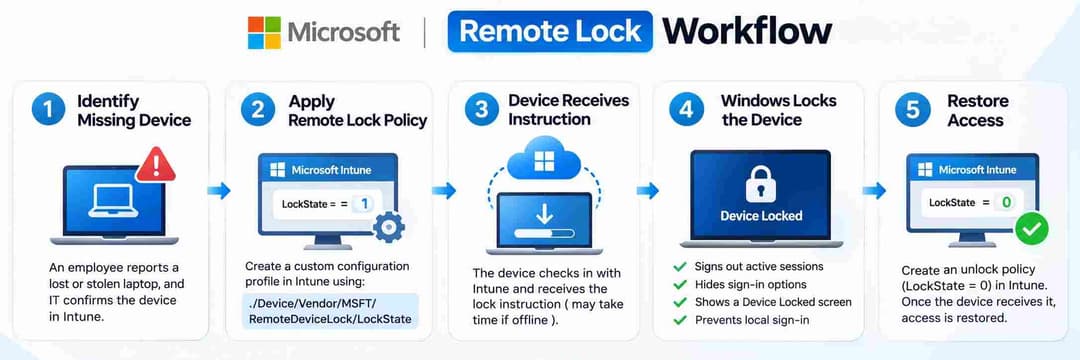
1. IT Administrators Identify the Missing Device
The process starts when an employee reports that a company laptop is missing, stolen, or potentially compromised.
The IT department identifies the affected device in its management environment.
Before taking action, administrators should confirm the device identity and follow the organization's incident response procedures.
This is important in environments where multiple employees use similar laptop models or where devices share naming conventions.
2. Administrators Apply a Remote Lock Policy
Microsoft's preview documentation describes a custom configuration profile in the Intune admin center.
The administrator creates a custom policy and configures the required RemoteDeviceLock setting.
The central setting is:
LockState
|
Setting |
Value |
Purpose |
|
LockState |
1 |
Requests a device lock |
|
LockState |
0 |
Requests an unlock |
|
LockReason |
Optional string |
Displays the reason for locking |
|
RecoveryHint |
Optional string |
Displays recovery or help desk information |
The policy uses this OMA-URI:
./Device/Vendor/MSFT/RemoteDeviceLock/LockState
OMA-URI stands for Open Mobile Alliance Uniform Resource Identifier. In device management, it identifies a particular configuration setting that an administrator can control.
The LockReason and RecoveryHint settings allow an organization to display useful information on the locked device.
For example, the lock screen could tell an employee that the organization has restricted the device and provide an approved IT support contact.
3. The Device Receives the Lock Instruction
After configuring the policy, administrators assign it to a designated device group.
When the target device checks in with the management service, the lock instruction can take effect.
This detail is important.
A remote command is not the same as an instantaneous physical action. If the device cannot communicate with the management service, the command may remain pending until the device checks in.
Microsoft's documentation describes the lock as persistent across restarts and while the device is offline after it has been applied.
4. Windows Ends Active Sessions
Once the lock takes effect, Windows performs several actions:
- Signs out active user sessions.
- Hides normal sign-in options.
- Displays a Device Locked screen.
- Prevents normal local sign-in while the lock remains active.
This is particularly useful when an organization needs to restrict access without immediately deleting the user's information.
The employee's account is not automatically disabled by this action. Microsoft explains that the same credentials can still be used on other devices that have not been locked.
5. An Administrator Restores Access
The unlock process also takes place through Intune.
Administrators create another custom configuration profile with LockState set to 0 and assign it to the appropriate unlock group.
Once the device receives the updated configuration, access can be restored.
This approach keeps the recovery process under organizational control rather than allowing someone with physical access to the locked laptop to unlock it locally.
Which Windows Devices Support Remote Lock?
Microsoft's Remote Lock documentation lists Windows 11, Windows 10, Windows Server 2022, Windows Server 2019, and Windows Server 2016 as applicable platforms.
However, the preview documentation also specifies management and edition requirements.
Supported devices must meet the following conditions:
- Microsoft Entra joined, hybrid joined, or enrolled in mobile device management.
- Running Windows Enterprise, Education, or Pro.
- Managed through the supported Intune configuration process.
This means the feature is primarily designed for organizational environments.
A personal Windows laptop that is not enrolled in the required management environment should not be assumed to support this enterprise Remote Lock workflow.
Why Microsoft Entra and Device Enrollment Matter
Microsoft Entra provides identity and access management for organizations.
Device enrollment allows an organization to establish a management relationship with a Windows endpoint.
This relationship is important because administrators need a trusted management channel to deliver configuration changes.
Without the required enrollment and management setup, an organization cannot simply select an arbitrary Windows computer and apply the new enterprise lock policy.
For small businesses, this makes device inventory and enrollment an important part of Windows Device Security.
Remote Lock vs. Find My Device vs. Remote Wipe
One important point deserves attention: Microsoft already offers ways to locate and lock certain lost Windows devices.
The new enterprise feature does not mean that Windows previously had no remote locking capability.
Microsoft's personal account Find My Device feature allows eligible users to locate and remotely lock their Windows devices.
However, its purpose and management requirements differ from the new enterprise workflow.
|
Feature |
Microsoft Remote Lock |
Find My Device |
Remote Wipe |
|
Main purpose |
Restrict access to managed Windows devices |
Locate and lock a personal Windows device |
Erase device data |
|
Management |
Microsoft Intune |
Microsoft personal account |
Supported device management controls |
|
Data deletion |
No |
No |
Yes |
|
Organization-controlled recovery |
Yes, through Intune |
Not the same enterprise workflow |
Depends on management process |
|
Location tracking |
Not its documented purpose |
Yes, when configured |
Not its primary purpose |
|
Main audience |
Organizations |
Individual users |
Organizations |
How Find My Device Works
Microsoft's existing Find My Device feature supports Windows 10 and Windows 11.
Users need to sign in with a personal Microsoft account, enable the feature in advance, and have the required administrator account and location settings.
When a device is lost, users can visit:
They can select Find My Device to view the device's reported location and use the available Lock option.
This is useful for individual users, but it should not be confused with the new enterprise Remote Lock configuration through Intune.
When Remote Wipe Makes More Sense
Remote Lock preserves information on the device.
That is useful when an organization expects to recover a missing laptop and wants to retain its existing data.
However, there are situations where preserving information may not be the best decision.
If an organization believes that sensitive data has been exposed or that a device cannot be recovered safely, administrators may need to consider a remote wipe.
Microsoft Intune provides separate actions for locking, retiring, and wiping supported managed devices.
A wipe restores a device to its factory settings and removes its data and settings.
The correct choice depends on the incident, the sensitivity of the information, and the organization's recovery requirements.
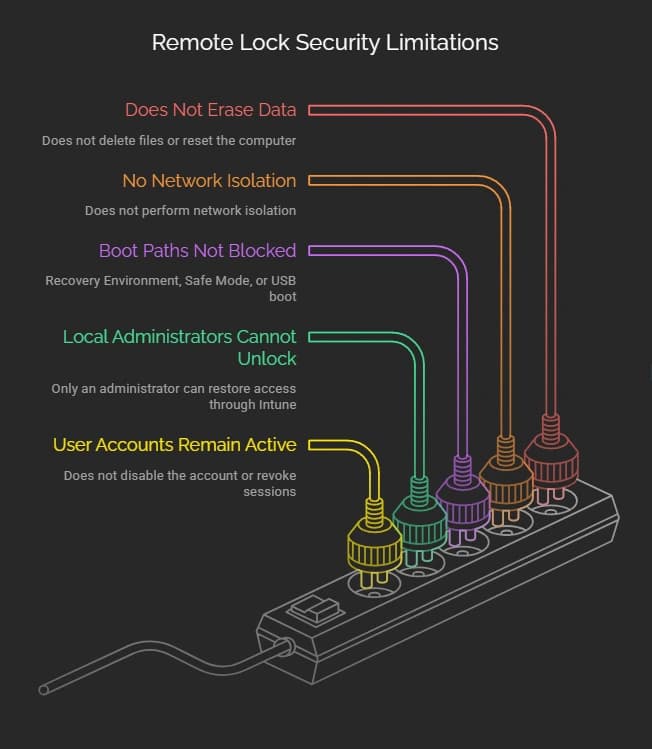
Important Security Limitations of Microsoft Remote Lock
Remote Lock adds a useful security control, but it should not be treated as a complete device protection system.
Microsoft's documentation clearly identifies several limitations.
Understanding these restrictions is essential before organizations rely on the feature during an incident.
1. Remote Lock Does Not Erase Data
The feature restricts access to Windows.
It does not delete files, remove stored business records, or reset the computer to factory settings.
This is intentional.
Organizations can preserve the existing information while deciding whether the device should eventually be recovered, investigated, or wiped.
However, if a company needs to permanently remove sensitive information, Remote Lock alone is not enough.
2. It Does Not Isolate the Device From the Network
A locked Windows device is not automatically disconnected from its network.
This is an important distinction for security teams.
If an incident involves suspected malware or unauthorized network activity, administrators must consider separate containment measures.
Microsoft explicitly states that Remote Lock does not perform network isolation.
Organizations should use their existing endpoint security and Intune controls to address network-related risks.
3. Alternative Boot and Recovery Paths Are Not Blocked
Microsoft identifies another important limitation.
Remote Lock does not block access to:
- Windows Recovery Environment.
- Safe Mode.
- Booting from USB or other external media.
This means the feature should not be considered a substitute for full-disk encryption.
Microsoft specifically advises organizations to keep BitLocker enabled.
4. Local Administrators Cannot Unlock the Device
Once Remote Lock takes effect, normal local unlock options are unavailable.
A Windows PIN, password, local administrator account, or web sign-in cannot independently remove the lock.
Only an administrator can restore access through Intune.
This gives the organization control over the recovery process.
5. User Accounts Remain Active
Remote Lock does not automatically disable the employee's Microsoft Entra account or revoke their other active sessions.
This is a separate security responsibility.
If an organization suspects that account credentials have been exposed, administrators should assess whether they need to disable the account, revoke sessions, or reset credentials through the appropriate identity management controls.
A device restriction and an identity security response solve different problems.
How IT Administrators Can Configure Remote Lock
Microsoft's preview documentation provides a specific configuration approach through Intune.
The following steps describe the documented management workflow. They should be tested in an appropriate preview environment before production adoption.
Step 1: Confirm Device Eligibility
Check that the target device:
- Runs a supported Windows edition.
- Is Microsoft Entra joined, hybrid joined, or MDM-enrolled.
- Is visible in the organization's device management environment.
- Has BitLocker enabled where supported and required by policy.
Administrators should also confirm that the organization has an appropriate Intune management and access-control setup.
Step 2: Create a Custom Configuration Profile
Open the Microsoft Intune admin center.
Navigate to:
Devices > Windows > Configuration > Create > New policy
Choose Windows 10 and later, followed by Templates and Custom.
Create a clear policy name so the purpose of the configuration is easy to identify.
For example:
Remote Lock - ON
Step 3: Configure the Required OMA-URI
Add the required configuration setting.
|
Configuration |
Value |
|
Setting name |
LockState |
|
OMA-URI |
./Device/Vendor/MSFT/RemoteDeviceLock/LockState |
|
Data type |
Integer |
|
Value |
1 |
Microsoft also documents two optional settings.
LockReason: A message explaining why the organization locked the device.
RecoveryHint: A message providing an approved help desk contact or recovery instruction.
These messages can help employees understand what happened and where to seek assistance.
Step 4: Assign the Policy to the Appropriate Device Group
Assign the lock profile to a dedicated device group.
Microsoft's documented workflow uses group assignment to control which devices receive the lock configuration.
Administrators should verify the target device and group membership before applying the policy.
A clear approval process can help prevent accidental locking of the wrong endpoint.
Step 5: Monitor the Lock Status
Microsoft documents a read-only Status setting that reports the effective lock state.
|
Status value |
Meaning |
|
0 |
Unlocked |
|
1 |
Locked |
|
2 |
Lock pending |
|
3 |
Error |
This information helps administrators determine whether the device has received the requested configuration.
A pending state should not be treated as confirmation that the device is already locked.
Step 6: Prepare the Unlock Profile
Create a second custom configuration profile.
Use the same required LockState setting, but change its value to:
0
Assign this profile to the designated unlock group.
Once the device receives the updated configuration, the administrator can restore access.
Organizations should document who can approve this action and how the employee's identity will be verified before access is restored.
What Organizations Should Do After a Laptop Goes Missing
A remote lock command should be one part of a broader incident response process.
A missing laptop may involve several different risks, including physical theft, unauthorized account access, exposed sessions, and lost business information.
The response should address each risk separately.
1. Record and Verify the Incident
Ask the employee when and where the device went missing.
Record the device name, asset identifier, assigned employee, and last known status.
Confirm that the report relates to the correct device before sending administrative commands.
2. Apply the Appropriate Device Restriction
For an eligible managed device, administrators can use the documented Remote Lock workflow.
If the organization suspects that the device is actively involved in a security incident, it should also evaluate separate endpoint isolation measures.
3. Review Identity and Account Access
Determine which company accounts and services the employee could access.
Review available sign-in records and investigate unusual authentication activity.
If there is evidence of credential exposure, follow the organization's identity response procedures.
4. Assess the Data Exposure Risk
Identify whether the missing device contained locally stored sensitive information.
Check the status of BitLocker and the organization's encryption policy.
Determine whether remote lock is sufficient or whether a remote wipe is necessary.
5. Preserve Relevant Evidence
Document the incident timeline, management actions, alerts, and administrative decisions.
If a security investigation is required, follow the organization's evidence preservation process.
Avoid making unnecessary changes that could affect relevant investigation records.
6. Review the Incident After Recovery
If the device is recovered, verify its condition before returning it to normal business use.
Review its security status, installed updates, encryption configuration, and account activity.
The organization should also assess whether existing device management policies need improvement.
Microsoft Remote Lock and Windows Security Principles
The feature supports an important security principle: organizations should be able to restrict access to a device without automatically destroying the information stored on it.
However, effective Microsoft Windows Security requires multiple controls working together.
Remote locking, encryption, identity protection, and endpoint monitoring each address different risks.
Device Access Control
Remote Lock provides centralized control over access to a missing managed Windows device.
It gives IT administrators a way to restrict normal sign-in without physically handling the laptop.
Data Protection Through BitLocker
BitLocker provides drive encryption for supported Windows systems.
Encryption helps protect stored information if someone removes a drive or attempts to access its contents outside the normal Windows environment.
Microsoft specifically recommends keeping BitLocker enabled because Remote Lock does not block every recovery or alternative boot path.
Identity and Session Protection
A device lock does not automatically secure every account associated with that device.
Organizations should review identity access, active sessions, and authentication activity when a laptop goes missing.
Microsoft Entra provides separate controls for managing organizational identities and sessions.
Endpoint Monitoring
Security teams should also monitor endpoint alerts, unusual account activity, and device management status.
These controls help organizations understand whether the incident involves only a missing device or a wider security problem.
What This Means for Small Businesses and Enterprise IT Teams
For small businesses, a missing laptop can create an operational problem even when no data breach occurs.
Employees may lose access to their work, while IT staff must determine whether the device contains sensitive information.
Remote Lock provides another management option for eligible enrolled devices.
For larger organizations, the feature may be particularly relevant to companies with distributed employees, shared office environments, and centrally managed Windows fleets.
However, adoption requires preparation.
Organizations should verify eligibility, maintain device enrollment, enforce encryption, and establish clear incident response procedures.
The feature should be included in a wider Windows Device Security strategy rather than treated as a standalone solution.
Hoplon Insight: What Security Teams Should Consider
A remote lock is most effective when an organization has already prepared its endpoint management environment.
Before relying on this capability, security teams should review the following controls:
|
Security area |
Recommended action |
Why it matters |
|
Device enrollment |
Maintain accurate Intune inventory |
Ensures administrators can identify managed endpoints |
|
Disk encryption |
Enforce BitLocker |
Protects stored information beyond the normal Windows lock screen |
|
Identity security |
Review Entra ID sessions and credentials |
Addresses account risks that device locking does not resolve |
|
Monitor suspicious device and account activity |
Helps identify wider security incidents |
|
|
Incident response |
Document lock, isolation, and wipe procedures |
Prevents confusion during an emergency |
|
Access management |
Restrict administrative permissions |
Reduces the risk of unauthorized device actions |
One important recommendation: Do not treat a successful lock command as proof that all company information is safe. Confirm the device status, assess account exposure, and decide whether additional containment is required.
Is Microsoft Remote Lock Enough to Protect Lost Windows Devices?
Microsoft Remote Lock introduces a useful addition to enterprise Windows security. It gives administrators a way to restrict access to a lost, stolen, or compromised managed device without immediately deleting its information.
However, the feature has clear boundaries. It does not isolate network connections, erase files, or block every recovery and alternative boot method.
Organizations should combine remote locking with BitLocker encryption, identity protection, endpoint monitoring, and a documented incident response plan.
The most important takeaway is simple: Remote Lock can help control access to a missing Windows device, but complete device protection requires multiple security controls working together.
Frequently Asked Questions
1. What is Microsoft Remote Lock in Windows 11?
Microsoft Remote Lock is a preview security feature that allows IT administrators to remotely lock eligible managed Windows devices through Microsoft Intune without wiping their data. It signs out active sessions and requires an administrator to restore access.
2. Can Microsoft Remote Lock erase data from a stolen laptop?
No. Remote Lock does not erase stored files or reset the device. Organizations that need to remove company data must consider separate Intune wipe or other appropriate management actions.
3. Can someone unlock a Windows device after Remote Lock is applied?
Normal local sign-in methods, including PINs, passwords, and local administrator accounts, cannot unlock the device. An authorized administrator must send the unlock configuration through Intune.
4. Does Remote Lock work when a Windows laptop is offline?
Microsoft
documents that the lock persists across restarts and while offline after it has
been applied. However, an offline device must receive the remote lock
instruction through its management check-in before the lock can take effect.
Read More Articles:
Mobile Security 2025: Top 7 Antivirus Apps You Can Trust
X Suspended Twitter Account: Causes, Appeals & Recovery
Microsoft Teams Phishing Attack:Remote Access Scam Explained
SAP Security 2026: Risks, Best Practices & Checklist
Author Bio and Review
Author: Mohammed Talukder is the Co-Founder and CEO of Hoplon InfoSec, with over 16 years of experience in cybersecurity and technology. His expertise includes offensive security, vulnerability management, cyber risk management, and incident response. His professional credentials include CISM, CISA, CEH, and CompTIA PenTest+. He has also received Infosys recognition awards for his professional contributions. He shares practical cybersecurity insights to help organizations strengthen their security posture.
Technical reviewer: Gazi Mahmud, Co-Founder and CIO of Hoplon InfoSec LLC, cybersecurity leader, and CISM & CISA certified professional with expertise in cyber risk management, security governance, compliance, and incident response.
Publication date: November 17, 2026
Last reviewed: November 17, 2026