Windows 11 Context Menu Update Adds Faster, Customizable Right-Click Controls
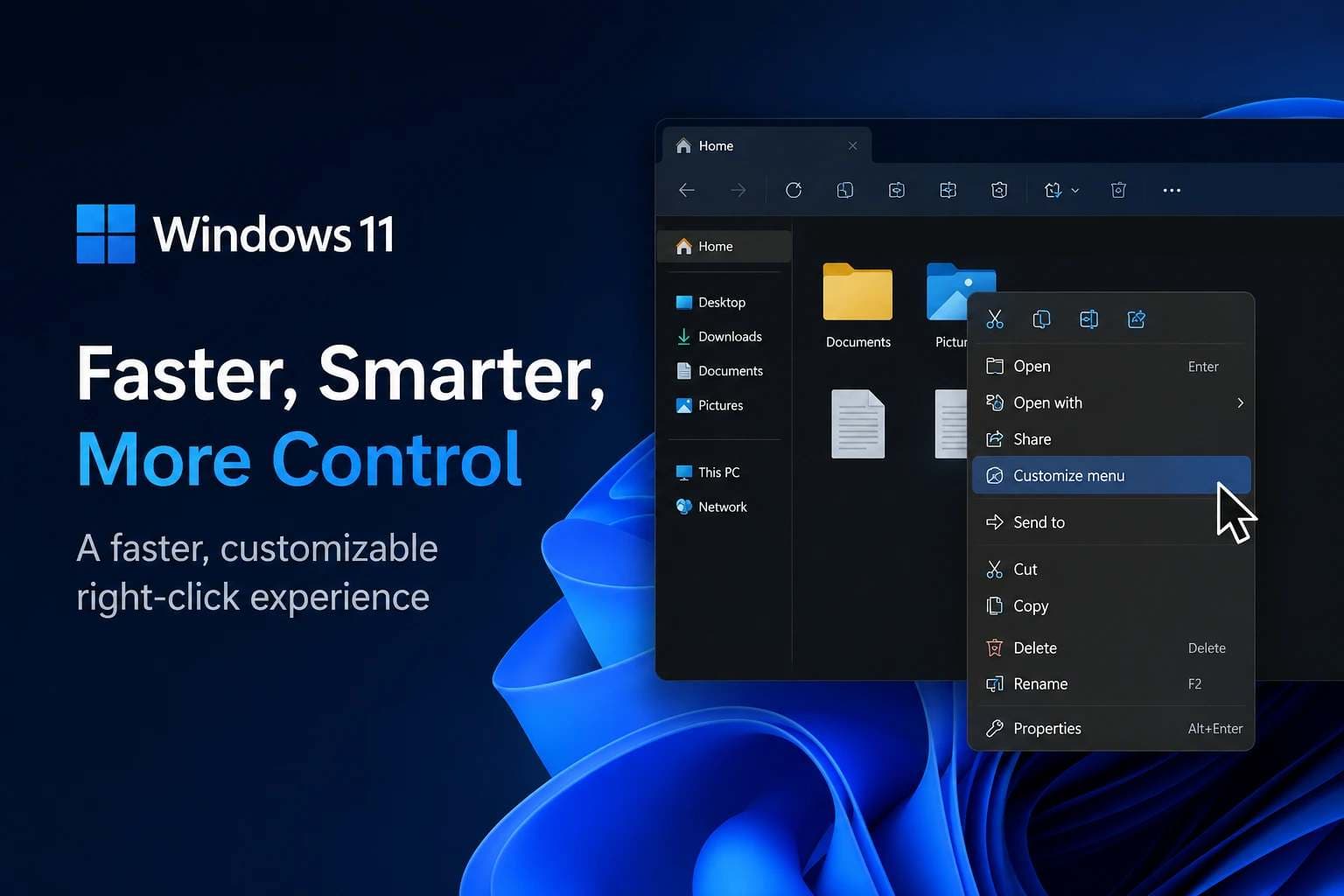
Microsoft is changing one of the most frequently used parts of File Explorer. The new Windows 11 context menu update is designed to make right-click menus faster, cleaner, and easier to personalize.
According to Microsoft's File Explorer context menu announcement, the redesigned experience gives users more control over built-in Windows commands and actions added by installed applications.
Microsoft is also addressing complaints about crowded menus and app extensions that can add extra work while File Explorer builds the menu.
For now, these changes are being introduced through Windows Insider testing rather than being available on every Windows 11 PC. Microsoft has not confirmed a general public release date.
What Changes in the Windows 11 Context Menu Update?
The biggest change is not simply a new appearance. Microsoft is changing how much control users have over what appears when they right-click a file or folder.
The new design reduces the number of commands displayed at the top level by default. Microsoft says reducing some of the work required to construct the menu should also help it open faster.
The update introduces several important controls:
|
Change |
What It Means |
|
Faster menu construction |
Microsoft is reducing work required while opening the menu |
|
Fewer default commands |
Less-used actions do not need to occupy the main menu |
|
Customize menu |
Users get direct access to context-menu settings |
|
Built-in command controls |
Selected Windows commands can be shown or hidden |
|
App-extension controls |
Users gain more control over app-added actions |
|
Alternative command layout |
Common commands can appear as traditional text entries |
Microsoft has not published a universal performance benchmark showing an exact percentage or number of milliseconds saved. Claims that every Windows 11 PC will see a specific speed improvement would therefore be premature.

A New Customize Menu Option Gives Users More Control
A Customize menu option appears at the bottom of the redesigned context menu.
Selecting it opens a dedicated Context Menu settings page under Windows Personalization. From there, users can decide which supported Windows actions and application extensions should appear.
Built-in actions include commands such as Send to and Create shortcut. Microsoft also says Print, which has not normally appeared directly in the modern Windows 11 context menu, can be enabled through the new controls.
This matters because Windows 11's current context menu has traditionally offered much less direct control over its layout.
Microsoft's official File Explorer documentation explains the existing Windows 11 menu and how users can reach additional legacy commands through Show more options.
The new customization system moves Windows toward a more configurable experience instead of relying only on predefined command placement.
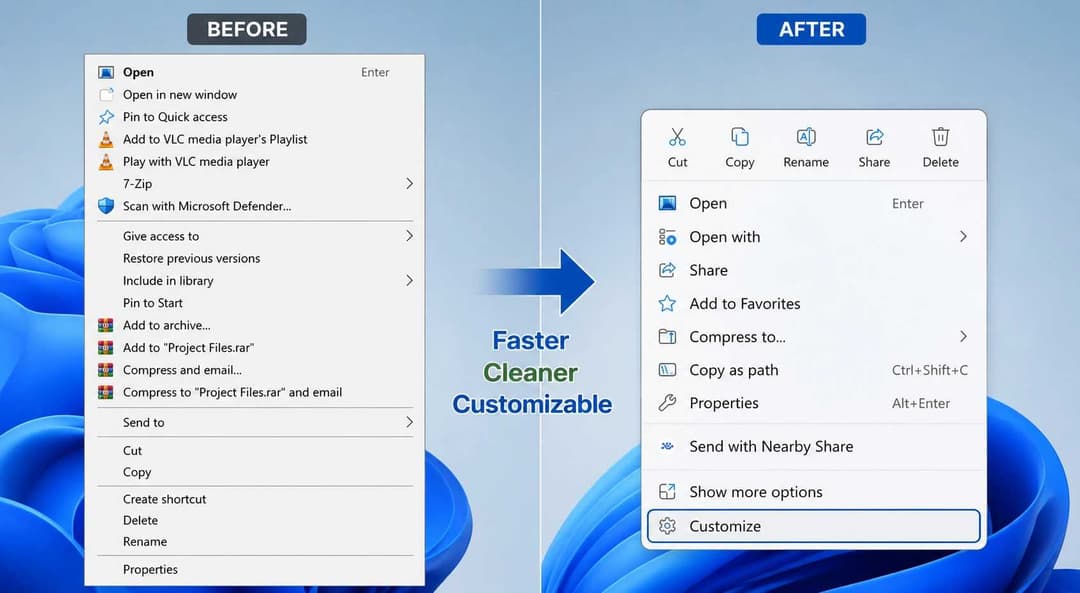 Before vs After
App Extension Controls Could Reduce Context Menu Clutter
Application extensions are another major part of the redesign.
Programs installed on Windows can integrate actions into File Explorer. An image editor might add an editing command, for example, while an archive utility may add compression options.
Microsoft's technical documentation explains how File Explorer context menu commands work in Windows 11. Modern extensions can use the IExplorerCommand interface to register commands that appear inside File Explorer.
This matters for performance because File Explorer needs information from these extensions when it constructs a context menu.
Microsoft specifically advises developers to keep operations such as retrieving a command's title, icon, and state fast. Its documentation also warns against performing expensive work on the File Explorer user-interface path.
That technical detail helps explain why extension management is relevant to performance as well as visual clutter.
With the redesigned controls, users can decide whether supported app extensions appear in the main menu or inside an app-extension submenu. Microsoft also allows the extension submenu itself to be hidden.
This does not prove that hiding an extension will produce a measurable performance increase on every computer. The effect can depend on the installed applications, extensions, hardware, and how those extensions are implemented.
-20260818084559.webp&w=1080&q=75 "Windows 11 App Extension Control Comparison")
Familiar Windows 10-Style Commands Are Also Returning as an Option
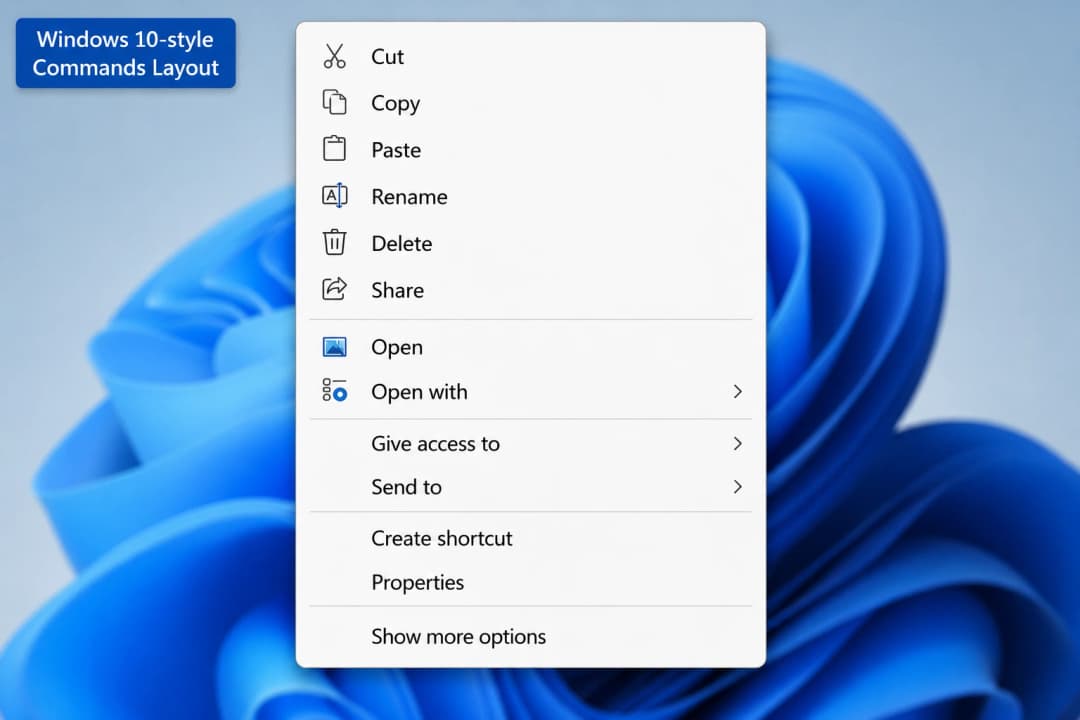
Windows 11 changed several familiar right-click actions into compact icons near the top of the context menu.
Microsoft is now giving users another choice.
The redesigned settings allow common actions such as:
- Cut
- Copy
- Paste
- Rename
- Delete
- Share
to appear as text entries in a vertical layout rather than only in the compact icon row.
The Properties command can also be repositioned toward the bottom of the menu.
This does not mean Microsoft is completely restoring the old Windows 10 context menu. Instead, users get more flexibility within the modern Windows 11 interface.
Why Windows 11 Right-Click Performance Has Received Attention
Context-menu performance has been a recurring Windows 11 concern.
Some applications add their own commands to File Explorer, and those extensions can require additional processing when a menu is created. Microsoft's own developer guidance reinforces the importance of keeping context-menu extension operations fast.
The company has also been working on broader Windows responsiveness and reliability improvements.
However, it is important to separate two related issues:
- general File Explorer performance;
- context-menu construction and extension performance.
The new context-menu design is part of Microsoft's broader effort to make everyday File Explorer interactions more responsive, but it does not prove that every File Explorer performance problem has been resolved.
Other File Explorer Improvements Are Arriving Around the Same Time
The context menu is not the only part of File Explorer receiving attention.
Microsoft has also been refining several smaller File Explorer behaviors, including navigation, address-bar handling, file operations, and the way information is presented.
For example, the newer experience supports clearer file-size units such as KB, MB, and GB. Microsoft has also expanded address-bar input handling and middle-click behavior for opening folders in new tabs.
These improvements share a similar goal: reducing friction during everyday file-management tasks.
However, they should not all be attributed directly to the customizable context-menu feature.
What the Update Means for IT Teams
For most home users, this is mainly a usability and customization change.
For IT departments managing larger Windows environments, there are a few additional points worth considering.
Organizations that rely on business applications with File Explorer integrations should test whether important commands remain easy for employees to locate.
Help-desk documentation may also need updating if users begin seeing different command layouts.
Application developers should review Microsoft's File Explorer context menu extension guidance to make sure their integrations follow the current Windows 11 model.
Organizations should also avoid assuming that every Insider feature will reach production systems unchanged. Preview functionality may still be modified before broader deployment.
A controlled pilot is therefore more appropriate than changing company-wide procedures around an unfinished interface.
For teams managing Windows laptops, desktops, and servers, it may also be useful to understand how endpoint security protects business devices as a separate part of managing the Windows environment.
Context-menu customization and endpoint security solve very different problems.
Is the New Context Menu a Security Feature?
No evidence reviewed for this article establishes Microsoft's redesigned context menu as a cybersecurity control.
The update primarily addresses:
- performance;
- menu organization;
- customization;
- app-extension presentation;
- usability.
It should not be described as a vulnerability fix or security-hardening feature unless Microsoft separately identifies a specific security issue.
There is still a broader security consideration for businesses. Applications and integrations installed across company-owned Windows endpoints should be managed through normal software-management and endpoint-security practices.
That concern exists independently of the new File Explorer interface.
In other words, hiding an application command from a right-click menu is not the same as removing, blocking, or securing the application.
Organizations that need a broader view of weaknesses across endpoints, networks, identity systems, cloud infrastructure, policies, and other parts of their environment can consider a formal cyber security assessment.
When Will the New Windows 11 Context Menu Be Available?
The redesigned menu is currently part of Windows Insider testing.
Microsoft says it plans to continue refining the experience based on feedback before broader availability.
A confirmed general public release date was not established in the sources reviewed for this article.
Users should therefore avoid assuming that the new Context Menu settings are already present on every Windows 11 installation.
Microsoft commonly tests Windows features before wider deployment, so availability and implementation can differ between devices and builds.
What Should Organizations Do Now?
Most organizations do not need to make immediate security changes because of this context-menu redesign alone.
IT teams can instead:
- Follow Microsoft's Windows Insider announcements for rollout changes.
- Test important File Explorer integrations on pilot devices.
- Document applications that depend on shell or context-menu extensions.
- Verify that business-critical commands remain accessible.
- Update employee or help-desk documentation when needed.
- Keep user-interface performance concerns separate from endpoint-security decisions.
This approach avoids treating a Windows interface change as a larger security issue than the available evidence supports.
For businesses already reviewing Windows device protection independently of this update, Hoplon Infosec also provides managed endpoint security services for laptops, desktops, servers, and other managed endpoints.
That service is relevant to broader endpoint protection, not to changing or optimizing the File Explorer context menu itself.
The Windows 11 context menu update itself does not create a reason to purchase a cybersecurity service.
However, Windows devices are often part of a much larger business environment involving user identities, applications, networks, servers, cloud services, and sensitive data.
If an organization is already reviewing that wider security posture, a Cyber Security Assessment from Hoplon Infosec can examine areas including endpoints, networks, identity, cloud systems, policies, and people.
Organizations looking specifically at device-level protection can also review Hoplon's Managed Endpoint Protection service.
These services should be considered for genuine security needs, not simply because Microsoft has redesigned a right-click menu.
Frequently Asked Questions
What is the Windows 11 context menu update?
It is Microsoft's redesigned File Explorer right-click experience intended to make the menu faster, less cluttered, and more configurable.
Users gain greater control over supported Windows commands and actions added by applications.
Can I customize the Windows 11 right-click menu?
The new Insider experience introduces a Customize menu option linked to dedicated settings where supported commands and extensions can be managed.
It is not currently established as available on every standard Windows 11 installation.
Can I hide third-party app extensions?
Microsoft's redesigned settings allow supported app extensions to be organized between the main menu and an app-extension submenu. The extension submenu can also be hidden.
Developers who want to understand how these commands integrate with Explorer can review Microsoft's Windows 11 File Explorer extension documentation.
Does the new menu make Windows 11 more secure?
There is no evidence in the Microsoft material reviewed for this article showing that the context-menu redesign itself is a security control.
Businesses concerned about the broader protection of laptops, desktops, and servers should treat endpoint security as a separate issue.
Is the classic Windows menu gone?
Microsoft's File Explorer support documentation explains that additional commands from the previous menu experience can currently be reached using Show more options.
The new customization system adds more flexibility but should not be described simply as a complete return to the Windows 10 menu.
How much faster is the new context menu?
Microsoft has not provided a verified universal benchmark establishing exactly how much faster the redesigned menu is on every Windows 11 device.
Performance can vary depending on hardware, installed applications, extension behavior, and other system conditions.
Final Takeaway
Microsoft's latest Windows 11 context menu work addresses two long-running concerns at once: performance and control.
The new configuration options give users more say over built-in commands, app extensions, and the presentation of common file actions. Microsoft's technical guidance also helps explain why keeping third-party context-menu extensions lightweight matters to File Explorer responsiveness.
The direction is clear. The exact performance improvement and final public rollout schedule are not.
For now, the feature is best understood as a significant Windows 11 usability and customization update under Insider testing, rather than a finished change already available on every Windows 11 PC.
Related Articles:
- Windows 11 Update 2025: Finally Fix Explorer & Feel AI Power
- Windows 11 March 2026 Update: New Features, Fixes & Changes
- Windows 11 KB5094126 & KB5093998 June 2026 Update
- What is Endpoint Security? How Modern Protection Works