Microsoft 365 Bug Fixed After Blank Screen Blocked Office Apps
What Happened With Microsoft 365 on November 25, 2026?
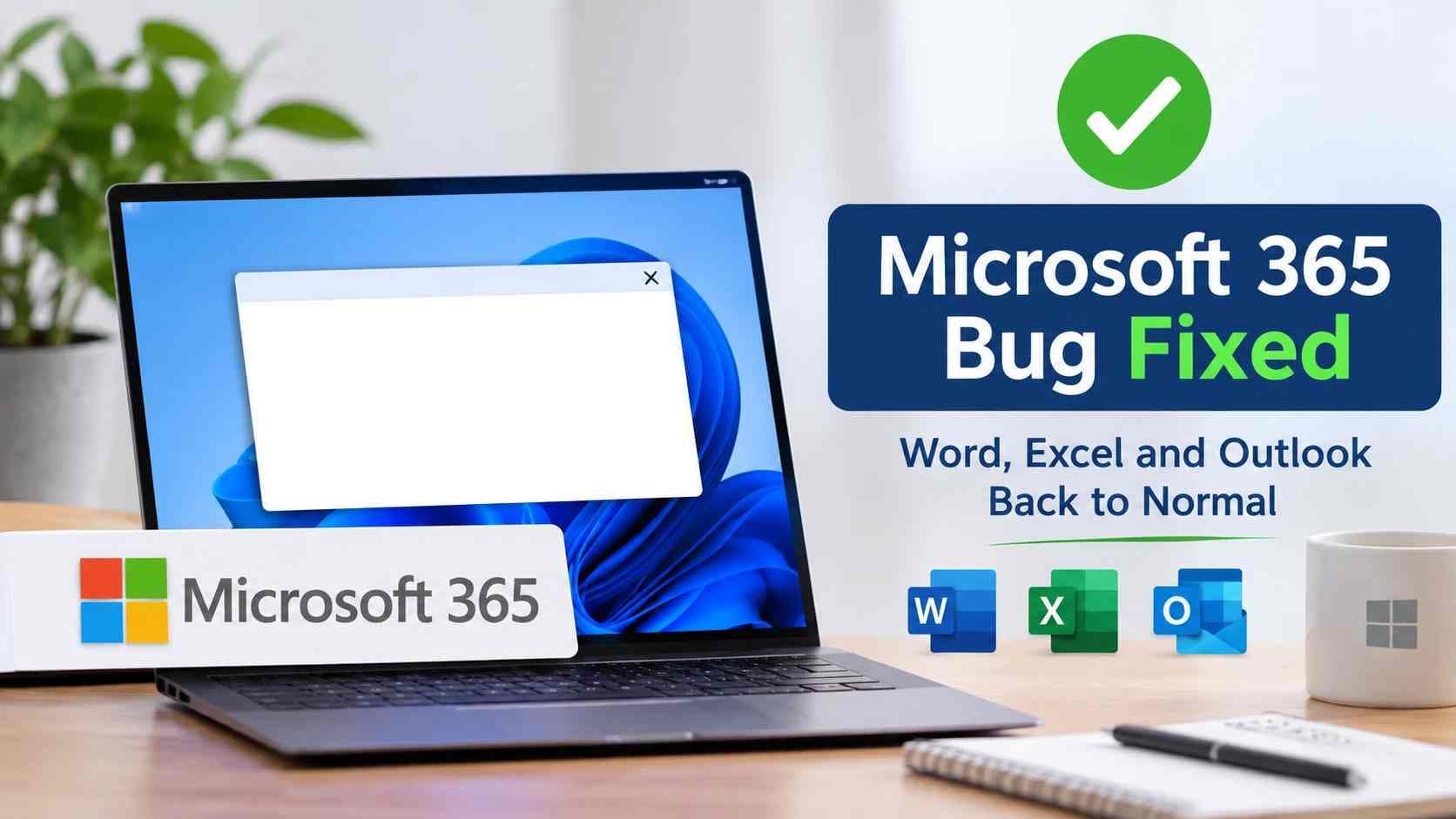
Microsoft 365 users recently encountered a frustrating problem: opening Word, Excel, or Outlook could display a blank dialog window with no text or buttons. In some cases, users could not dismiss the window or continue working.
Microsoft confirmed the issue and marked it as fixed on November 23, 2026. The company identified Version 2611 (Build 16.0.20625.20142) as the release containing the correction.
The problem also affected PowerPoint, Access, and OneNote. Microsoft provided an alternative update method for users who could not open their Office applications to install the fix.
The incident highlights a practical problem for organizations that depend on Office applications every day. A software problem does not need to involve data theft or a security breach to interrupt important business operations.
Microsoft 365 Blank Screen Bug
- What happened: A blank dialog appeared when users opened certain Microsoft 365 desktop applications. It contained no visible text or buttons and could prevent further access.
- Which applications were affected: Word, Excel, Outlook, PowerPoint, Access, and OneNote.
- What fixes it: Microsoft confirmed that Version 2611 (Build 16.0.20625.20142) resolves the issue. Users who cannot access the normal update controls can use Microsoft's documented command-line method.
What Was the Microsoft 365 Blank Screen Bug?
The Microsoft 365 bug involved an empty dialog window that appeared during application startup.
Unlike a typical error message, the window did not explain what went wrong. It also lacked visible buttons that users could select to close it or continue.
For affected users, this created a difficult situation. They could launch an application, but the unexpected window prevented them from using it normally.
Microsoft documented the problem in its official support notice on November 23, 2026. The company described a blank dialog that could prevent users from continuing inside an Office application if they could not dismiss it.
The distinction matters. Microsoft confirmed a blank dialog window, not a universal failure affecting every Microsoft 365 installation.
Which Microsoft 365 Applications Were Affected?
Microsoft listed six applications in its official notice.
|
Application |
Potential impact |
|
Microsoft Word |
Users could be prevented from accessing documents |
|
Microsoft Excel |
Spreadsheet work could become unavailable |
|
Microsoft Outlook |
Users could be blocked from accessing the desktop email application |
|
Microsoft PowerPoint |
Presentation work could be interrupted |
|
Microsoft Access |
Database application access could be affected |
|
Microsoft OneNote |
Users could be unable to continue working in the application |
The reported impact depended on whether the blank dialog appeared and whether the user could dismiss it.
Microsoft did not publish a confirmed number of affected customers, devices, or organizations. It also did not identify every previously affected Office build.
That means it would be inaccurate to describe the incident as a universal Microsoft 365 outage.
Why Did the Microsoft 365 Blank Dialog Problem Matter?
For an individual user, an application that refuses to open is inconvenient. For a business, the same issue can interrupt several connected workflows.
Consider a small company preparing its monthly financial report.
The accounting team uses Excel to review transactions. Managers use Word to prepare internal documents. Employees depend on Outlook to communicate with customers and suppliers.
If these applications become inaccessible on affected computers, normal work can stop while IT teams investigate the problem.
The impact can extend beyond the time spent restarting an application.
1. Business Productivity Disruption
Microsoft 365 applications support many routine business activities.
Employees may use Word for contracts, Excel for financial reports, Outlook for customer communication, and PowerPoint for meetings.
When an application becomes inaccessible, employees may need to delay work or use an approved alternative.
For businesses with limited IT support, even identifying the source of the problem can take time.
2. Delays in Email and Communication
Outlook is often a central communication tool for business operations.
If users cannot access the desktop application, they may miss important messages or experience delays in responding to customers.
However, a desktop application problem does not automatically mean Exchange Online or the entire Microsoft 365 cloud service is unavailable.
Organizations should check whether Outlook on the web remains accessible before treating the problem as a broader email service outage.
3. Increased IT Support Workload
A blank dialog provides very little information for troubleshooting.
Employees may report that Word is broken, Excel will not open, or Outlook displays a white screen.
IT administrators then need to determine whether the problem is related to the documented Microsoft issue, an unrelated application failure, or a separate account or device problem.
Without a clear incident record, support teams may waste time repeating the same troubleshooting steps across multiple computers.
What Caused the Microsoft 365 Blank Screen Issue?
Microsoft has not publicly disclosed the technical root cause of this particular blank dialog problem.
Its support notice confirms the symptom and the fixed software build. It does not identify a specific authentication component, application library, Windows update, or internal software defect responsible for the behavior.
This limitation is important.
A blank window can have several possible explanations in software troubleshooting. However, a possible explanation is not proof of what happened in this incident.
For this reason, it is better to separate confirmed information from general technical possibilities.
What Microsoft Has Confirmed
The official support documentation establishes three important facts:
- A blank dialog could appear when users opened an affected Office application.
- The dialog contained no visible text or buttons and could prevent users from continuing.
- Microsoft marked the issue as fixed in Version 2611 (Build 16.0.20625.20142).
Microsoft has not provided a detailed engineering explanation of the defect.
What Remains Unknown
Several questions remain unanswered in the public documentation:
- Which earlier application builds were affected?
- What specific software component generated the blank dialog?
- Was the issue limited to a particular deployment or update channel?
- How many customers experienced the problem?
- What internal change introduced the defect?
Until Microsoft publishes more technical information, these details should remain unconfirmed.
This is also why organizations should avoid treating the incident as evidence of malware, a cyberattack, or a compromised Microsoft account.
The documented problem was an application-access issue. Microsoft did not classify it as a security breach.
How to Fix the Microsoft 365 Blank Screen Problem
Microsoft has confirmed a fix in Version 2611 (Build 16.0.20625.20142).
Users should prioritize the official update instead of immediately uninstalling Office or making unnecessary changes to Windows.
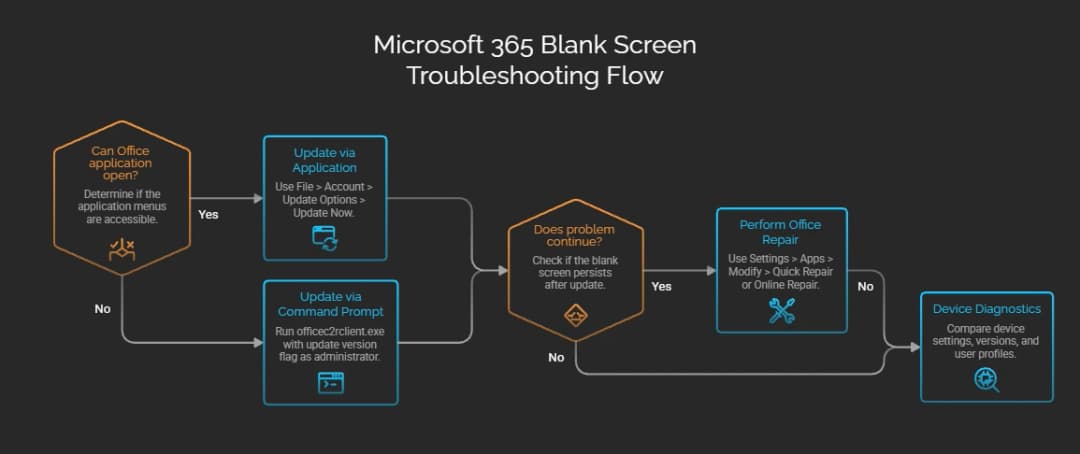
The correct troubleshooting approach depends on whether the affected application can still be opened.
Method 1: Update Microsoft 365 Through an Office Application
If you can open an Office application and access its menus, follow Microsoft's standard update process.
- Open Word, Excel, or another Microsoft 365 application.
- Select File.
- Open Account or Office Account.
- Find Update Options under Product Information.
- Select Update Now.
- Allow the update process to finish.
- Restart the application and check whether the blank dialog has disappeared.
Microsoft notes that some installations may require users to select Enable Updates before Update Now becomes available.
You can find the official instructions here:
How to update Microsoft 365 or Office for Windows
Method 2: Install the Fixed Build Through Command Prompt
What happens when the blank dialog prevents you from opening Word, Excel, or Outlook?
Microsoft provides an alternative method for this situation.
The company instructs affected users to close all Office applications and use an elevated Command Prompt to request the fixed build.
Follow these steps:
- Save any work that is still accessible.
- Close all Microsoft Office applications.
- Open the Windows Start menu.
- Search for Command Prompt.
- Select Run as administrator.
- Enter the following Microsoft-provided command:
"%programfiles%\Common Files\Microsoft Shared\ClickToRun\officec2rclient.exe" /update user updatetoversion=16.0.20625.20142
- Allow the update process to complete.
- Reopen an Office application and check whether it works normally.
The command uses the Office Click-to-Run client to request the specified build.
Important: This method applies to the Click-to-Run installation path documented by Microsoft. Organizations using managed Office deployments should coordinate updates with their IT administrators.
Official Microsoft reference:
A blank dialog window appears when you open an Office application
Method 3: Repair Microsoft 365 if the Problem Continues
If the fixed build is installed but the application still fails, the issue may have another cause.
In that situation, an Office repair may help resolve unrelated installation problems.
On Windows:
- Open Settings.
- Select Apps.
- Open Installed Apps.
- Find Microsoft 365 or the relevant Office installation.
- Select the available modification option.
- Choose Quick Repair first.
- If the problem continues, consider Online Repair.
Quick Repair checks and addresses common installation problems. Online Repair performs a more extensive repair of the Office installation.
Microsoft explains that the repair process can affect the entire Office suite, even when only one application appears to have a problem.
Reference:
Repair an Office application
Repair should not be the first response to the documented blank dialog if the official update is available.
Method 4: Check Whether the Problem Is Limited to One Device
If only one employee reports the issue, compare that device with another computer using the same Microsoft 365 environment.
Check:
- Whether both devices have the same Office version.
- Whether they use the same update channel.
- Whether the affected application opens under another Windows user profile.
- Whether other Office applications show the same behavior.
- Whether the issue remains after installing the confirmed fix.
These checks help IT teams distinguish a wider application problem from an isolated device issue.
Avoid deleting user profiles, removing Office credentials, or reinstalling applications without a clear reason.
Microsoft 365 Troubleshooting: Comparing the Available Fixes
Not every Microsoft 365 opening problem has the same cause. Choosing the right response can save time and prevent unnecessary changes.
|
Troubleshooting method |
When to use it |
Priority |
|
Install the confirmed fixed build |
When the blank dialog matches Microsoft's documented issue |
First |
|
Standard Office update |
When application menus remain accessible |
First |
|
Microsoft-provided command-line update |
When the blank dialog blocks normal update access |
First |
|
Quick Repair |
When the fixed build is installed but other installation problems remain |
Secondary |
|
Online Repair |
When a more extensive installation repair is needed |
Secondary |
|
Check another device |
When determining whether the issue is isolated or widespread |
Diagnostic |
The most important step is to verify that the device is affected by the documented problem before applying a more extensive repair.
What Should IT Administrators Do?
For organizations using Microsoft 365 across multiple computers, the incident provides a useful reason to review application update management.
A single affected computer may be manageable. A group of newly configured employee devices can create a much larger support challenge.
IT administrators should approach the situation as an endpoint management and service continuity issue.
1. Identify Affected Office Installations
Start by identifying computers where users reported the blank dialog.
Record:
- Device name or asset identifier.
- Installed Office version and build.
- Microsoft 365 update channel.
- Affected applications.
- Date and time of the first report.
- Whether the fixed build has been installed.
This information helps administrators understand the scope of the problem.
2. Verify the Installed Version
Do not assume that every device receives an update at the same time.
Microsoft 365 Apps can use different update channels and deployment policies.
Administrators should compare installed builds with Microsoft's published update information and their organization's deployment configuration.
The fixed build identified in the incident notice is Version 2611 (Build 16.0.20625.20142).
The organization should confirm that its update management process can deliver the correction to affected devices.
3. Test the Update Before Broad Deployment
For managed environments, test the update on a small group of representative devices before expanding deployment.
Check whether:
- Word opens successfully.
- Excel can load existing workbooks.
- Outlook opens normally.
- PowerPoint and OneNote launch successfully.
- The blank dialog no longer appears.
- Existing user settings and application configurations remain intact.
This approach helps identify unexpected problems before they affect a larger group of employees.
4. Maintain an Application Recovery Plan
Organizations should not depend on a single troubleshooting method.
A practical recovery plan should include:
- Documented Office update procedures.
- Access to approved installation and repair tools.
- A clear process for reporting application failures.
- A record of supported Office builds.
- A communication process for affected employees.
- A tested method for restoring application access.
These measures can reduce confusion when an application update causes unexpected behavior.
5. Monitor Microsoft's Service and Support Notices
A desktop application failure and a cloud service outage require different responses.
Administrators should check the Microsoft 365 admin center's Service health section for organization-specific service incidents.
They should also review Microsoft's known-issues documentation and official release information.
This helps teams avoid spending hours troubleshooting individual computers when the underlying problem is already documented by Microsoft.
How to Prevent Similar Microsoft 365 Application Disruptions
No organization can guarantee that every software update will work perfectly on every device.
However, a structured update process can reduce the impact of unexpected problems.
Use Controlled Update Deployment
Avoid treating every update as an immediate, organization-wide installation.
Use a deployment process that includes a test group, a broader rollout, and a recovery procedure.
The appropriate schedule depends on the organization's security requirements, update channel, and operational needs.
Keep Office Applications Supported and Updated
Running outdated software can leave organizations exposed to known bugs and security issues.
Administrators should maintain an inventory of installed Office versions and establish a process for applying supported updates.
Improve Endpoint Visibility
IT teams need to know which computers are running which software builds.
Without accurate endpoint inventory, identifying affected devices becomes difficult.
Centralized endpoint management can help administrators track application versions, update status, and device compliance.
Prepare Employees for Application Failures
Employees should know how to report application problems.
A useful report should include the application name, a screenshot of the error, the approximate time of failure, and whether other Office applications are affected.
This information gives IT teams a better starting point for investigation.
Microsoft 365 Blank Screen Bug: What This Incident Teaches Businesses
The November 2026 incident demonstrates how a relatively small application defect can interfere with important business processes.
A blank dialog may look harmless. But when it prevents users from opening essential software, the operational impact can be significant.
The incident also highlights why technical teams should rely on official documentation rather than immediately assuming a device has been compromised.
Microsoft confirmed the issue, published a fixed build, and provided an alternative update procedure for users unable to access the normal application controls.
For IT administrators, the broader lesson is straightforward: software updates need visibility, controlled deployment, and a reliable recovery process.
Organizations should also distinguish between an application-level failure and a wider cloud service disruption. That distinction can save valuable troubleshooting time.
Microsoft 365 users who still experience the documented problem should verify their installed version and follow Microsoft's official update instructions. If the issue continues after installing the correction, investigate it as a separate application or device problem.
Frequently Asked Questions
1. Why is Microsoft 365 showing a blank white screen?
Microsoft confirmed a blank dialog window that could appear when opening Word, Excel, Outlook, PowerPoint, Access, or OneNote. The dialog contained no text or buttons and could prevent users from continuing.
2. How do I fix the Microsoft 365 blank screen bug?
Install Microsoft 365 Version 2611 (Build 16.0.20625.20142), which Microsoft identified as the fixed build. If you cannot open the application, Microsoft provides a Click-to-Run command-line update method.
3. Is the Microsoft 365 blank screen issue fixed?
Yes. Microsoft marked the documented issue as fixed on November 23, 2026, in Version 2611 (Build 16.0.20625.20142).
4. Does the Microsoft 365 blank screen bug mean my computer has malware?
No. Microsoft documented this as an Office application issue, not a malware infection or confirmed cyberattack. A similar-looking screen can have other causes, so investigate the specific symptoms before drawing conclusions.
Final Takeaway
The Microsoft 365 blank dialog problem was a reminder of how much businesses depend on everyday productivity software.
Microsoft has released a correction, but organizations should still verify that affected devices receive it. A successful update should be followed by basic application checks to confirm that employees can resume normal work.
For IT teams, maintaining update visibility, testing deployments, and preparing recovery procedures are practical ways to limit the disruption caused by future software defects.
Hoplon InfoSec
can help businesses strengthen endpoint security, identify outdated software
and missing patches, and monitor suspicious activity. Its incident response and
security assessment services can also help investigate potential security
risks. While these services cannot directly fix the Microsoft 365 bug, they can
help protect business systems and reduce security risks.
Author Bio and Review
Author: Mohammed Talukder is the Co-Founder and CEO of Hoplon InfoSec, with over 16 years of experience in cybersecurity and technology. His expertise includes offensive security, vulnerability management, cyber risk management, and incident response. His professional credentials include CISM, CISA, CEH, and CompTIA PenTest+. He has also received Infosys recognition awards for his professional contributions. He shares practical cybersecurity insights to help organizations strengthen their security posture.
Technical reviewer: Gazi Mahmud,
Co-Founder
and CIO of Hoplon InfoSec LLC, cybersecurity leader, and CISM & CISA
certified professional with expertise in cyber risk management, security
governance, compliance, and incident response.
Read More Articles: