New Outlook Can’t Open Excel Attachments? Causes, Fixes, and Microsoft’s Resolution
Last Updated: September 10, 2026
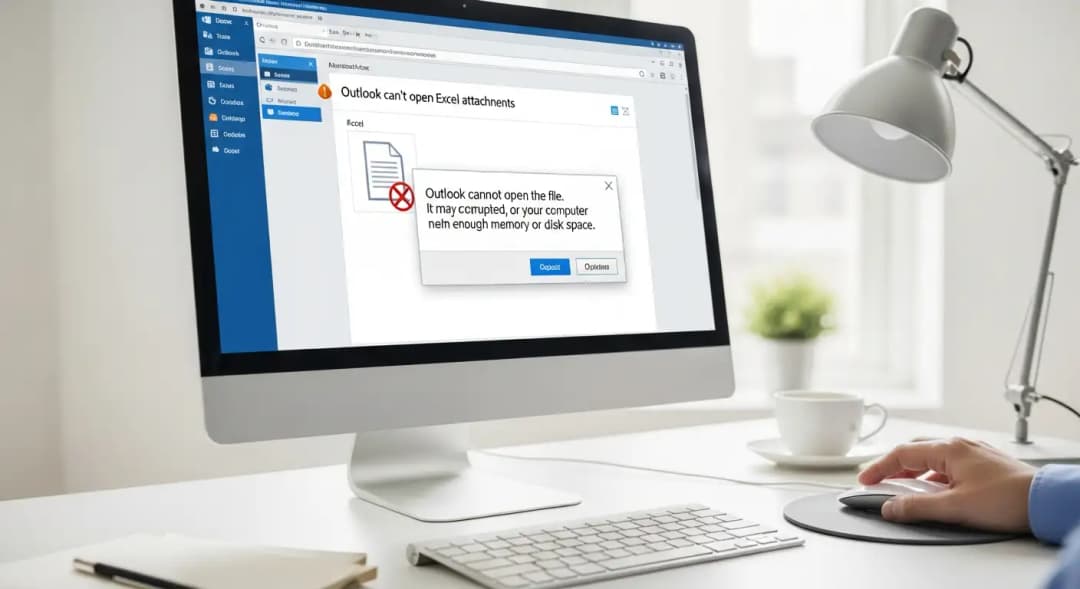
If the new Outlook refuses to open an Excel attachment and shows “Try opening the file again later,” there is an important distinction to make.
Microsoft did confirm a specific new Outlook attachment bug in late November 2025. The issue, tracked as EX1189359, affected Excel attachments whose filenames contained non-ASCII characters. A filename encoding problem prevented the new Outlook client from handling those attachments correctly.
However, that particular incident is no longer an active rollout problem. A public NHSmail record of Microsoft's service advisory says deployment of the fix finished on December 8, 2025, and Microsoft verified remediation for users running new Outlook version 20251128003.06.
So if Excel attachments are still not opening in new Outlook today, do not automatically assume that EX1189359 is still affecting your account. First confirm your Outlook version, test the file outside the desktop client, and determine whether the failure is limited to particular filenames or affects attachments more broadly.
Key Findings
- Microsoft tracked the original issue as EX1189359 for Exchange Online and new Outlook.
- The reported error was “Try opening the file again later.”
- The documented trigger was an Excel attachment filename containing non-ASCII characters.
- Microsoft ultimately attributed the incident to an encoding error introduced by a change involving attachment caching.
- Outlook on the web and downloading the attachment locally were Microsoft's temporary workarounds during the incident.
- The public service-status record says the fix completed deployment on December 8, 2025.
- Version 20251128003.06 was identified in that final update as containing the remediation.
- A similar attachment error in 2026 does not, by itself, prove that the old EX1189359 bug has returned.
What Actually Happened to Excel Attachments in New Outlook?
The issue became widely reported on December 1, 2025, but it had started affecting some Exchange Online customers in late November.
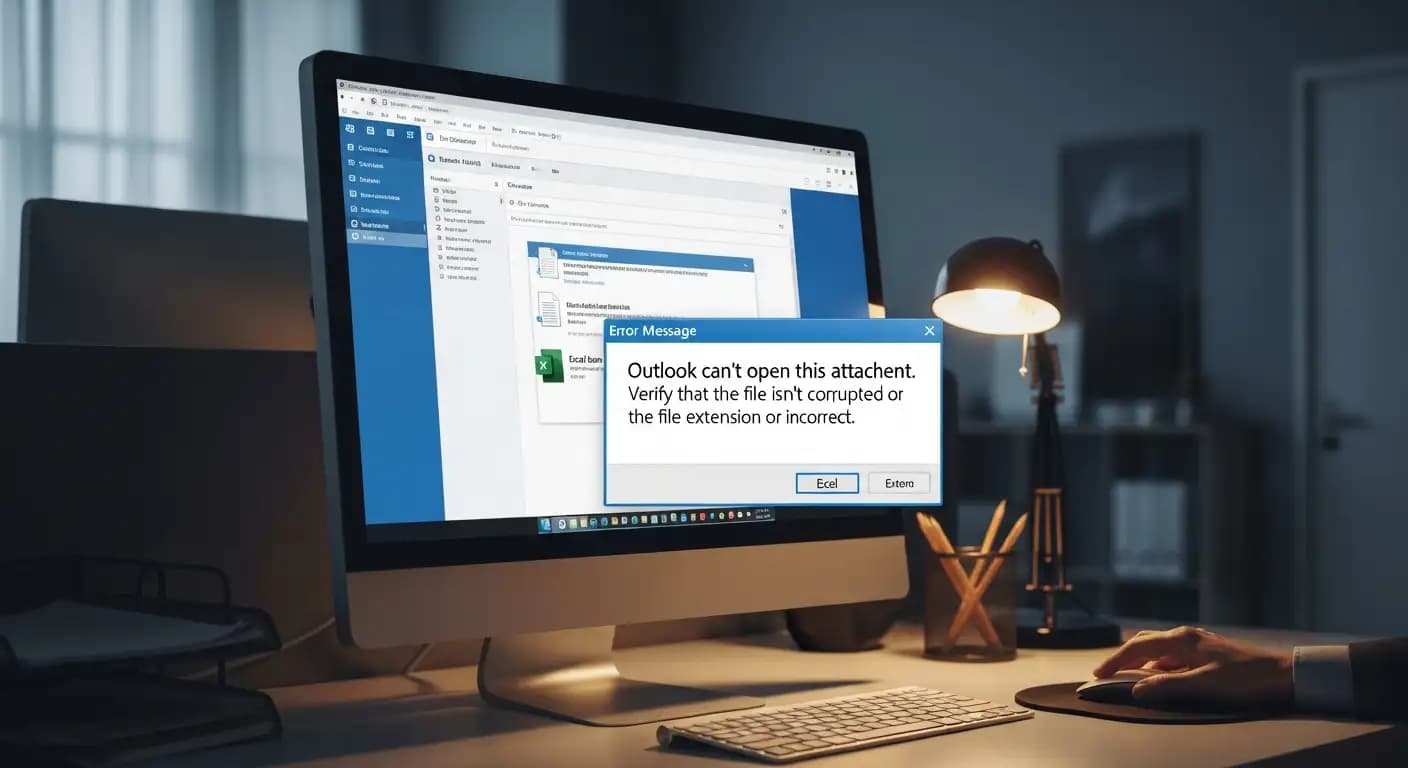
Microsoft's service advisory described a situation in which users of the new Outlook client could be unable to open Excel files attached to email messages. Instead of opening the spreadsheet, Outlook displayed:
“Try opening the file again later.”
Contemporary reporting based on Microsoft's service alert identified the incident as EX1189359 and placed the beginning of customer impact around November 23, 2025.
The spreadsheet itself was not necessarily damaged.
The problem occurred while new Outlook was trying to process the attachment and its filename.
That distinction matters. An attachment can exist normally in an Exchange Online mailbox and still fail when one particular client attempts to open it.
Why Did Non-ASCII Excel Filenames Trigger the Error?
Microsoft identified an encoding problem involving Excel filenames.
ASCII is a basic character set that covers common English letters, numbers, punctuation marks, and control characters. Modern filenames routinely use Unicode characters well beyond that limited set.
Examples can include:
| Filename | Character type |
|---|---|
Budget-Q4.xlsx | Basic ASCII |
Résumé-Q4.xlsx | Accented character |
München-Sales.xlsx | Umlaut |
বিক্রয়-রিপোর্ট.xlsx | Bengali script |
売上報告.xlsx | Japanese characters |
During EX1189359, filenames containing characters outside the ASCII range could trigger the failure.
The final public incident update provides an additional technical detail that many early reports missed: Microsoft said a recent change to the way attachments were cached introduced an encoding error within Excel filenames, causing non-ASCII characters to fail.
In simpler terms, Outlook had the attachment, but part of the software path responsible for identifying or requesting the file did not correctly handle certain characters in its name.
That is why repeatedly clicking the attachment was unlikely to solve the original problem.
The trigger was deterministic: the same problematic filename continued going through the same faulty processing path.
The Microsoft EX1189359 Timeline
| Date | What happened |
|---|---|
| Late November 2025 | Some Exchange Online users began experiencing failures opening Excel attachments in new Outlook. |
| November 28, 2025 | The issue was publicly tracked through Microsoft service advisory EX1189359. |
| December 1, 2025 | Major technology and cybersecurity publications reported Microsoft's acknowledgement and ongoing fix validation. |
| Early December 2025 | Microsoft continued deploying and validating the corrected encoding behavior. |
| December 8, 2025 | Public service-status reporting recorded the incident as resolved and deployment fully saturated. |
| December 8, 2025 | Version 20251128003.06 was identified as the updated version in which customer testing confirmed remediation. |
The December 8 resolution is important because many articles published between December 1 and December 3 still describe the fix as being under validation or gradually rolling out. That information was correct when those stories were published but is no longer the final status of the incident.
Who Was Affected?
The confirmed incident concerned users opening Excel attachments through new Outlook, with Exchange Online listed as the affected Microsoft service.
Microsoft's advisory said users could experience the problem when an Excel attachment contained non-ASCII characters in its filename.
That made the bug particularly noticeable in organizations where filenames regularly contained:
- accented European characters;
- Asian, Arabic, Bengali, Cyrillic, or other non-Latin scripts;
- names of employees, customers, products, or locations written in their native spelling;
- internationally generated invoices and reports;
- localized automated report filenames.
A multinational finance team, for example, might receive files such as Résumé-Q4.xlsx, while another department might receive reports using Bengali, Arabic, Japanese, or another writing system.
The attachment could be perfectly legitimate while still hitting the filename-processing bug.
Is EX1189359 Still an Active Problem in 2026?
The available evidence says the original EX1189359 incident was resolved.
The December 8, 2025 final incident update states that deployment had completed and customer testing confirmed remediation after upgrading to version 20251128003.06.
Microsoft's current new Outlook known-issues page, updated in August 2026, lists several newer Outlook issues but does not identify EX1189359 as a current attachment incident.
That does not mean new Outlook can never experience another attachment problem.
It means the old non-ASCII filename incident should not be treated as the automatic explanation for every Excel attachment error seen today.
A Microsoft Q&A discussion from August 2026, for example, describes users seeing a similar generic opening error while community troubleshooting focused on a different local Outlook condition. That discussion does not establish an official new Microsoft root cause, but it demonstrates why the text of an error message alone is not enough to identify EX1189359.
How to Fix Excel Attachments That Will Not Open in New Outlook
1. Confirm That You Are Actually Using New Outlook
Microsoft currently maintains both new Outlook for Windows and classic Outlook for Windows.
In new Outlook, the Settings button appears in the upper-right area. Microsoft also says you can check the installed new Outlook version through:
Settings → General → About Outlook
That is useful when an IT administrator needs to compare affected and unaffected systems.
If you are investigating the historical EX1189359 incident, anything newer than the December 2025 fixed release should already contain that remediation.
2. Test the Same Attachment in Outlook on the Web
Open the same mailbox through Outlook on the web and test the attachment there.
During EX1189359, Microsoft specifically recommended Outlook on the web as a way to bypass the affected desktop behavior.
Microsoft's current attachment documentation also confirms that Outlook on the web can preview, download, and open supported Office attachments. Microsoft's official Outlook attachment guide
This comparison is useful even after the original incident has been resolved.
If the same file works on the web but fails in new Outlook on the same account, that strongly suggests the next investigation should focus on the desktop client or its local environment rather than immediately assuming the spreadsheet itself is corrupt.
It is a diagnostic signal, not absolute proof.
3. Download the Excel Attachment Before Opening It
Instead of opening the spreadsheet directly from the Outlook message, download it to a local folder first.
Then open the saved .xlsx file directly with Excel.
Microsoft documented downloading the attachment locally as one of the workarounds during EX1189359, and its current Outlook documentation continues to support downloading attachments from new Outlook.
This separates two operations:
Outlook retrieving the attachment → Excel opening the local file
If the downloaded spreadsheet opens normally, the contents of the workbook are less likely to be the immediate cause of the opening failure.
4. Check the Filename
For the historical bug, this was one of the most useful diagnostic clues.
Look for:
- accented characters such as
é,ü,ñ, orç; - non-English writing systems;
- unusual punctuation or symbols;
- filenames generated automatically in another language.
If a problematic file opens after being renamed to a basic filename such as Q4-report.xlsx, that result may point toward filename processing.
But there is an important 2026 caveat: renaming should no longer be necessary as a permanent workaround for EX1189359 on updated clients, because Microsoft has already deployed the fix.
Treat filename testing as a troubleshooting step, not as a long-term company policy requiring everyone to use English-only filenames.
That distinction matters for international organizations.
5. Restart or Update New Outlook
If an organization somehow retained an old new Outlook version from the affected period, installing current updates is more appropriate than continuing to work around a bug that Microsoft already fixed.
IT teams should also record the affected Outlook version before changing anything. That makes it easier to tell whether several users share the same client version or whether the failures occur across different environments.
6. Temporarily Test Classic Outlook
If classic Outlook is installed, testing the same message there can provide another comparison point.
Microsoft still supports opening classic Outlook alongside new Outlook in supported configurations and provides a way to switch back when necessary.
During the original incident, reports indicated the issue was associated specifically with new Outlook.
However, switching an entire organization back to classic Outlook should not be the first response to a historical bug that has already been fixed.
Use it as an isolation test or temporary operational workaround where appropriate.
7. Check Microsoft 365 Service Health
For business environments, IT administrators should determine whether Microsoft currently has an advisory affecting Exchange Online or Outlook before spending hours troubleshooting every workstation independently.
Microsoft recommends checking:
Microsoft 365 admin center → Health → Service health
The Service health dashboard shows active incidents and advisories affecting the tenant. Microsoft's official Service Health guidance
During the 2025 incident, the relevant identifier was EX1189359.
For a new incident, use whatever current incident or advisory ID Microsoft provides rather than assuming the old ID applies.
Quick Diagnostic Table
| What you observe | What it suggests | Best next check |
|---|---|---|
| Only a particular special-character filename fails | Filename handling may be involved | Rename a copy and compare behavior |
| Attachment works in Outlook on the web but not new Outlook | Desktop-client path may be involved | Check Outlook version and local client |
| Downloaded file opens normally in Excel | Workbook itself may be intact | Investigate Outlook opening/preview path |
| Downloaded file also fails in Excel | Problem may involve the file, Excel, permissions, or another condition | Test another trusted workbook and investigate Excel |
| Several users fail at the same time | Possible service or shared configuration issue | Check Microsoft 365 Service health |
| Unknown or suspicious sender supplied the attachment | Potential security issue independent of EX1189359 | Verify sender and scan/investigate the message |
The table is intended for triage. None of these observations alone proves a root cause.
Why “Try Opening the File Again Later” Can Be Misleading
The error sounds temporary.
That was particularly confusing during EX1189359 because retrying the operation did not address the documented encoding problem.
The message did not tell users that the filename was relevant. As a result, an employee might reasonably suspect:
- a temporary Microsoft outage;
- a damaged Excel workbook;
- an Excel installation problem;
- an internet connection problem;
- a permissions failure;
- malware or an unsafe attachment.
For IT teams, generic messages create extra support work because several unrelated causes can initially look similar.
A more reliable troubleshooting approach is to compare the same attachment across:
new Outlook → Outlook on the web → downloaded local file → another known-good Excel attachment
That provides evidence rather than relying only on the wording of the error.
Is This an Outlook Problem or an Exchange Online Problem?
The original advisory listed Exchange Online as the affected service while describing failures occurring when users opened attachments in new Outlook.
The documented root cause concerned attachment processing and filename encoding rather than a claim that the Excel workbook stored in the mailbox was corrupt.
That explains why Outlook on the web was recommended as a workaround.
It is therefore more accurate to describe EX1189359 as a Microsoft 365/New Outlook attachment-handling incident affecting Exchange Online customers than to simply say “Exchange was broken” or “Excel was broken.”
Was the Excel File Corrupted?
The historical incident did not establish workbook corruption as its root cause.
Microsoft attributed the problem to filename encoding, and its workarounds included downloading the attachment locally and opening it there.
If a spreadsheet opens normally after download, there is little reason to label that specific file corrupted solely because new Outlook failed to open it.
If the downloaded copy also fails in Excel, investigate it as a separate problem.
Did the Bug Affect Word or PowerPoint Attachments?
The confirmed EX1189359 advisory specifically referred to Excel files.
There is not enough evidence in the official incident information reviewed here to claim that the same resolved incident also affected Word or PowerPoint attachments.
If Word or PowerPoint attachments show similar symptoms, troubleshoot those files independently rather than presenting EX1189359 as a confirmed explanation.
Why This Bug Mattered to Businesses
Excel attachments are often part of routine business processes.
They may contain:
- quarterly reports;
- invoices;
- budget worksheets;
- inventory data;
- sales reports;
- financial forecasts;
- school or administrative records;
- operational trackers;
- exported data from internal systems.
For an organization processing many spreadsheets each day, even a narrow compatibility bug can create a surprising amount of disruption.
The filename condition also made the issue especially relevant to international teams.
An organization should not normally have to remove legitimate native-language characters from filenames simply to make email attachments work.
The fact that Microsoft ultimately corrected the encoding behavior is therefore more important than treating ASCII-only names as a permanent solution.
What IT Teams Should Do When This Happens Again
A useful response starts by collecting evidence.
Record the Outlook version, affected file type, exact error message, filename, whether Outlook on the web works, whether downloading works, and whether more than one user is affected.
Then check Microsoft 365 Service health.
This prevents a help desk from spending time rebuilding profiles or reinstalling software during a Microsoft-side incident.
It also prevents the opposite mistake: assuming every attachment failure is Microsoft's problem when only one device or workbook is affected.
For broader guidance on reducing email-related operational and security risk, Hoplon Infosec's email security best practices guide explains layered email protection, while the broader email security overview covers the threats organizations should distinguish from normal software failures.
A Software Bug Is Not the Same as a Malicious Attachment
EX1189359 was documented as a software/service issue involving attachment caching and filename encoding.
That does not mean Excel attachments are inherently safe.
If an unexpected spreadsheet arrives from an unknown sender, contains suspicious content, asks you to enable active content, or arrives as part of an unusual payment or login request, normal security checks still apply.
Microsoft's attachment documentation itself advises users to be careful with attachments from unknown or untrusted senders.
Hoplon Infosec's coverage of an Excel-delivered Remcos RAT campaign shows why spreadsheet-based attack chains should be treated differently from a confirmed Outlook software bug.
Organizations can also review what endpoint security means in practice and how managed endpoint protection helps protect laptops and workstations when malicious files reach user devices.
The distinction is simple:
A known Outlook bug may prevent a legitimate spreadsheet from opening. Security controls are designed to stop or investigate spreadsheets that should not be trusted in the first place.
Do not confuse one with the other.
Outlook and Email Security Need to Be Treated as Separate Layers
A reliable Outlook client does not eliminate phishing or account compromise.
Similarly, an attachment opening error does not prove an attack.
Recent security cases involving Outlook demonstrate why administrators should separate application reliability from email security. Hoplon Infosec has covered an Outlook add-in credential theft case and earlier malware using Outlook through Microsoft Graph API.
Those are security scenarios.
EX1189359 was a software incident.
Keeping those categories separate helps IT teams respond proportionately instead of either ignoring a genuine threat or escalating an ordinary software failure into a security incident.
For organizations that need stronger protection against phishing, malicious attachments, spoofing, and account takeover, Hoplon's email security and anti-phishing service describes the relevant defensive controls.
FAQ
Why can't I open an Excel attachment in new Outlook?
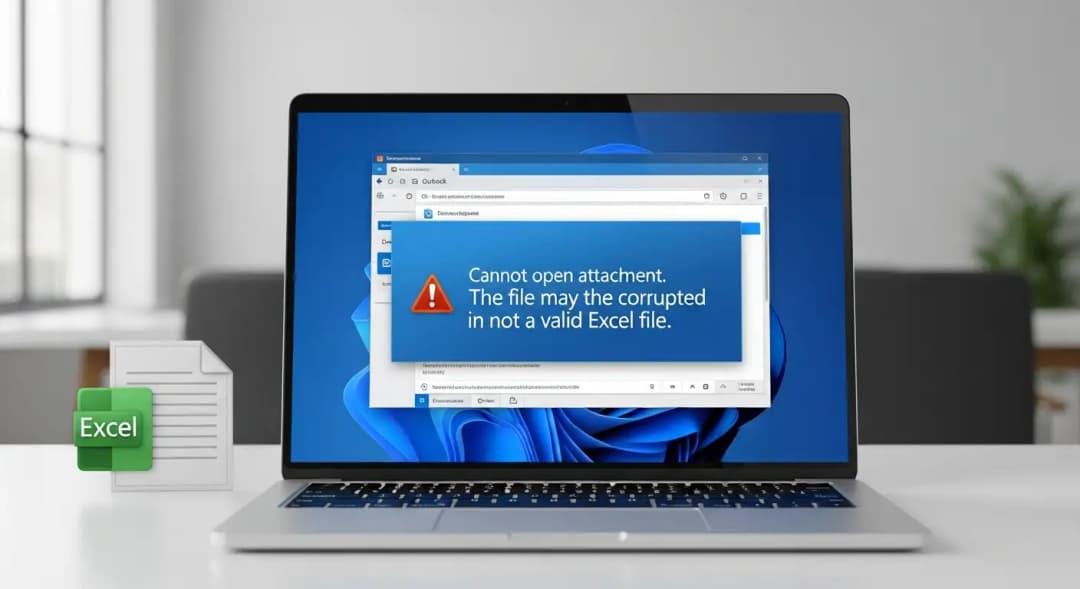
If you were affected in late 2025, Microsoft confirmed a bug in new Outlook involving Excel attachment filenames containing non-ASCII characters. That incident was tracked as EX1189359.
If you are experiencing the problem now, the old incident may not be the cause because Microsoft reported it resolved in December 2025. Check your Outlook version, test Outlook on the web, download the attachment locally, and check Microsoft 365 Service health.
What does “Try opening the file again later” mean in Outlook?
During EX1189359, that generic message appeared when new Outlook failed to correctly process certain Excel attachment filenames.
The message itself does not identify a specific root cause, so seeing it today does not prove the historical bug has returned.
What are non-ASCII characters in a filename?
They are characters outside the traditional ASCII character set.
Examples include accented letters such as é, many symbols, and characters from writing systems such as Bengali, Arabic, Japanese, or Cyrillic.
Modern Windows and Microsoft 365 systems normally support Unicode filenames. The problem in EX1189359 was a software encoding defect, not the fact that international filenames are inherently invalid.
Can Outlook on the web open the attachment?
During EX1189359, Microsoft recommended Outlook on the web as a workaround.
It remains a useful troubleshooting test today because it lets you compare the same message using a different Outlook client.
Can I download the Excel attachment instead?
Yes. Microsoft supports downloading attachments from new Outlook, and downloading the affected spreadsheet locally was one of the documented workarounds for EX1189359.
Should I rename the attachment?
For the historical issue, a basic ASCII filename could avoid the documented trigger.
Today, however, the bug has already been fixed. Renaming is more useful as a diagnostic test than as a permanent workaround.
Should our company ban non-English filenames?
The available evidence does not support that recommendation.
The bug was Microsoft's encoding problem and was subsequently fixed. International organizations should not need to redesign normal document naming conventions around a resolved software defect.
Does EX1189359 affect Word and PowerPoint?
The confirmed service information reviewed for EX1189359 specifically identifies Excel attachments.
There is not enough official evidence to state that Word and PowerPoint were part of the same incident.
Should I switch back to classic Outlook?
You can test classic Outlook if it is installed and an urgent workflow is failing in new Outlook.
But because EX1189359 was fixed in December 2025, an organization-wide rollback should not be the automatic response to this historical issue.
Identify the current cause first.
Final Thoughts
The new Outlook really did have a problem opening some Excel attachments in late 2025.
Microsoft tracked it as EX1189359. The failure was connected to non-ASCII characters in Excel filenames, and the final incident information says a recent attachment-caching change introduced the encoding error.
The most important update is that the story did not end with Microsoft “still validating” a patch.
The public incident record says deployment was completed on December 8, 2025, and customer testing confirmed remediation in new Outlook version 20251128003.06.
If the same error appears today, start with evidence:
check the Outlook version, test Outlook on the web, download the file locally, compare another attachment, and check Microsoft 365 Service health.
That approach helps determine whether you are dealing with an Outlook client problem, a particular file, a Microsoft service issue, or something that requires a separate security investigation.
An Excel attachment refusing to open is not automatically a cybersecurity incident.
However, professional investigation becomes relevant when attachment problems occur alongside suspicious senders, credential prompts, unexpected links, malicious-file alerts, unusual account activity, or repeated phishing attempts.
Hoplon Infosec's Email Security and Anti-Phishing service is relevant for organizations that need to assess and strengthen protection against phishing, malicious attachments, spoofing, business email compromise, and related email threats.
If the issue looks bigger than an Outlook software error and suspicious email activity is involved, review your email security controls before treating the message as trusted.
You can also read these important cybersecurity news articles on our website.