It usually starts with something ordinary. You are waiting for a friend, standing in a coffee shop, or checking messages before bed. A text arrives saying there is a problem with your bank account. The message looks believable, so you tap the link.
Nothing dramatic happens. The page may fail to load, or it may ask you to sign in. You close it and continue with your day.
Later, your phone begins getting warm. The battery runs down faster than normal. A friend asks why you sent them a strange message. Then you notice a login alert from a place you have never visited.
This is what makes phone hacking dangerous. It does not always arrive with a clear warning. It can quietly enter through a fake message, a harmful app, a weak password, an unsafe network, or an account that was already exposed somewhere else.
Learning how to protect your phone from hackers is no longer something only security experts need to understand. Your smartphone is connected to almost every important part of your life, which means protecting it is one of the most practical things you can do for your privacy, money, work, and peace of mind.
How Can You Protect Your Phone From Hackers?
You can protect your phone by using a strong screen lock, keeping the operating system updated, installing apps only from trusted stores, reviewing app permissions, enabling two factor authentication, avoiding suspicious links, securing your mobile account, turning on lost device protection, and backing up important information regularly.
No single setting can block every possible attack. Strong phone security comes from several simple protections working together.
Phone Security Checklist
| Security Action | Why It Matters | Recommended Priority |
|---|---|---|
| Use a strong passcode | Prevents easy access when your phone is lost or stolen | Immediate |
| Enable two factor authentication | Adds another verification step to important accounts | Immediate |
| Install software updates | Fixes known security weaknesses | High |
| Review app permissions | Stops apps from accessing information they do not need | High |
| Use official app stores | Reduces the chance of installing harmful software | High |
| Turn on device finding | Allows you to locate, lock, or erase a missing phone | High |
| Back up important data | Protects your files if the phone must be erased | High |
| Secure your mobile carrier account | Helps prevent SIM swap attacks | High |
| Avoid unknown links | Reduces the risk of phishing and malware | Daily habit |
| Remove unused apps | Reduces unnecessary access and security risks | Monthly |
What Does Phone Hacking Mean?
Phone hacking means someone gains access to your device, accounts, communications, or personal information without your permission. The attacker may control the phone directly, secretly monitor activity, steal login details, read private messages, track your location, or use your identity to target other people.
Sometimes the phone itself is infected. In other cases, the attacker enters through an account connected to the phone, such as your email, cloud storage, social media profile, or mobile carrier account.
This distinction matters. Resetting your phone may remove a harmful app, but it will not protect you if the attacker still knows your email password. Good mobile security must protect both the physical device and the accounts connected to it.
Why Your Smartphone Is Such a Valuable Target
Years ago, stealing a phone mainly meant stealing an expensive object. Today, the information inside the phone may be worth far more than the device itself.
Your email can be used to reset other passwords. Your messages can reveal personal details. Your saved payment methods can be abused. Your photographs may contain private documents. Your work apps may provide access to company information. Your phone number may be used to receive security codes.
One compromised phone can provide several paths into a person’s life. This is why criminals often focus on phones instead of trying to attack each account separately.
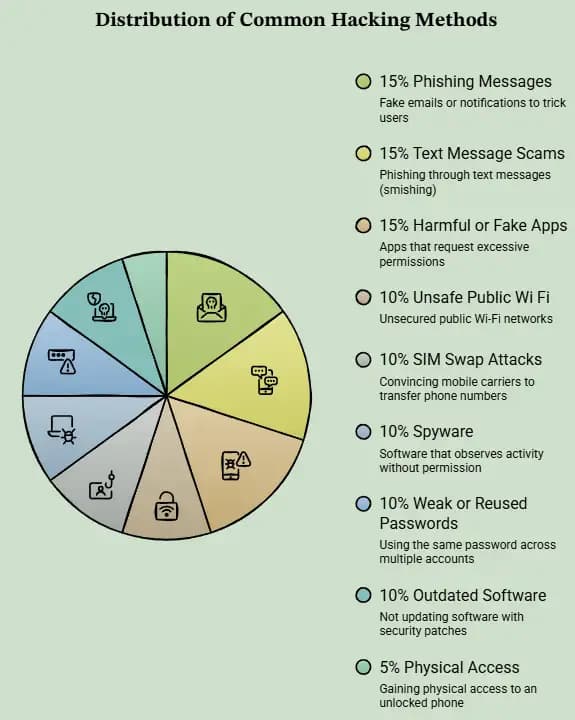
How Hackers Get Into Phones
1. Phishing Messages
Phishing happens when someone sends a fake email, message, or notification that appears to come from a trusted company. The message may claim that your bank account has been locked, a delivery has failed, or a payment needs confirmation.
The goal is to create fear or urgency. Once you tap the link, you may be taken to a fake login page that records your password.
2. Text Message Scams
Phishing through text messages is often called smishing. These messages are effective because people tend to read text messages quickly and respond without checking the sender carefully.
Avoid opening links in unexpected messages. Open the official app or type the company website into your browser instead.
3. Harmful or Fake Apps
Some apps pretend to be games, cleaners, keyboards, photo editors, financial tools, or popular services. After installation, they may request access to contacts, messages, storage, location, camera, or microphone.
Even an ordinary app can become a privacy risk when it receives more access than it needs.
4. Unsafe Public Wi Fi
Public networks in airports, hotels, shopping areas, and coffee shops are convenient, but they should not automatically be trusted. Fake networks can also be created with names that look similar to the official network.
Avoid entering banking details, business passwords, or other sensitive information while using an unfamiliar public network. Mobile data is usually the safer choice for important tasks.
5. SIM Swap Attacks
During a SIM swap attack, a criminal convinces a mobile carrier to move your phone number to another SIM card or device. Once the number is transferred, the attacker may receive your calls and verification codes.
A strong carrier account password or account PIN can make this attack more difficult.
6. Spyware
Spyware is software designed to observe activity without clear permission. It may collect messages, calls, passwords, photos, browsing activity, or location information.
Spyware may arrive through a harmful link, an unsafe app, or physical access to an unlocked phone.
7. Weak or Reused Passwords
When the same password is used across several accounts, one data breach can create problems everywhere. Attackers often test exposed email and password combinations on other popular services.
A unique password for every important account limits the damage when one service is compromised.
8. Outdated Software
Updates do more than add features. They often repair security weaknesses discovered in the operating system, browser, or apps.
Delaying updates can leave a known opening available long after a fix has been released.
9. Physical Access
A person does not always need advanced skills to invade your privacy. An unlocked phone left on a desk may provide access to messages, saved passwords, email, photographs, and account settings.
A secure screen lock remains one of the simplest and strongest protections.
Signs Your Phone May Be Hacked
| Warning Sign | Possible Explanation | What You Should Check |
|---|---|---|
| Battery drains suddenly | A hidden process may be running in the background | Battery usage by app |
| Phone becomes unusually hot | An app may be using the processor continuously | Recently installed apps |
| Unexpected data usage | An app may be sending information | Mobile data statistics |
| Unknown apps appear | Someone may have installed unwanted software | Complete app list |
| Frequent popups | Adware or a harmful browser setting may be present | Browser permissions and apps |
| Strange account activity | An account may have been accessed by another person | Login history and connected devices |
| Messages sent without you | An account or messaging app may be compromised | Active sessions and sent messages |
| Security settings change | Someone may be trying to maintain access | Device administrator and account settings |
| Phone becomes very slow | Unwanted software may be consuming resources | Storage, memory, and app activity |
| Microphone or camera indicator appears | An app may be using a sensor | Privacy dashboard and permissions |
One warning sign does not automatically prove that your phone has been hacked. An old battery, limited storage, a damaged app, or a recent software update can produce similar problems. Several unusual signs appearing together deserve closer attention.
What to Do If Your Phone is Hacked
1. Disconnect the Phone
Turn off mobile data, Wi Fi, Bluetooth, and personal hotspot connections. This may interrupt active communication between harmful software and an outside server.
2. Use Another Trusted Device
Do not change critical passwords from a phone that may still be compromised. Use a trusted computer, tablet, or another secure phone.
3. Protect Your Email First
Your main email account is often the key to your other accounts. Change its password, enable two factor authentication, review recovery information, and sign out unknown devices.
4. Change Important Passwords
Protect banking, payment, social media, cloud storage, work accounts, your Apple Account, and your Google Account. Use a different password for each account.
5. Contact Your Mobile Carrier
Ask whether your SIM card, electronic SIM, forwarding settings, or account details were changed. Add or replace the security PIN on your carrier account.
6. Remove Suspicious Apps
Delete apps you do not recognize. Pay special attention to apps installed shortly before the problem began and apps with access to messages, accessibility settings, device administration, microphone, camera, or location.
7. Review Connected Devices
Check which phones, computers, browsers, and sessions are signed in to your important accounts. Remove anything you do not recognize.
8. Run a Trusted Security Check
Android users can check Google Play Protect and review installed apps. Both Android and iPhone users should review security alerts, account activity, permissions, browser settings, and device profiles.
9. Tell Your Contacts
Warn friends, relatives, coworkers, and customers if suspicious messages were sent from your accounts. Tell them not to open unexpected links or send money based on those messages.
10. Contact Financial Providers
Inform your bank or payment provider when financial details may have been exposed. Review recent activity and ask whether additional protection should be added.
11. Back Up Essential Files Carefully
Save important photos, contacts, and documents. Avoid backing up unknown apps or questionable installation files that could restore the same problem later.
12. Consider a Factory Reset
A factory reset may be necessary when suspicious activity continues or harmful software cannot be removed. It erases the contents of the phone, so confirm that important information is safely backed up first.
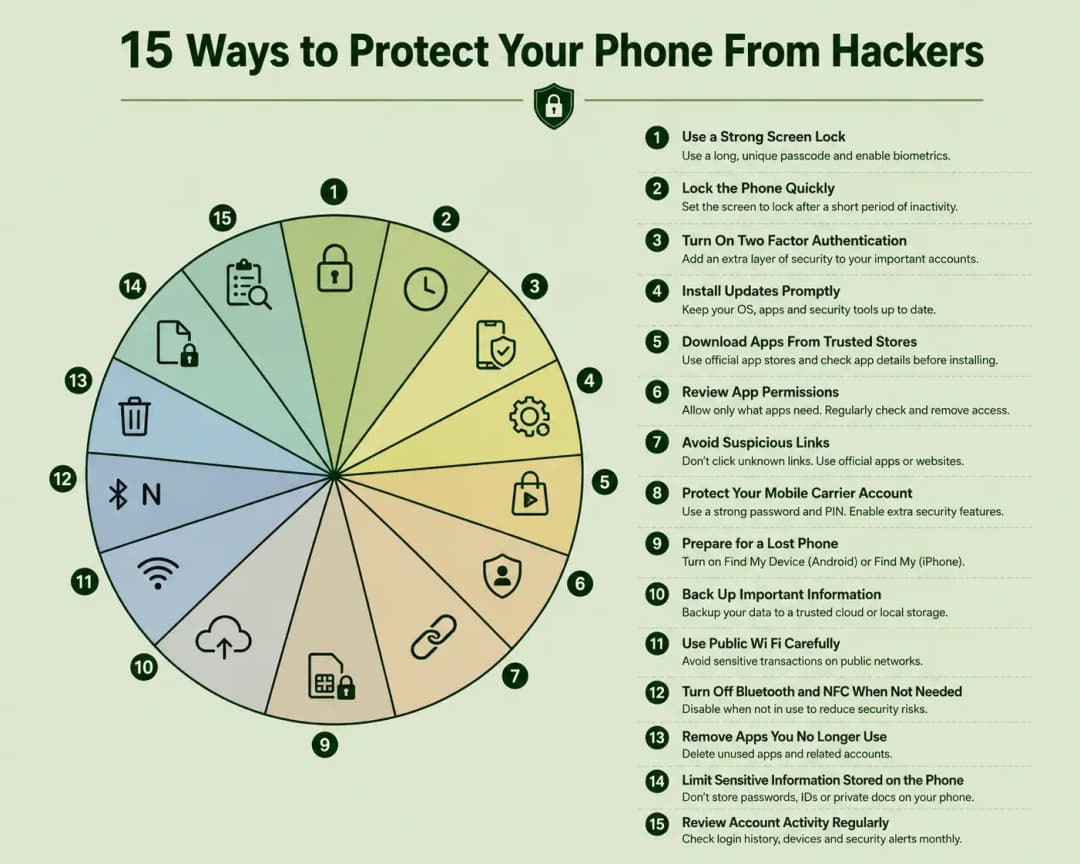
15 Ways to Protect Your Phone From Hackers
1. Use a Strong Screen Lock
Choose a long passcode that cannot be guessed from your birthday, phone number, address, or simple number patterns. A six digit code is stronger than a basic four digit PIN, but a longer passcode is better when your phone supports it.
Fingerprint and face recognition are convenient, but your passcode remains important because it protects access when biometric recognition is unavailable.
2. Lock the Phone Quickly
Set the screen to lock after a short period of inactivity. A secure phone is less useful when it stays open for several minutes after being placed on a table.
3. Turn On Two Factor Authentication
Two factor authentication requires an additional form of confirmation after the password. Whenever possible, use an authenticator app, security key, passkey, or trusted device confirmation instead of relying only on text message codes.
The two factor authentication guide from the Federal Trade Commission explains why this extra step improves account security.
4. Install Updates Promptly
Keep the operating system, browser, messaging apps, financial apps, and security tools current. Turn on automatic updates when practical.
Google provides official instructions for checking and installing Android security updates.
5. Download Apps From Trusted Stores
Use the Google Play Store or Apple App Store whenever possible. Before installing an app, check the developer name, download history, reviews, privacy information, requested permissions, and recent update date.
An official store lowers the risk, but it does not replace careful judgment.
6. Review App Permissions
A weather app may need location access, but it may not need your microphone. A photo editor may need access to selected pictures, but it may not need your contacts.
Review camera, microphone, location, contacts, photos, messages, nearby devices, and accessibility permissions regularly. Remove access when it is not necessary.
CISA recommends reviewing permissions, limiting location access, updating apps, and deleting apps that are no longer needed in its guidance on mobile app privacy.
7. Avoid Suspicious Links
Do not trust a message simply because it includes a familiar company name or logo. Criminals can copy both.
When a message claims that an account needs attention, open the company’s official app or visit its website directly. The Federal Trade Commission offers additional advice on how to recognize phishing scams.
8. Protect Your Mobile Carrier Account
Create a unique password and account PIN with your carrier. Ask whether number transfer protection, port protection, or an extra verification requirement is available.
The official SIM swap protection guide explains how criminals may attempt to take control of a phone number.
9. Prepare for a Lost Phone
Do not wait until your phone disappears. Turn on device finding and confirm that you know how to use it.
Android users can follow Google’s instructions to find, secure, or erase a lost Android device.
Apple users can review account access, device protection, sharing, and personal safety through the official Apple Personal Safety User Guide.
10. Back Up Important Information
A secure backup allows you to recover contacts, photographs, documents, and other essential information after a lost phone, damaged phone, or factory reset.
Use a trusted cloud service or an encrypted local backup. Review backup settings occasionally to confirm that recent information is actually being saved.
11. Use Public Wi Fi Carefully
Avoid sensitive transactions on unknown networks. Confirm the correct network name with an employee before connecting. Turn off automatic connection to open networks.
For important work, financial activity, or account changes, use mobile data or another network you trust.
12. Turn Off Bluetooth and NFC When Not Needed
Bluetooth and NFC are useful, but there is little reason to leave every wireless feature active all the time. Turning them off when unused reduces unnecessary exposure and also saves some battery power.
13. Remove Apps You No Longer Use
Every installed app adds permissions, stored information, updates, and another possible source of security problems. Delete old games, unused shopping apps, abandoned work tools, and services you no longer trust.
When appropriate, delete the account connected to the app as well.
14. Limit Sensitive Information Stored on the Phone
Do not keep passwords, identification numbers, banking codes, recovery phrases, or private documents in ordinary notes or messages.
Delete old screenshots of tickets, identity documents, financial records, addresses, and private conversations when they are no longer needed.
15. Review Account Activity Regularly
Look at login history, connected devices, recovery email addresses, phone numbers, forwarding rules, and security alerts. A monthly review can reveal suspicious access before it develops into a larger problem.
How to Secure an Android Phone
Open Settings and review Security and Privacy.
Use a strong screen lock and enable fingerprint or face recognition if desired.
Check for Android system and security updates.
Open Google Play and confirm that Play Protect scanning is active.
Review the Permission Manager for camera, microphone, contacts, location, messages, and files.
Turn on Find Hub and confirm that the device appears in your Google Account.
Remove unknown device administrator apps and unnecessary accessibility access.
Check which devices are signed in to your Google Account.
Disable installation from unknown sources unless you have a clear and trusted reason to use it.
Back up contacts, photographs, messages, and essential files.
Menu names can vary between Android versions and phone manufacturers, so use the Settings search option when a feature is difficult to find.
How to Secure an iPhone
Use a strong passcode instead of a simple number pattern.
Enable Face ID or Touch ID for convenient protection.
Keep iOS and installed apps updated.
Turn on Find My and confirm that the iPhone appears in your Apple Account.
Enable two factor authentication for your Apple Account.
Review Privacy and Security settings for location, camera, microphone, photos, contacts, and tracking.
Check which devices are connected to your Apple Account.
Review configuration profiles and remove anything you do not recognize.
Use Safety Check when you need to review people, apps, devices, and information sharing.
Enable Stolen Device Protection when it is available on your iPhone.
Apple explains how Safety Check can review sharing, connected devices, trusted phone numbers, account access, and security settings in its official iPhone Safety Check instructions.
Advanced Mobile Security Settings Worth Checking
Hide Sensitive Notification Content
A locked phone can still reveal private messages, security codes, names, and account alerts through notification previews. Set sensitive content to remain hidden until the phone is unlocked.
Protect Your Lock Screen
Review which features can be used without unlocking the phone. Consider limiting access to quick settings, message replies, voice assistants, payment tools, and account controls.
Check Accessibility Access
Accessibility features can provide powerful control over a device. Only trusted apps should receive this access.
Review Device Administration
Some security, workplace, and parental control apps need device administration privileges. Remove this privilege from apps you do not recognize before uninstalling them.
Use Encrypted Communication
For private conversations, choose a trusted service that clearly supports end to end encryption. Remember that encryption protects message delivery, but it cannot protect a conversation when someone has access to an unlocked phone.
Use a Password Manager
A trusted password manager can create and store unique passwords. This is safer than reusing one memorable password or saving login details in an ordinary note.
Add a Carrier PIN
A mobile carrier PIN is separate from your phone screen lock. It can help prevent someone from making account changes by pretending to be you.
Review Browser Permissions
Websites can request access to notifications, camera, microphone, location, downloads, and popup windows. Remove permissions granted to unfamiliar websites.
Common Phone Security Mistakes
Using the Same Password Everywhere
One exposed password should not unlock your email, social media, cloud storage, and shopping accounts. Unique passwords reduce the reach of a single breach.
Ignoring Updates for Months
Waiting for a convenient time can turn into permanent delay. Install important security updates soon after they become available.
Giving Every App Full Access
Many people approve permissions quickly during installation and never review them again. Access should match the actual purpose of the app.
Leaving the Phone Unlocked
A complicated security setup cannot help when the device is left open and unattended.
Trusting Every Security Warning
Fake security alerts often claim that a phone is infected and demand an immediate download or payment. Close the page and check the device through official settings instead.
Keeping Old Screenshots Forever
Screenshots can contain booking details, addresses, identification documents, payment confirmations, account numbers, and private conversations. Delete them when they are no longer useful.
Can an iPhone Be Hacked?
Yes. An iPhone includes strong security protections, but it can still be affected by stolen passwords, phishing, unsafe account recovery, harmful profiles, physical access, SIM swap attacks, and advanced software weaknesses.
Keeping iOS updated, using a strong passcode, enabling two factor authentication, reviewing connected devices, and turning on Stolen Device Protection can reduce the risk significantly.
Can an Android Phone Be Hacked?
Yes. Android phones can be compromised through phishing, unsafe apps, stolen passwords, unnecessary permissions, modified installation files, outdated software, physical access, and mobile account fraud.
Android users should keep the system updated, use Play Protect, limit installations from unknown sources, review permissions, and prepare Find Hub before the phone is lost.
Frequently Asked Questions
Can someone hack my phone by calling me?
Simply answering an ordinary call is unlikely to hack your phone. The greater risk is manipulation. A caller may try to convince you to reveal a password, share a security code, install an app, change a setting, or visit a harmful website.
Can my phone be hacked by opening a text message?
Reading a normal message is usually not enough to compromise a modern phone. The risk increases when you tap an unsafe link, download a file, install an app, or enter information on a fake website. Rare advanced attacks may require little or no interaction, which is another reason to keep your software updated.
Can a hacker see through my phone camera?
Harmful software with camera permission may be able to use the camera. Review camera and microphone access, remove unknown apps, and pay attention to sensor activity indicators.
Can a hacker listen through my microphone?
An app with microphone access may record sound when the operating system allows it. Limit microphone permission to apps that genuinely need it.
Can public Wi Fi hack my phone?
Connecting to public Wi Fi does not automatically mean your phone will be hacked. However, fake or poorly protected networks may expose your activity or direct you toward harmful pages. Avoid sensitive tasks on networks you do not trust.
Does airplane mode stop hackers?
Airplane mode disconnects most wireless communication and may interrupt active remote access. It does not remove harmful software, repair account access, or change stolen passwords.
Is a phone safe when it is completely turned off?
A fully powered off phone cannot normally communicate over mobile data or Wi Fi. For most people, this prevents ordinary remote activity until the phone is turned on again.
Will a factory reset remove a hacker?
A factory reset can remove many forms of unwanted software stored on the device. It will not secure an email account, cloud account, social media account, or phone number that the attacker can still access. Account passwords and recovery settings must also be protected.
Should I change my phone number after being hacked?
Usually, changing passwords, securing the carrier account, replacing the SIM when necessary, and reviewing account access are enough. A new number may be considered when the current number remains under attack or is being seriously abused.
How often should I review phone security?
Check software updates whenever they appear. Review app permissions, connected devices, unused apps, backups, and account activity at least once a month.
What is the best way to prevent phone hacking?
The best approach is to combine a strong passcode, current software, unique passwords, two factor authentication, careful link handling, limited app permissions, trusted downloads, carrier account protection, and regular backups.
Official Phone Security References
How to protect your phone from hackers from the Federal Trade Commission
Mobile device cybersecurity checklist from CISA
Cybersecurity best practices from CISA
Phishing scam protection from the Federal Trade Commission
Final Thoughts
Your smartphone does not need to become completely unusable before a security problem becomes serious. A stolen password, an unknown app, a transferred phone number, or access to your main email can be enough to create lasting damage.
The encouraging part is that most people can improve their phone security without buying expensive tools or learning complicated technical skills. Start with the basics. Use a strong passcode. Update the phone. Protect your email. Turn on two factor authentication. Review app permissions. Secure your mobile carrier account. Prepare your lost phone tools. Keep a reliable backup.
Knowing how to protect your phone from hackers is really about building better habits before something goes wrong. A few careful choices today can prevent days or even months of stress later.
Related Articles: